
Cursor Remote Control is Cursor's own feature. It takes an agent already running on your computer and lets you keep directing it from the Cursor iOS app, by moving the agent loop into Cursor's cloud while the tool calls stay on your machine. It steers Cursor's own agent only. This page explains it first, then the route for what it does not cover.
Three routes reach an agent in Cursor from a phone today, and they are not interchangeable. Two of them are cloud-shaped: Cloud Agents are cloud runs in a VM on a clone of your repository, and Remote Control runs the agent loop in Cursor's cloud too, keeping only the tool calls on your machine, on iOS, on a paid plan, in a workspace with a Git remote. The third runs a different agent, Grok Build for VS Code (Community), inside Cursor and puts it in any browser, including Android, on a free tier, with local file editing. It is the only route where the whole agent stays on your machine, and the only remote control for the Grok Build agent in Cursor.
I built the extension and I built AFK Pilot. Two of the three options here are Cursor's, not mine, and neither of mine is affiliated with or endorsed by Cursor or SpaceXAI (formerly xAI).
Last updated: September 4, 2026.
At a Glance
Cursor's Cloud Agents. A cloud run: isolated VMs on a clone of your repo. Any browser, results as a branch or pull request.
Cursor's Remote Control. Steers Cursor's own agent from the iOS app, with the agent loop in Cursor's cloud and tool calls on your machine. Needs Cursor 3.9.8+, a paid plan, a Git remote, and cloud data storage enabled.
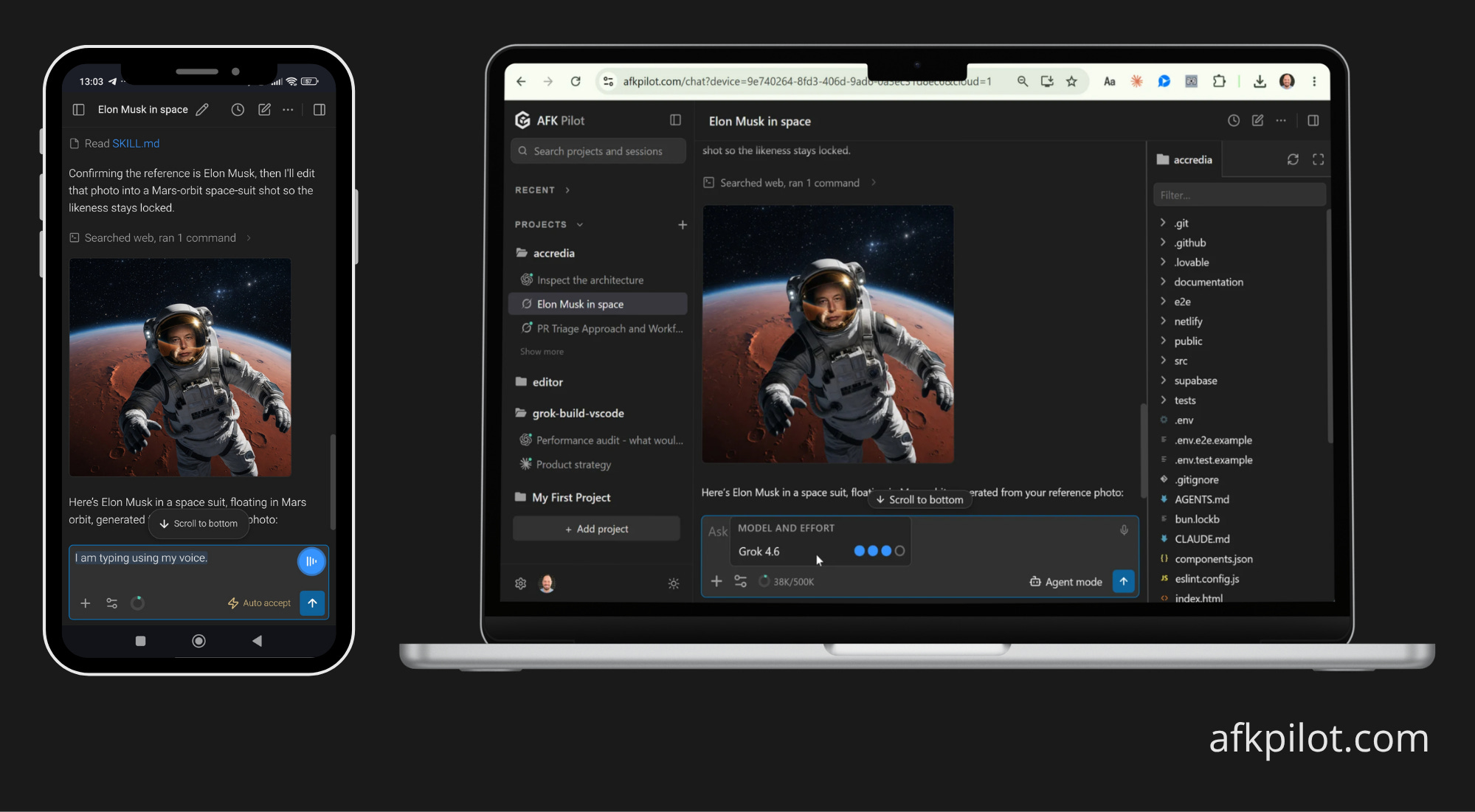
The third route. Grok Build for VS Code (Community) v3.5.0 in Cursor 3.x, paired to AFK Pilot, driven from any browser on iPhone or Android. Installable as a phone app (PWA).
Setup. Pair once with a one-time code. No tunnels, no config, no Git remote needed.
Your files. They stay local, and from the phone you can browse the tree and open, edit and save a text file.
Price. Free tier: 1 linked device, 100 remote messages a week. Remote Max: $5 a month, no limits.
Three Kinds of Remote in Cursor
"Remote" means three different things here, and picking the wrong one costs you an afternoon.
Cloud agents
Cursor's own description: "Cloud agents use the same agent fundamentals but run in isolated VMs in the cloud with full development environments instead of on your local machine." You start one from cursor.com/agents in any browser, from the iOS app, from the IDE, from Slack, from a PR comment, or over the API. It works on a clone of your repository, and the result arrives as a branch or a pull request.
When the work is repo-shaped, meaning committed code and a task that ends in a diff, this is the strongest option on the page. Your laptop can be shut, and several can run at once. If that describes your task, use it and skip the rest.
The boundary is the clone. A cloud VM is not your working tree, so uncommitted changes, local services, and files outside the repository are not there.
Remote Control
Cursor's first-party answer for local sessions, shipped July 28, 2026, and the reason "cursor remote control" is a product name now rather than a generic phrase. Their description: "Remote Control lets you take an agent you're running on your computer and keep directing it from your phone. The agent loop moves to the cloud while its tools keep running on your machine, so it reads your files, runs your tests, and uses your local setup." You turn it on with /remote-control in the agent input, and the session appears in the iOS app's inbox.
That solves a real problem: your environment, your tests, your machine's tool calls, steered from a phone while you are elsewhere. Two boundaries define it. The agent loop and your conversation context run in Cursor's cloud, not on your machine. And it steers Cursor's own agent only, so the Grok Build agent is out of its reach.
Three requirements decide whether you can use it at all: iOS only, a paid plan, and a workspace with a Git remote. The phone side shows changed files in a diff view, and Cursor is direct that "it isn't an IDE" and not a full workspace, so you review changes rather than open arbitrary project files. Full requirements list in the FAQ.
The local agent with a browser surface
The third route is the only one where the agent itself stays on your machine, and the only remote control for the Grok Build agent in Cursor. You run Grok Build for VS Code (Community) inside Cursor, which drives the official Grok Build CLI agent, and AFK Pilot puts that session in any browser. The extension dials out, so there is no inbound port. You pair once with a one-time code. That route is not Grok-only either: the same extension connects OpenAI Codex and Claude Code, so the phone reaches whichever agent you have signed in.
Nothing stops you using two of them. They are different tools, not competitors.
Set It Up in Three Steps
Install the extension from Cursor's Extensions browser. Open Extensions in Cursor (Ctrl/Cmd+Shift+X), search "Grok Build for VS Code (Community)", and install. Cursor's extension search is served from Open VSX; the listing there is for reading, since Open VSX has no remote-install button. The extension is free, with 60,000+ installs across the VS Code Marketplace and Open VSX, and it runs in Cursor 3.x. On first launch it walks you through installing the
grokCLI and signing in, one click per step. Grok Build is free to try with usage limits on any X or Grok account, and sustained use needs SuperGrok, X Premium+, or an xAI API key.Link this device. In the extension, open the gear menu, choose Remote Control, then Sign in (link this device). The approval page opens in your browser.
Open it on your phone. Visit afkpilot.com on the phone, sign in, and tap Install app.
That is the whole setup. No tunnels, no config, and no Git remote required. Longer walkthrough, including the standalone desktop host: Grok Remote Control.
What You Can Do From the Phone
It is the same session Cursor is running, not a separate agent, so the workspace, the repo, and the history are the ones on your desk. From the phone you send new work and approve the agent's permission prompts, watch tool calls stream live, switch the model mid-task, and browse the project to open, edit and save a text file. It is an editor rather than a file manager: no create, delete, or rename. Full walkthrough: Grok Remote Control.
What This Is Not
Not remote control of Cursor's own agent. This drives the Grok Build agent running inside Cursor. If you want Cursor's own agent steered from your phone, that is Cursor's Remote Control, and you should use it when you meet its requirements.
Not a mobile IDE. You are steering an agent and making the occasional targeted edit, not writing code by hand on a 6-inch screen.
Not a Cursor or SpaceXAI product. The extension is a community project, AFK Pilot is an independent service, both are mine, and neither is affiliated with or endorsed by either company.
Not a substitute for your machine staying on. Since v2.0.1 the extension holds off idle sleep while a device is linked, so a turn you started from the phone survives the screensaver. A closed lid still suspends on every operating system. Cursor's Remote Control has the same requirement. Only Cloud Agents escape it.
So does AFK Pilot Cloud: a dedicated Linux machine with the same extension and agents preinstalled, which sleeps on its own and wakes when you open it.
Privacy and What Leaves Your Machine
Three routes, three data postures, and it is worth knowing which one you are picking.
Cloud Agents. A copy of your repository is checked out and executed in Cursor's VM. The code is there because it has to be.
Cursor's Remote Control. Repository and secrets stay on your machine, but the agent loop and your conversation context move to Cursor's cloud. That is why cloud data storage has to be enabled, and why accounts in privacy mode are locked out. Enabling it is not reversible.
This route. Messages are relayed in memory and never stored on our servers. Files stay on your machine, where the agent reads them locally.
It is still a relay, so your prompts and the agent's replies pass through it in transit. Your files never do. Every linked device binds to your account and stays revocable, so a lost phone is a revocation rather than an incident. If a third-party relay is outside your threat model, the self-hosted Tailscale alternatives keep every byte on hardware you control.
Pricing
The free tier is one linked device and 100 remote messages a week, with the full chat interface. Remote Max is $5 a month and removes both limits. A fair-use burst cap of 20 messages a minute applies on every plan, and messages inside the host itself are never limited. A linked device means a host machine: the phones and browsers you open it in do not count.
The extension itself stays free to install. Its source is public under FSL-1.1-MIT (Fair Source): free to use, modify, and redistribute for any purpose except building a competing commercial product or service, and each release converts to plain MIT two years after it ships. Cursor's Remote Control needs a paid Cursor plan; this route's free tier does not, which is most of why it exists.
FAQ
Can I control Cursor from my phone?
Yes, but only one route keeps the whole agent on your machine. Cursor's Remote Control steers Cursor's own agent from the iOS app by running the agent loop in Cursor's cloud, on Cursor 3.9.8+ and a paid plan, in a Git-backed workspace. Cursor's Cloud Agents run on a clone of your repository in a cloud VM, from any browser. The third route installs Grok Build for VS Code (Community) in Cursor and drives that agent from any browser including Android, on a free tier, with local file editing.
Does Cursor have a phone app?
Yes, on iOS, in public beta since late June 2026, covering both Cloud Agents and Remote Control sessions. There is no Android app yet and Cursor says Android is planned, so Android users get the web surface at cursor.com/agents instead. That is the clearest practical gap today: on Android you get Cursor's web surface for a cloud agent, or the third route for a local one, which runs in any mobile browser and installs as an app on both platforms.
What are Cursor Remote Control's requirements?
Cursor 3.9.8 or newer, a paid plan (Pro and up), a workspace with a Git remote, and cloud data storage enabled on your account. It is iOS only and English only, your computer has to stay awake and online, and on Teams or Enterprise an admin has to enable it first. Accounts in privacy mode are locked out until cloud data storage is switched on, which is not reversible.
Can I edit local files from my phone?
Not with Cursor's own apps, which show changed files in a diff view rather than a workspace. With the extension's remote file panel you can: browse the project tree and open, edit and save a text file, with several open as tabs beside the chat. Markdown has a preview toggle, the limit is 2 MiB of text, and there is no create, delete, or rename.
Is my code uploaded to a cloud?
It depends which route you pick. A Cloud Agent runs on a clone of your repository inside Cursor's VM, so the code is there. Cursor's Remote Control keeps the repository and your secrets local but moves the agent loop and conversation context to Cursor's cloud. The third route keeps files on your machine and relays only the conversation, in memory, never stored on our servers.
Does this remote-control Cursor's Composer?
No. It runs the Grok Build agent inside Cursor and steers that one. If you want Cursor's own agent directed from your phone, Cursor's Remote Control does exactly that on iOS on paid plans, and it is the better tool for that job. This route is what you use when you want a steerable agent in Cursor outside those requirements.
Is it free?
There is a free tier: one linked device and 100 remote messages a week, with the full chat interface, and Remote Max is $5 a month for unlimited devices and messages. The extension is free to install either way, and Grok Build itself is free to try with usage limits on any X or Grok account, with SuperGrok, X Premium+, or an xAI API key for sustained use. Cursor's Remote Control requires a paid Cursor plan.
Does it work with Devin Desktop (formerly Windsurf)?
It should, though I have not run it there myself. Windsurf became Devin Desktop in June 2026 under Cognition, its VS Code base is 1.126, above the extension's 1.106 floor, and it installs extensions from Open VSX, where this one is published. Tested and supported today: VS Code 1.106+, Cursor 3.x, and Antigravity 2.1.1+.
Do I need a tunnel or a VPN?
No. The extension dials out to the service, so there is no inbound port to open and no tunnel to keep alive. Pairing is a one-time code you enter once. Deciding between interfaces first: Does Grok Build have a GUI?.
---
AFK Pilot exists because a user asked for it, which is most of what I have to say about product work. I write that up here: what building in the open teaches me, not the tool tour.
Grok Build for VS Code (Community) and AFK Pilot are unofficial community projects by Pawel Huryn. Not affiliated with or endorsed by Cursor. Grok, Grok Build, and xAI are trademarks of xAI.