

I spent the entire week testing OpenAI Agent Builder. And I loved it.
But not for the reason everyone is praising it for — agentic workflows.
Imagine, what if your chatbot could control your app’s UI?
Turn on dark mode,
Guide the user by highlighting an option in the navigation menu,
Type, take action, and navigate inside your web app for the user?
Now you can do it without coding in 10 minutes:
I’m surprised more people aren’t talking about this.
Agent Builder revolutionizes not workflows, but user interactions.
We’re moving into the era of AI agents fully embedded in the user context — that can truly collaborate with users.
Hey, Paweł here. Welcome to the Product Compass, #1 actionable AI PM newsletter. Every week I share hands-on advice and step-by-step guides for AI PMs.
Here’s what you might have missed:
Consider subscribing and upgrading your account for the full experience:
P.S. I’m now using em dashes on purpose — working with LLMs helped me understand how helpful they are to express a pause.
In today’s issue, we cover:
What is OpenAI Agent Builder
Where ChatKit Fits In And Why It’s a Big Deal
🔒 Lovable Prompt Template: How to Combine Agent Builder & ChatKit
🔒 How to Implement Client Tools for Agents to Control Your App Step-by-Step
This guide will help you:
Understand what’s feasible.
Suggest better ideas for your product.
Build a unique solution for your AI PM portfolio.
In particular, prototyping with AI is not nice-to-have. As Kendrick from our community noticed, AI PMs are expected to prototype with AI. For example, Meta PMs vibe code products.
During the upcoming Office Hours (on Tuesday, always recorded) we will:
Briefly discuss using agents as tools in n8n (the old topic).
Build a chatbot from scratch using Agent Builder and ChatKit step-by-step.
This is a premium issue. I haven’t seen anyone demonstrating this setup. And lost a few hairs building templates that actually work, so you do not have to code.
Let’s dive in.
1. What is OpenAI Agent Builder
Agent Builder is a visual editor that helps you build single agents with basic visual orchestration. It’s available as part of the OpenAI Platform: https://platform.openai.com/docs/guides/agent-builder
Just like in n8n, you assemble workflows by dragging predefined nodes. The palette includes:
• Core: Agent, Note, End
• Tools: File search, Guardrails, MCP
• Logic: If/else, While, User approval
• Data: Transform, Set state
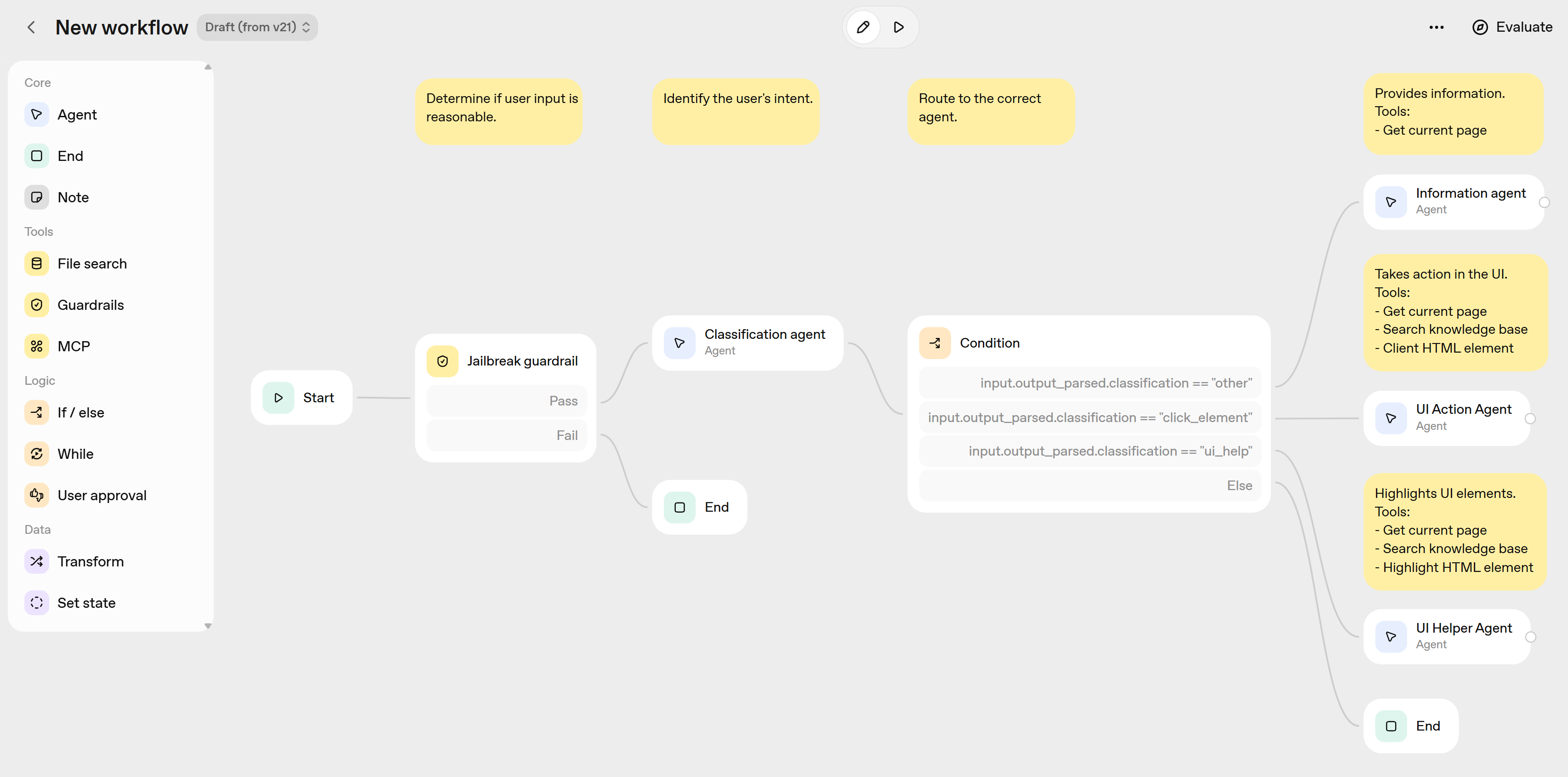
For details on each node type and the underlying API, see the Node Reference: https://platform.openai.com/docs/guides/node-reference
We will discuss how to use those nodes in practice during Office Hours.
1.1 OpenAI Agent Builder Example
Here, I briefly discuss the AI agent I built:
In the example above:
The flow starts by verifying whether the user input is reasonable. It uses the default “jailbreak” detector.
The next step is classifying user input. The agent responds with a structured output:
Any question about the app or interface should go to “ui_help.”
Any question about performing an action in the app should go to “click_element.”
Any other requests should go to “other.”
Next, I defined three agents:
UI Action Agent: Takes action in the UI. Available tools:
Get current page (HTML),
Search knowledge base (RAG),
Click an HTML element.
UI Helper Agent: Highlights UI elements. Available tools:
Get current page (HTML),
Search knowledge base (RAG),
Highlight an HTML element.
Information Agent: Provides information. Available tools:
Get current page (HTML).
1.2 OpenAI Agent Builder vs. n8n
I won’t lie. If you try to build a solution with anything more than a single agent — a non-trivial orchestration or a multi-agent system — you’ll quickly see that n8n is still light years ahead.
For example:
Google MCP: doesn’t work without a Zapier MCP workaround that connects to Google (only 100 free Zapier actions).
Going back to the previous step in the process: not supported.
Complex orchestration: not supported.
Code-based evals: not supported out-of-the-box.
Subagents: not supported.
I interpret the Agent Builder not as a mature solution but as a first iteration / experiment meant to collect user feedback.
I was close to giving up.
Then, I noticed the “AgentKit Client tool” and decided to understand what it does.
This changed everything.
2. Where ChatKit Fits In And Why It’s a Big Deal
ChatKit is the client-side SDK that lets your front end talk to a workflow you created in Agent Builder.
You drop it into your web app (React, Next.js, Lovable, etc.) to embed a fully interactive chat window that can also control your app via tools.
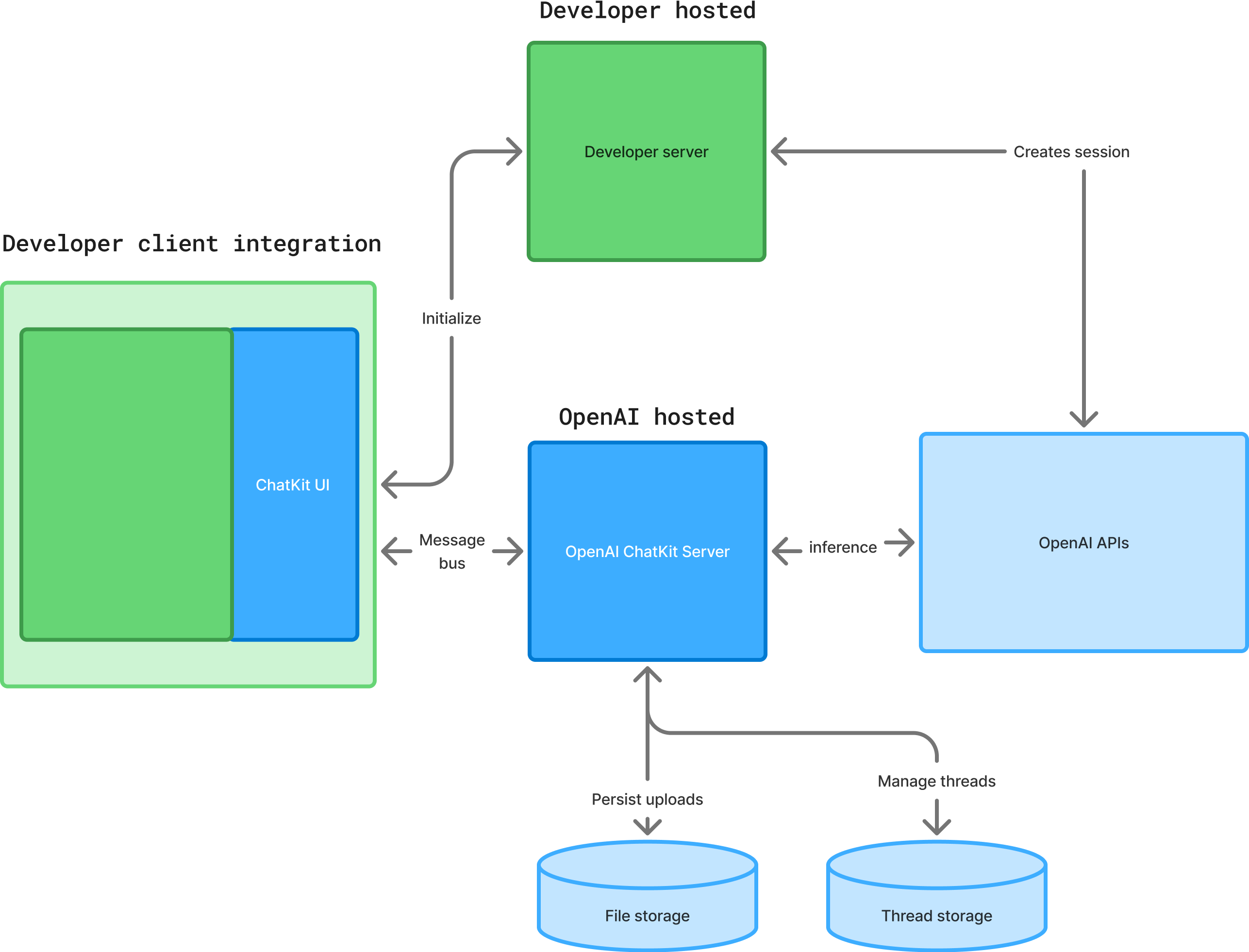
In your product (green areas in the diagram above), you need:
A ChatKit UI component embedded in your front end.
A simple backend, e.g., an edge function, that knows your workflow ID and connects to OpenAI using the API key.
For more information, see the official documentation.
3. Lovable Prompt Template: How to Combine Agent Builder & ChatKit
Following the official documentation is easier said than done.
For many hours, my Lovable struggled with advanced options, such as domain allowlist, unable to connect.
Finally, I figured out that domain allowlist is not needed if you add Supabase authentication. And created simple instructions that will allow you to achieve a working connection (both with allowlist and without it).
Step 1: Create a new workflow in OpenAI Platform
Go to platform.openai.com, sign in or sign up, and navigate to “Agent Builder.”
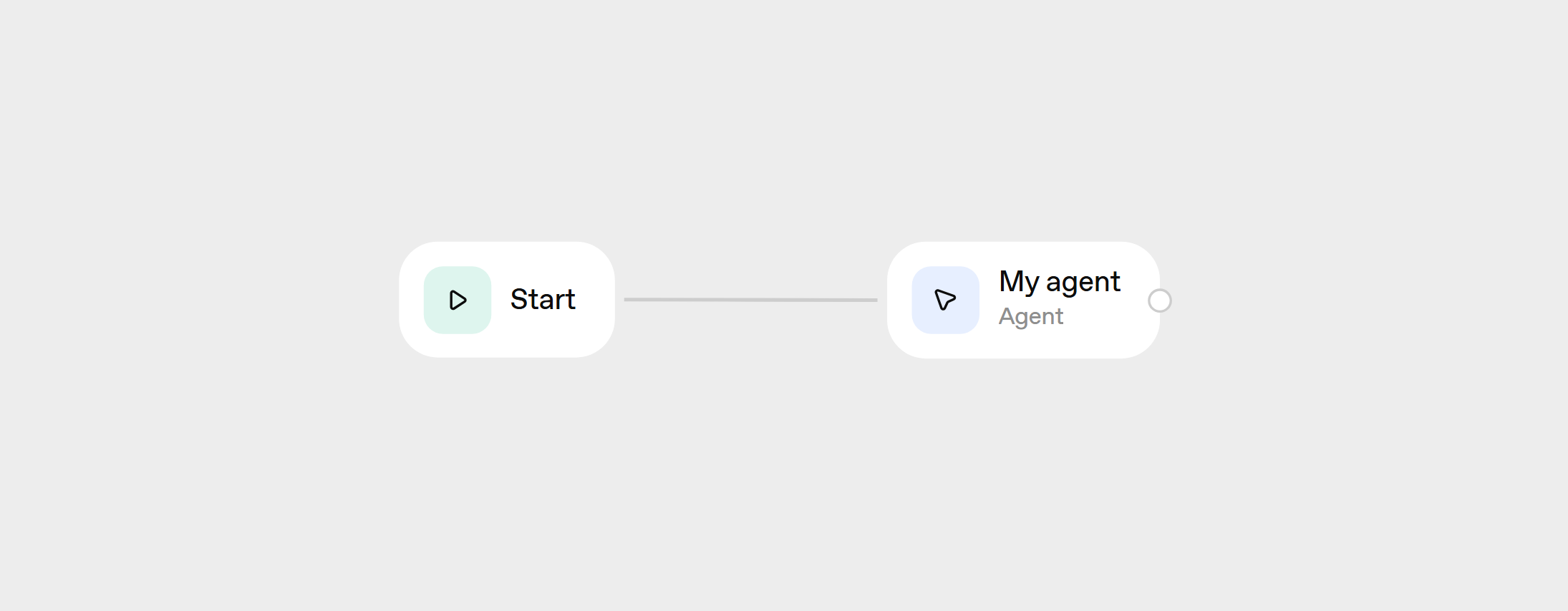
The first version will not include any client tools. Just make it work, for example (the default configuration created automatically):
Step 2: Publish that workflow and copy its ID
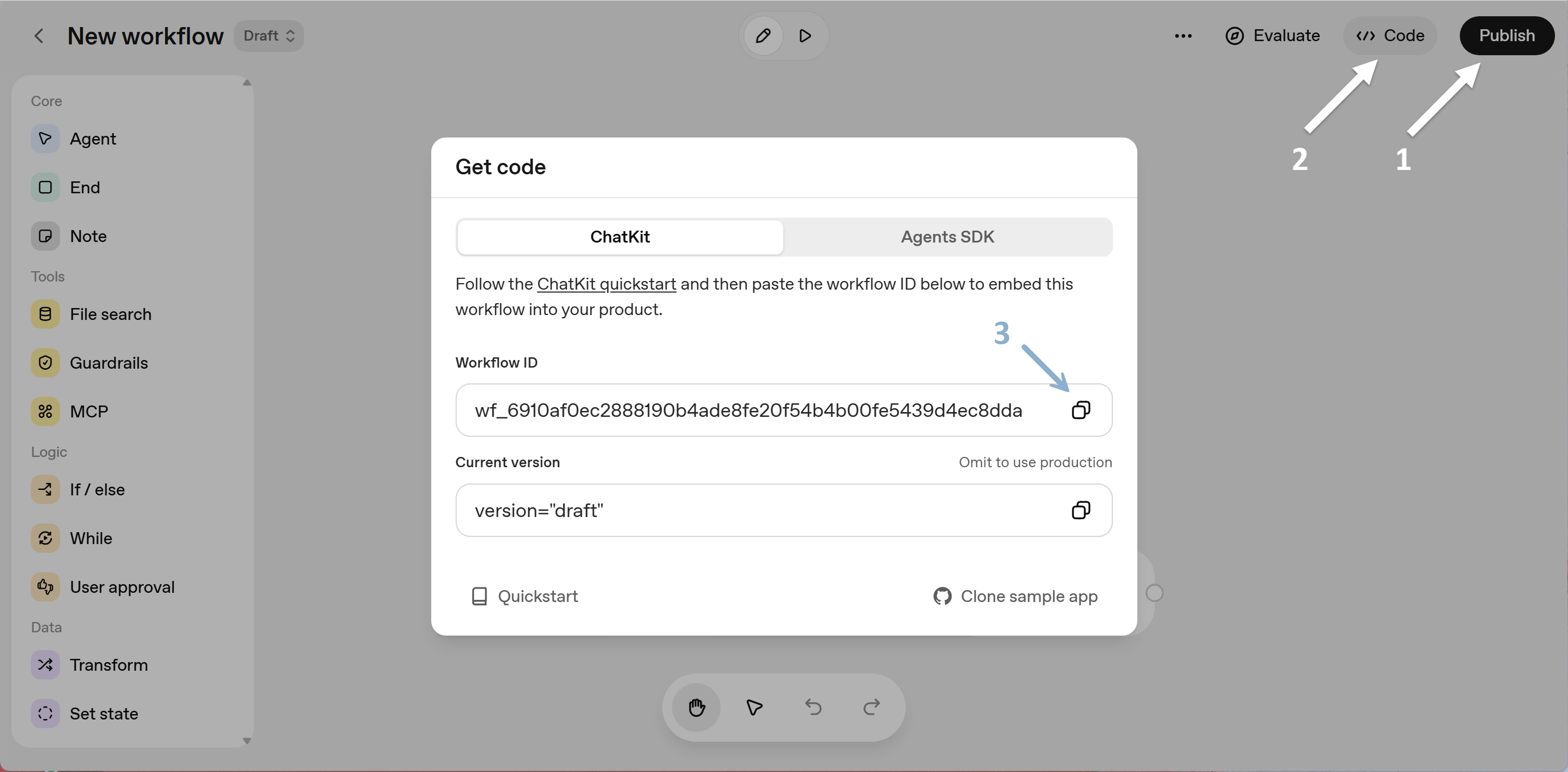
Click Publish > Code > Copy Workflow ID:
Step 3: Create a dedicated OpenAI API Key
Go to https://platform.openai.com/api-keys and click “Create a new secret key.”
Save that value.
Step 4: Prompt Lovable Using the Template
Go to lovable.dev and create a new project with the following prompt. Include the attached .md file: