

Hey, Paweł here.
Every week, I work with Product Managers. Many of you have been struggling with an IDE like VS Code. I get that. Those tools involve more engineering friction.
I recommended VS Code to Claude users because it’s been the best way to build agentic systems and prototype with AI.
Until now.
I'm blown away by the new Claude Desktop. It was rebuilt, and I agree with Thariq from Anthropic that this is like version 2:


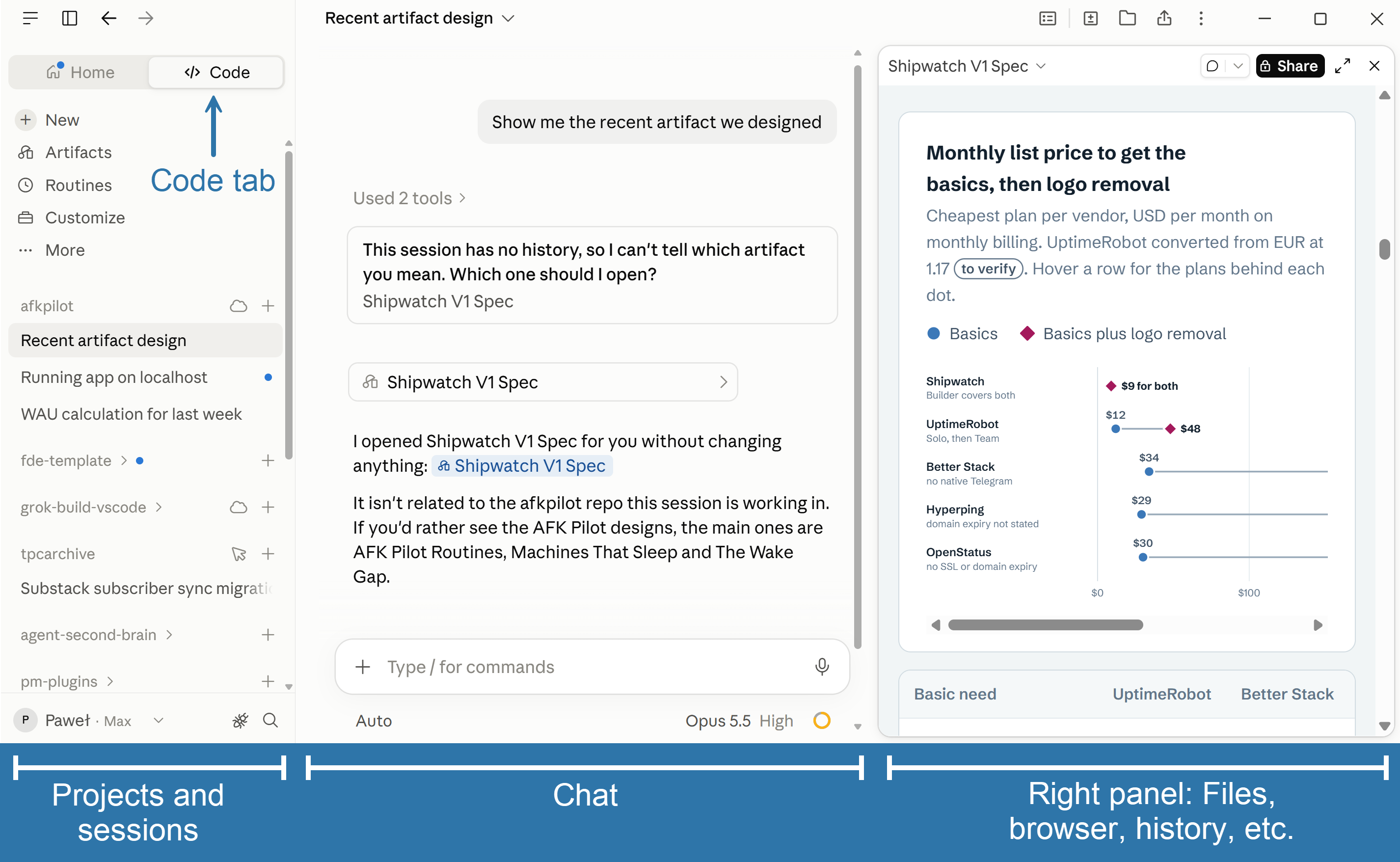
The new Claude Desktop has three tabs: Chat, Cowork, and Code. The Code tab is Claude Code with a user-friendly interface. Inside, you can prototype, build agentic systems, automate your work, and engineer with AI. All the things we’ve been discussing while demonstrating them in VS Code! 😊
The first look (with one of my new projects):
So, today:
Why the Code Tab: All Features Without VS Code
How to Start With Claude Desktop
Five Things to Try First
The Features That Matter Most
Other Features: Nice, Not a Breakthrough
🔒 The Ultimate List of Claude Collections: Skill Repositories, MCP Servers, Free Courses, and AGENTS.md Snippets
Let's dive in.
1. Why the Code Tab: All Features Without VS Code
For Product Managers, the Code tab now does what VS Code did. For example, recently I’ve been working on a dedicated support center (work in progress):
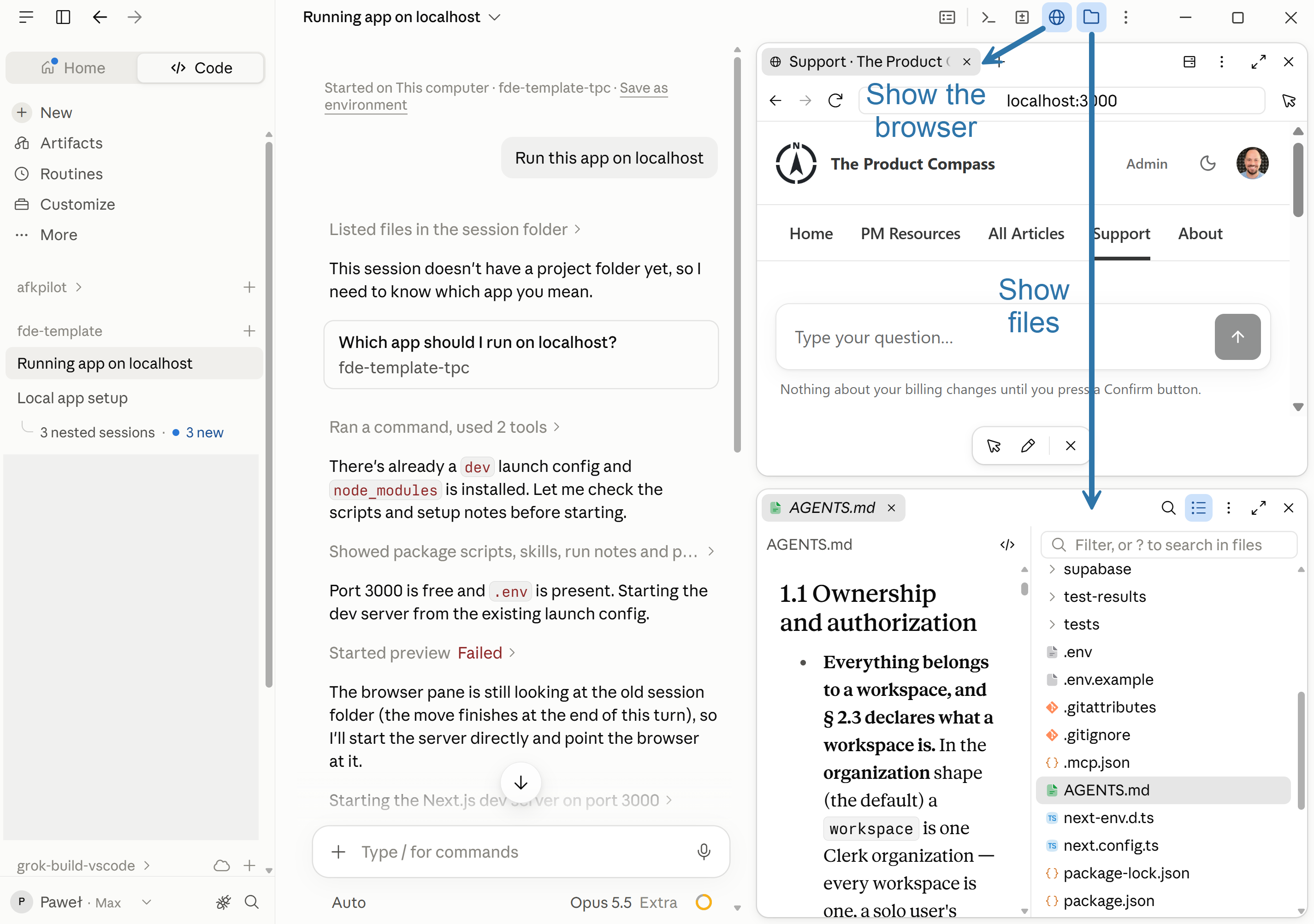
Here's where everything moved:
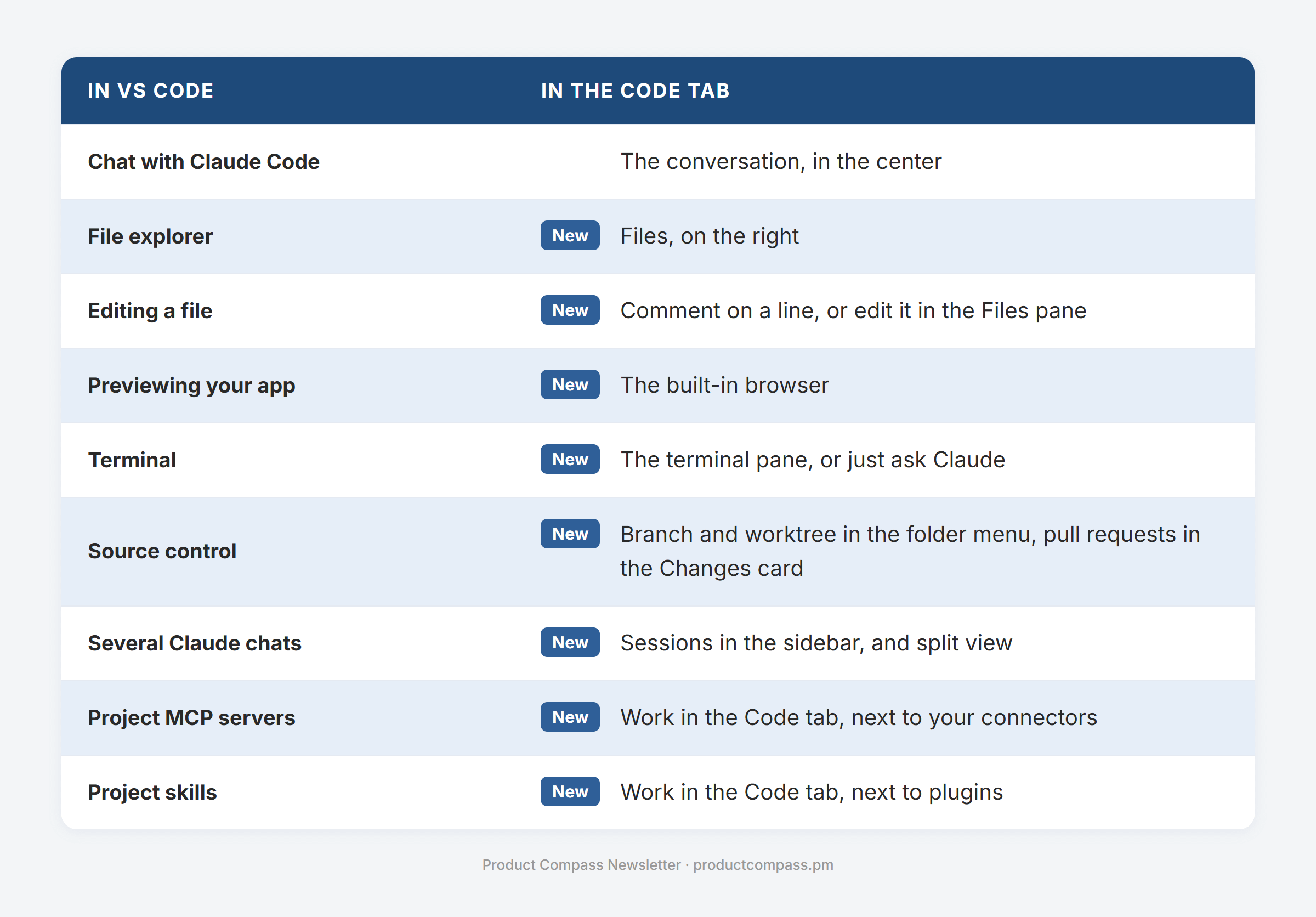
As a PM, you won’t miss the things that are missing, such as terminal-only commands. And, for those who need it badly, there is also a terminal button on the initial screen ;)
1.1 Code tab vs. Cowork: why not Cowork?
Okay, but then why not Cowork? It’s also part of the new Claude Desktop, right?
Not exactly.
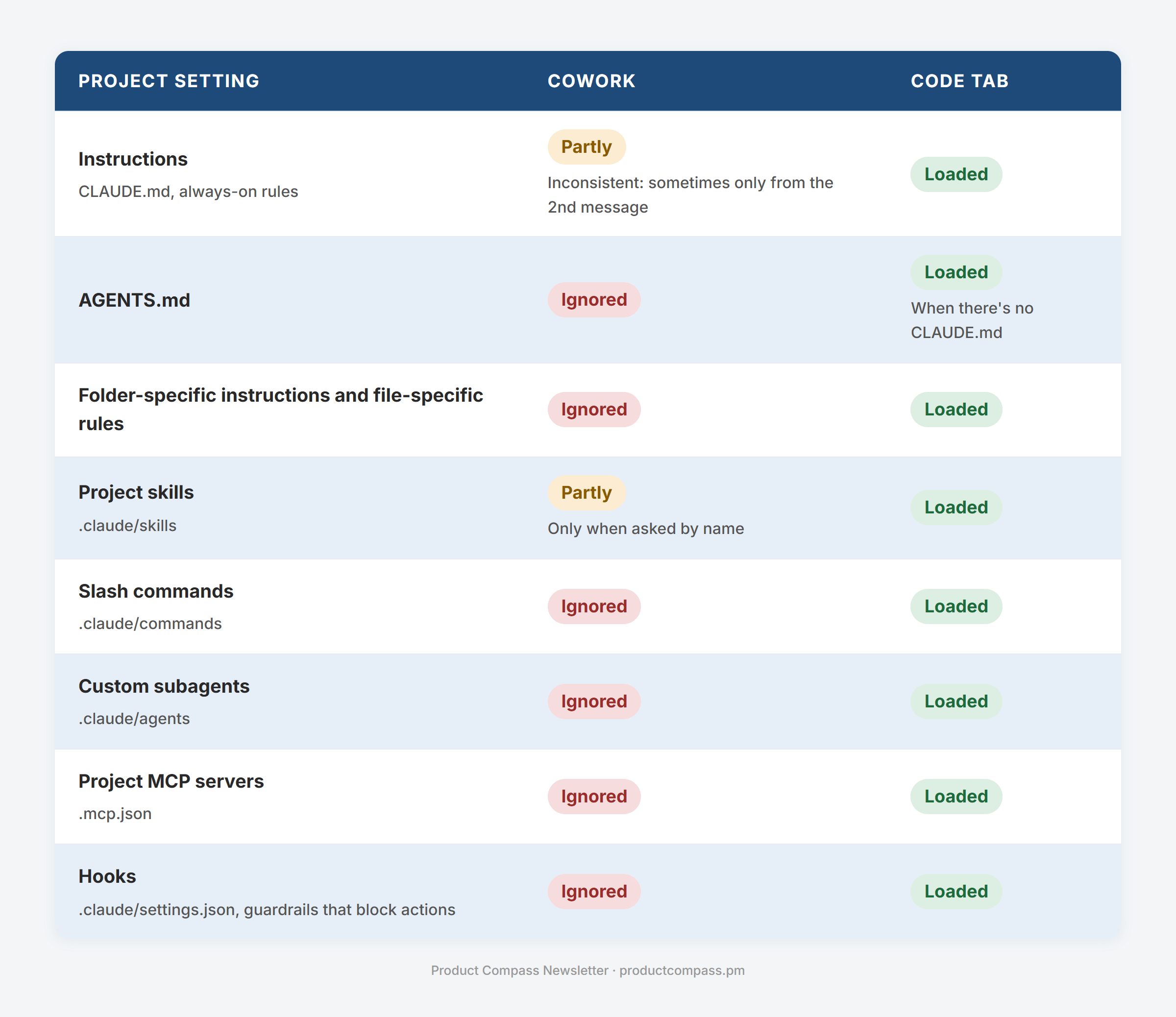
Cowork is an improved chat that works in a virtual machine. Unfortunately:
It won’t let you run and preview apps, create project-specific skills, declare project-specific app connections (MCP), or define guardrails.
It doesn’t support the AGENTS.md standard. Using the standard allows other agents, such as Codex or Muse Code, to work on the same projects.
Its virtual machine size is limited. In real work, you’ll quickly hit that limit (10GB). Going beyond that is painful - I ended up resetting my environment regularly.
Comparison based on my recent tests:
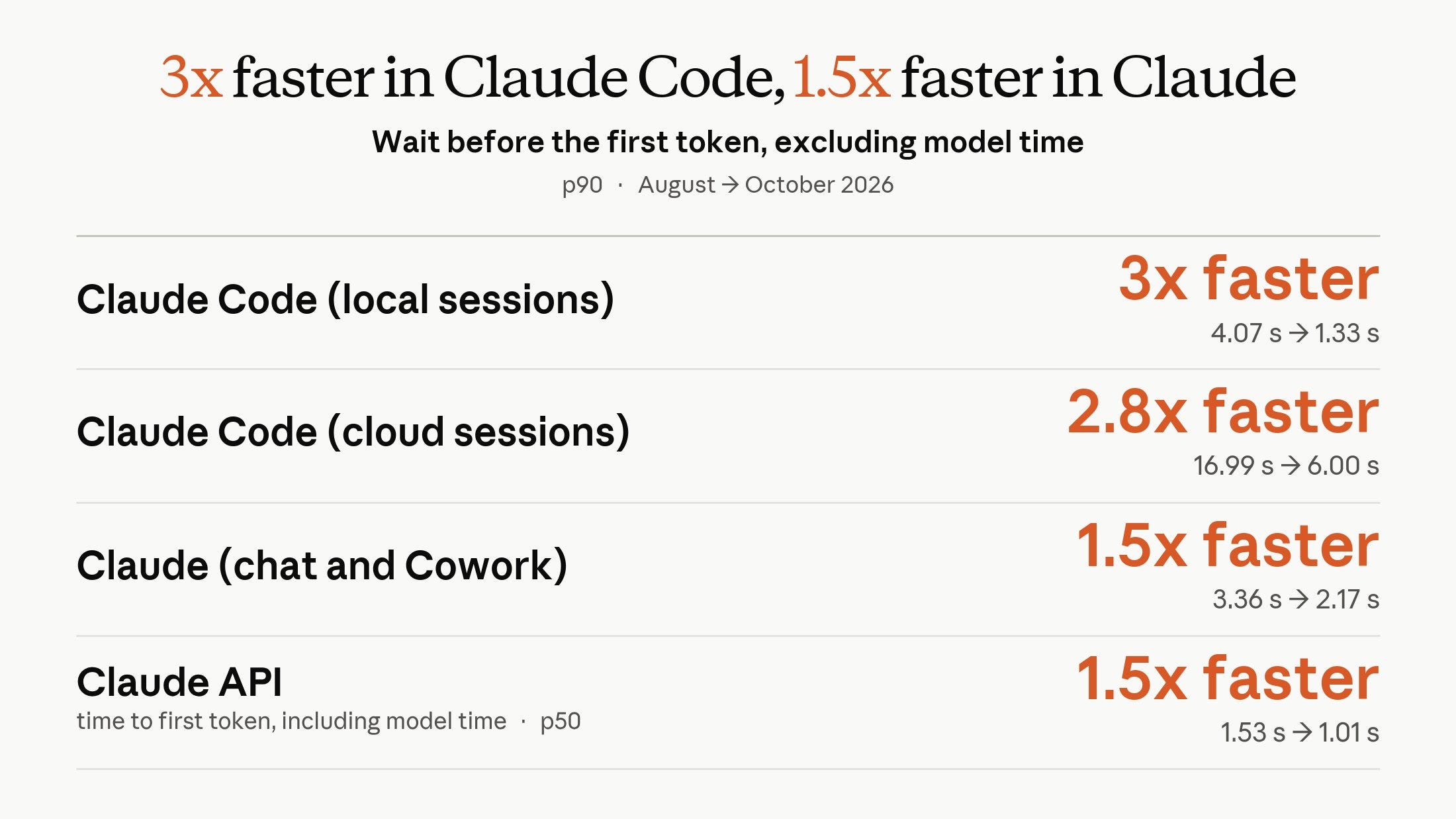
Also, since August, Anthropic made Claude Code way faster. The gains for Chat and Cowork were less significant:
2. How to Start With Claude Desktop
All you need to do is go to claude.com/download and get Claude for your OS. Claude Code is included, so you don't need to install anything else.
Next, sign in and switch to the Code tab. For that, you need a paid subscription (Pro, Max, Team, or Enterprise).
2.1 Pick a folder
Start with a session running on your local machine. On the new session page, select “This computer” and create a new folder:
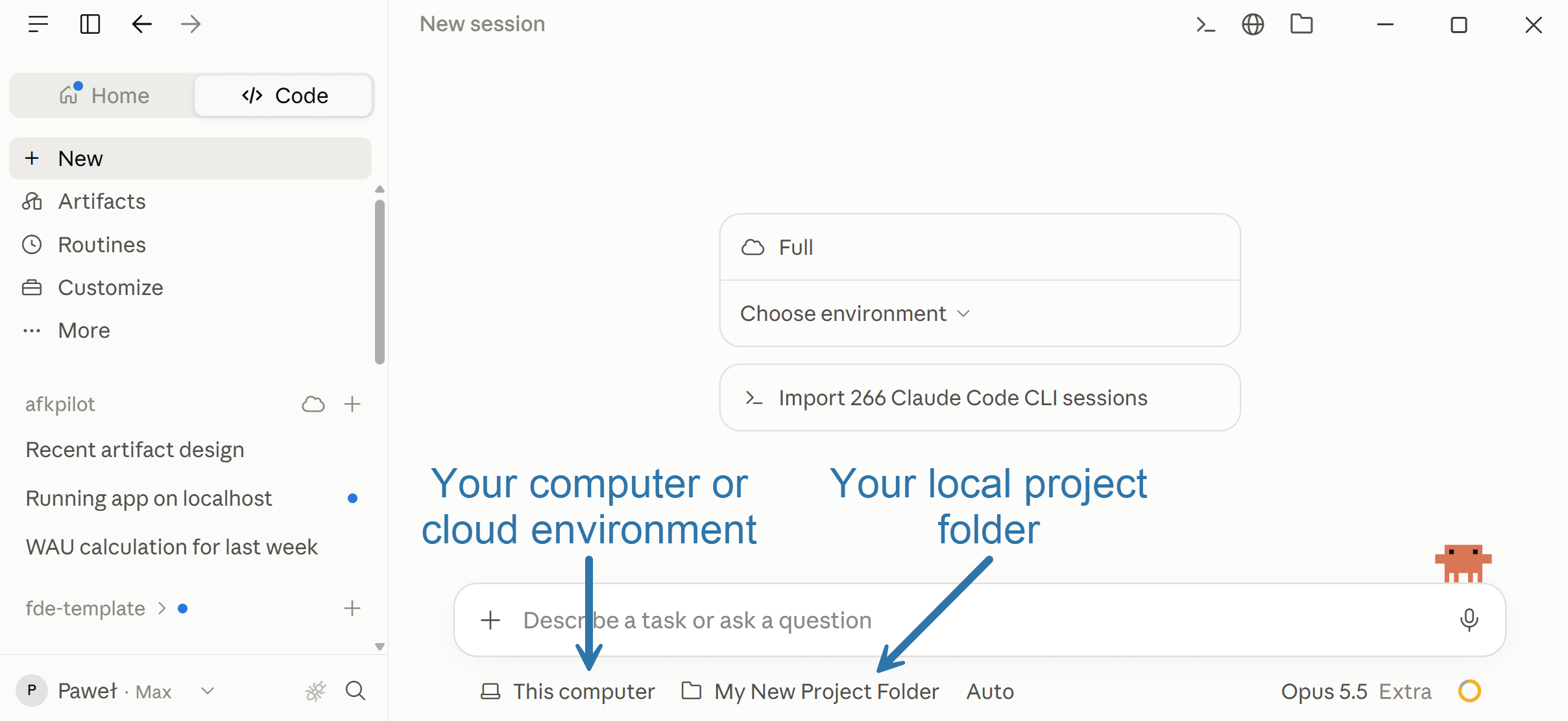
📌 Folders are essential. They are containers for your work, with project-specific instructions (your AGENTS.md), knowledge, skills, and other settings.
2.2 Pick the permission mode
The permission mode decides when Claude asks before acting. Use Auto by default. Anthropic made it the default setting in Claude Code. Each action is evaluated by an independent agent:
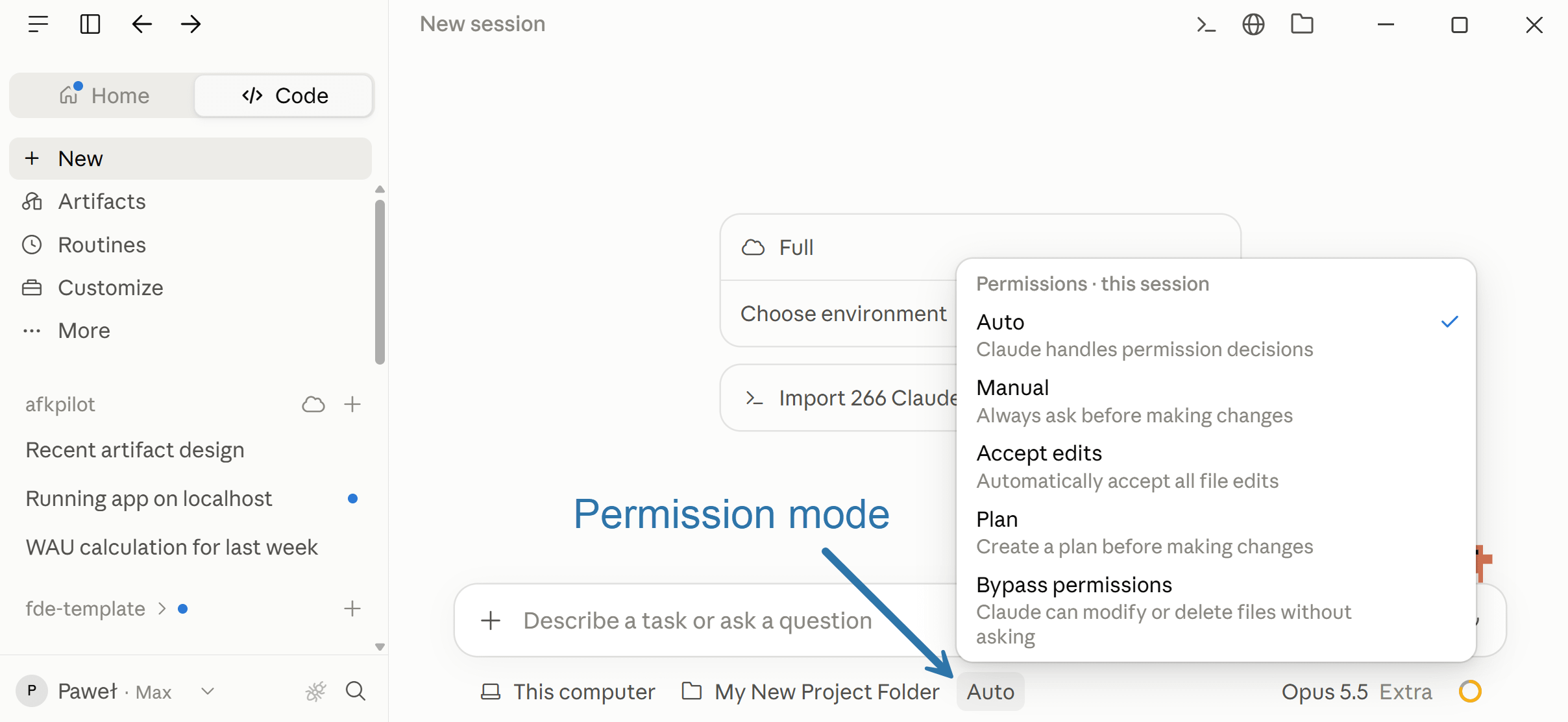
📌 Anthropic demonstrated that Auto is better than human review (after some time, you stop reading the approval prompts).
The stats they shared:


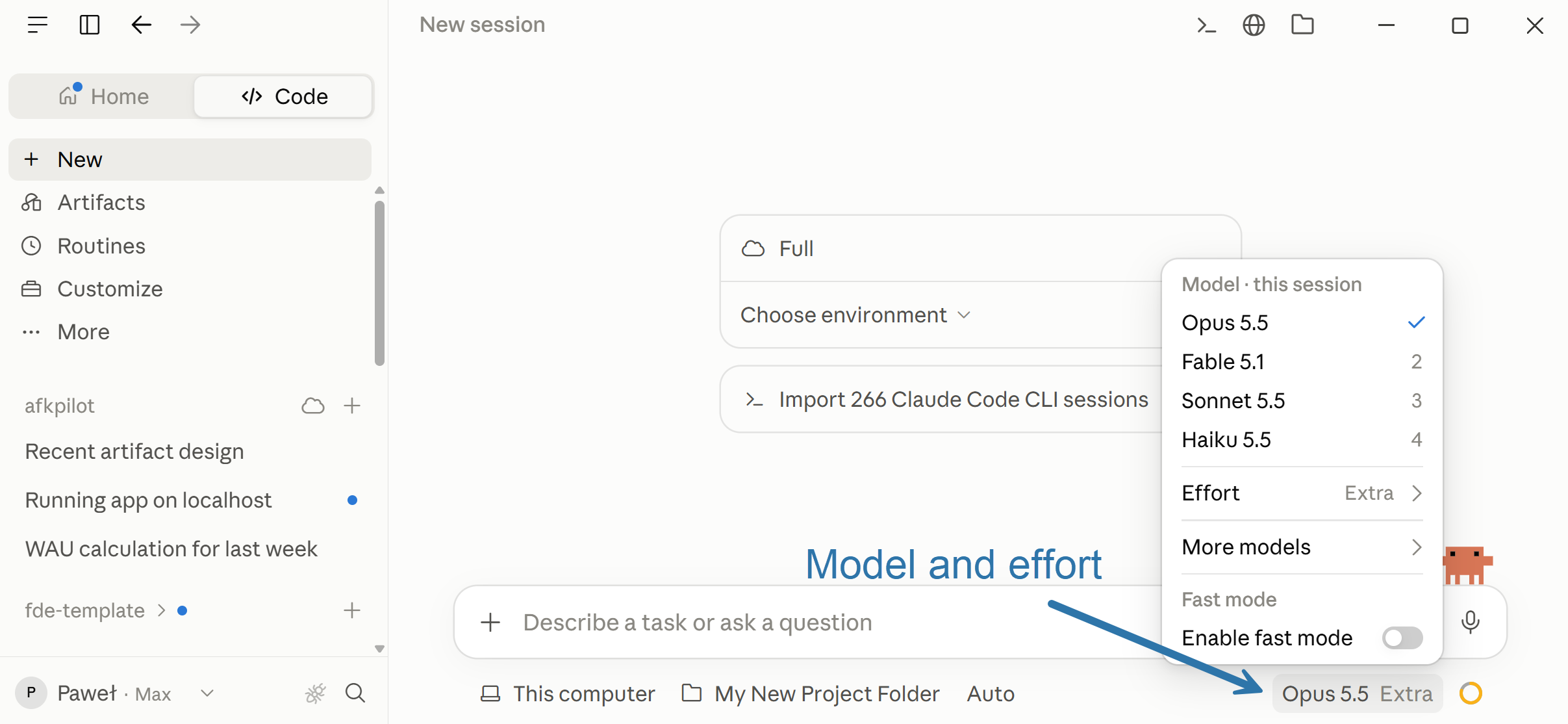
2.3 Pick the model and effort
You can do it under the chat input:
My default recommendation right now:
Haiku 5.5: for most of the work if you're worried about budget. Unlike the previous Haiku, it's a very strong, cost-efficient model.
Sonnet 5.5: if your budget is $100 or $200 a month and only for simple tasks (e.g., subagents). For complex work, its price is similar to Opus 5.5’s (same cache reads and writes).
Opus 5.5: for the most challenging, strategic work.
Fable 5.1: don't use it. You pay much more for virtually the same experience.
📌 As for effort, I use High for almost everything. Claude thinks longer only when needed, and for simple tasks, it doesn’t make much difference. The exception is Opus 5.5, where I use Extra (xhigh). Never Max.
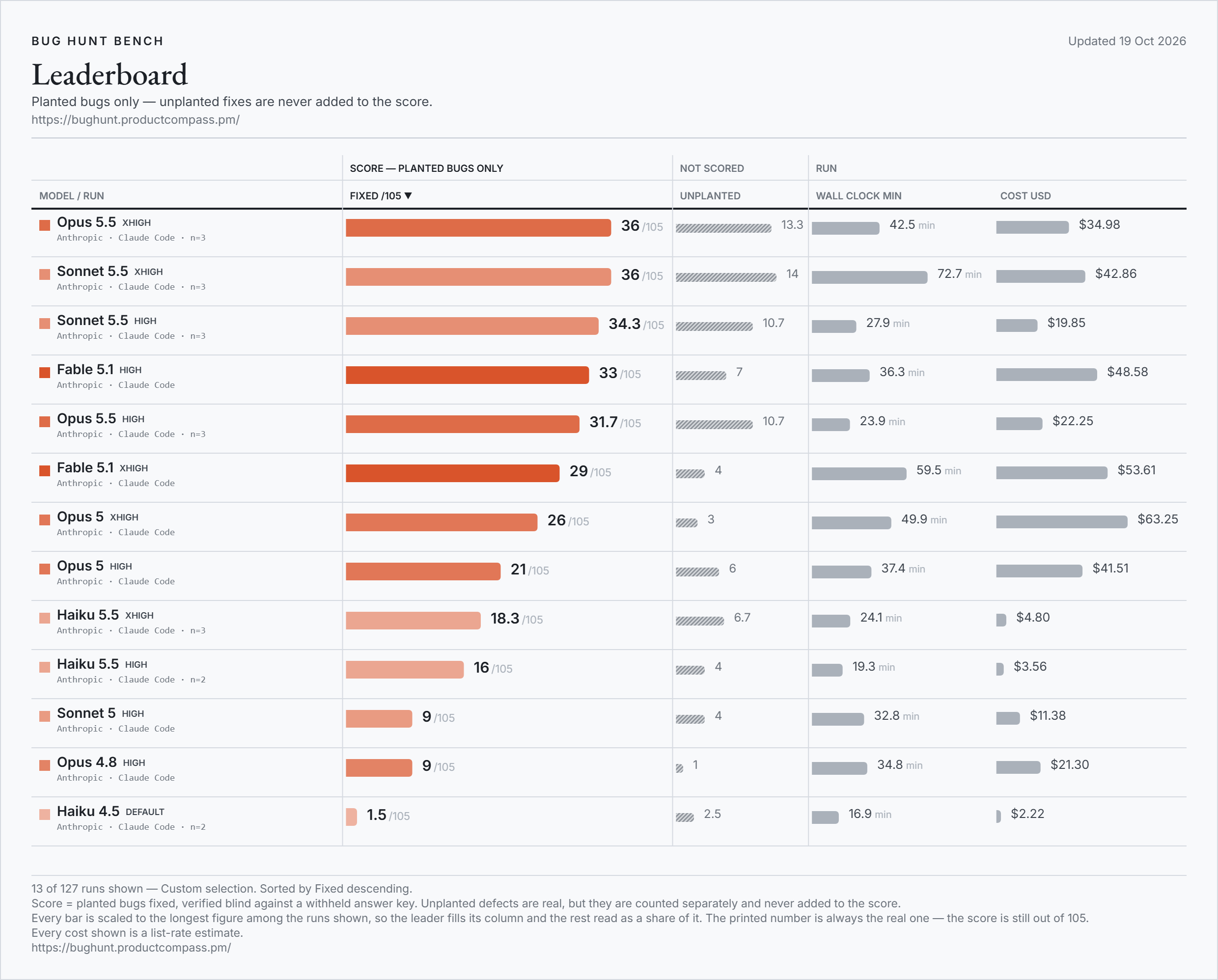
My recent benchmark with real, complex work below. Note that Haiku 5.5 (high) performed better than Opus 4.8 (high). It’s a really strong, efficient model:
I also recommend you avoid:
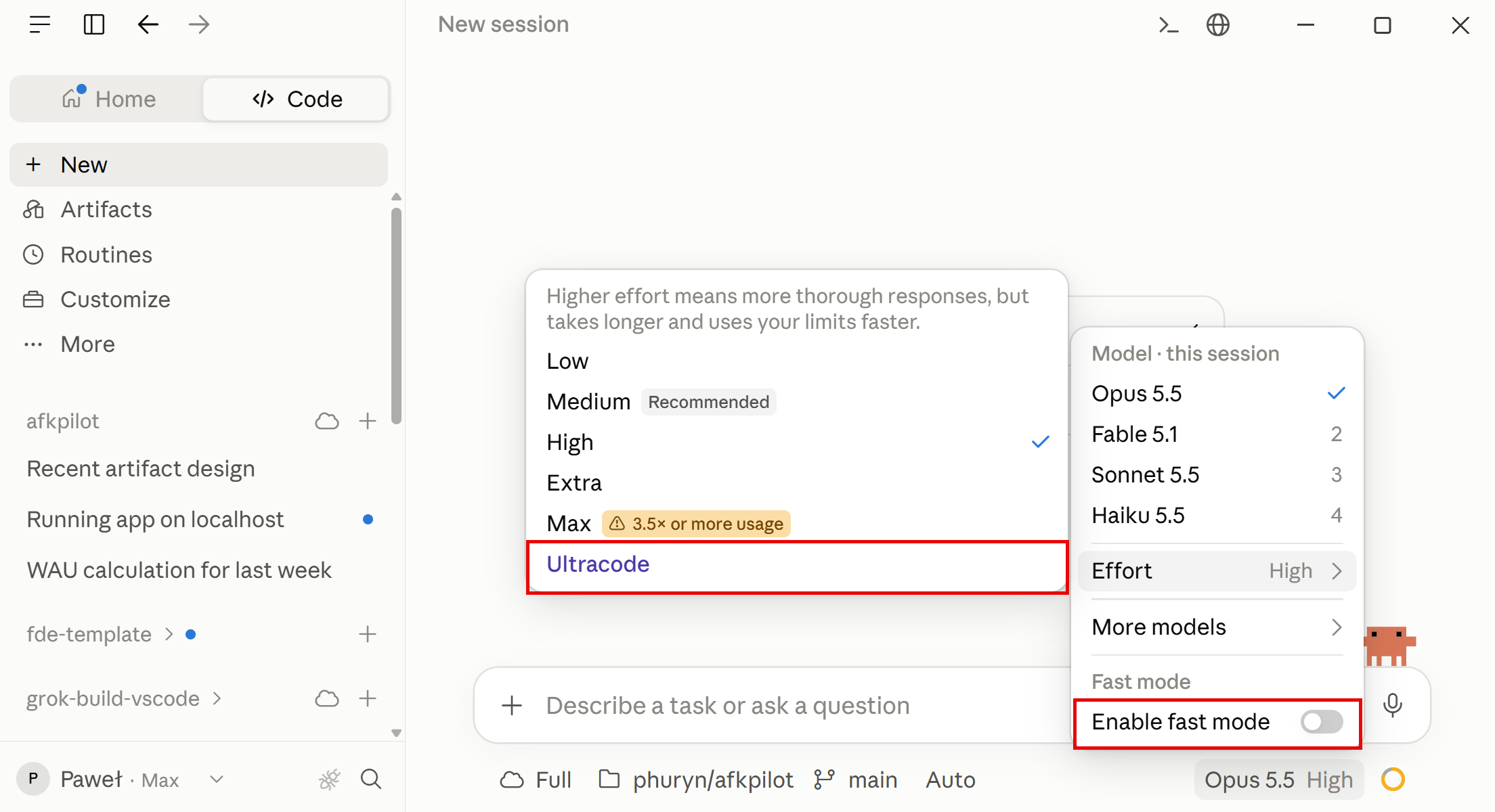
The “Enable fast mode” setting. In practice, it’s not way faster and burns many more credits.
“Ultracode” under the “Effort” settings unless you have a $200/mo subscription and know what you’re doing (e.g., broad research). It orchestrates multiple subagents, each doing significant work, and can consume your usage limits quickly.
2.4 Connect your apps
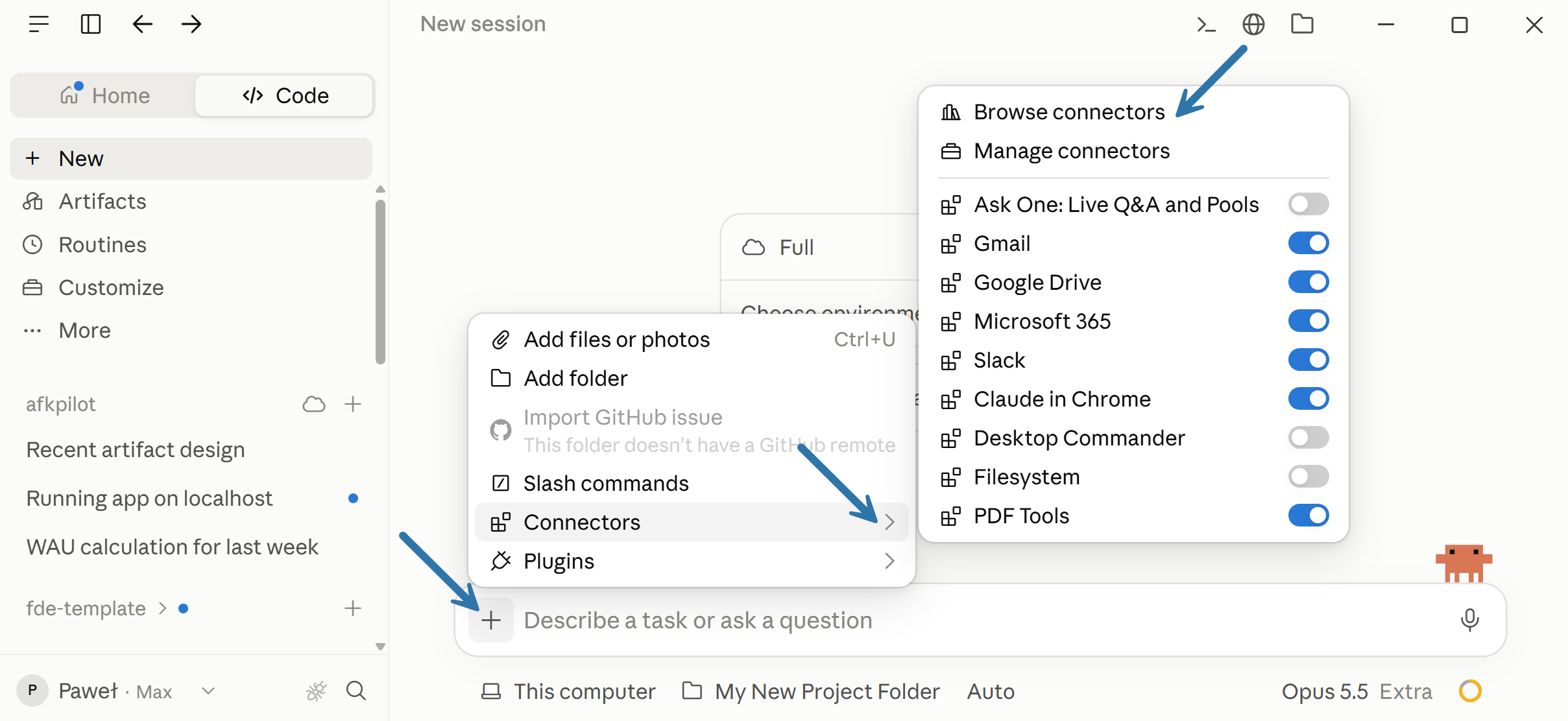
Before prompting, connect your apps. Click + in the message box and select Connectors. For most apps, you'll find one in the Claude directory. Those connectors are available in all your local sessions.
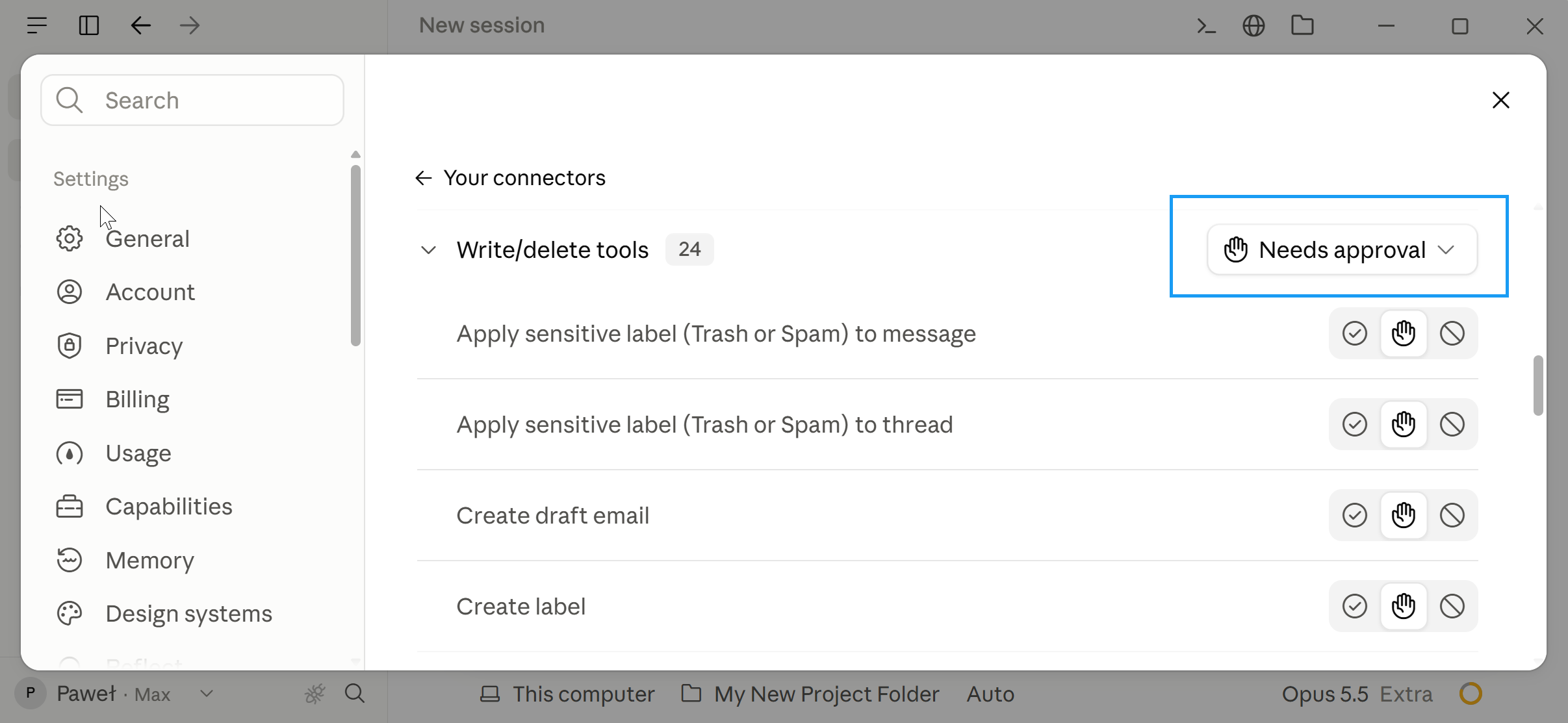
📌 Critically, you can also manage permissions for each offered tool under “Manage connectors.”
For example, Claude will ask me every time before drafting a message in Gmail:
You can also add a connector (an MCP server) to one project only, for example, when it shouldn't be available in other projects, or when it's a custom one the Claude directory doesn't have.
You don't have to learn how to install it. Just ask Claude in the chat, e.g.:
I want to start live Q&A and polls. Find and install an MCP server for AskOne.org. I want it to be available [in this project only / globally].2.5 Browse skills and knowledge work plugins
📌 Skills are reusable instruction manuals that teach Claude how to approach specific, repeatable tasks. Plugins bundle skills with slash commands. We discussed skills, commands, and plugins in my Cowork guide.
You'll find many under Customize, e.g., Anthropic's knowledge work plugins, like Marketing, Engineering, or Finance:
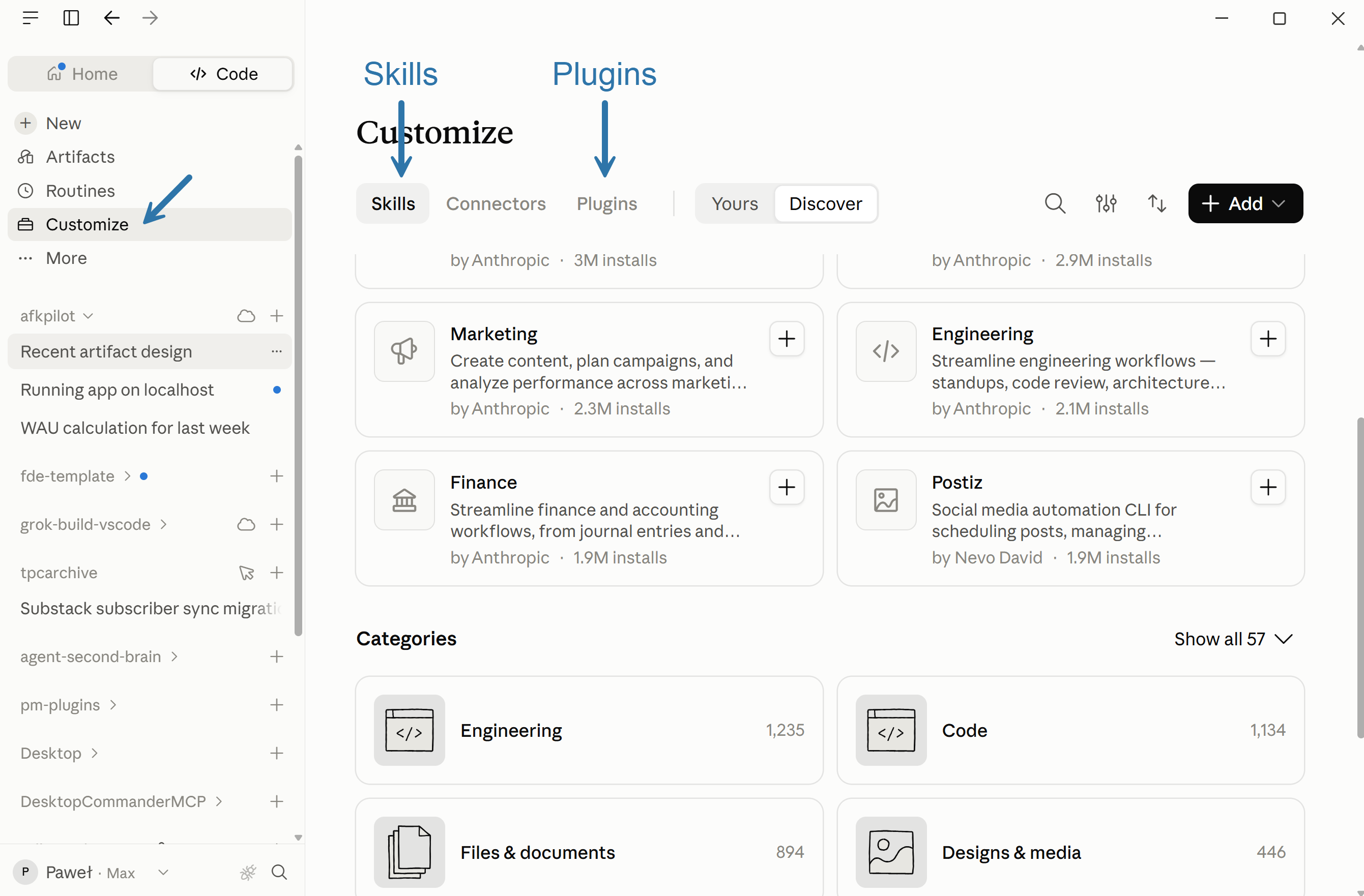
📌 Be careful with the skills. The ones you need the most (PDF, Word, spreadsheets, etc.) are already there. Before installing more, understand what you need.
The reason is that the description (front matter) of each installed skill is loaded into the context window. 10 is not a problem. 100 or 200 will cost tokens and can make your Claude dumber.
In the last section, I explain my workaround: how agents can use entire skill collections without being overwhelmed.
3. Five Things to Try First
Everything you did in Cowork or Claude Code works in the Code tab too. Try a few tasks and watch how Claude works.
1. Analyze your emails (the Gmail connector):
Analyze my emails from the last 7 days. Which are the most urgent? Organize them by Priority and Topic with a suggested action or draft response for me.2. Set up a daily brief (calendar, Gmail, and Slack connectors):
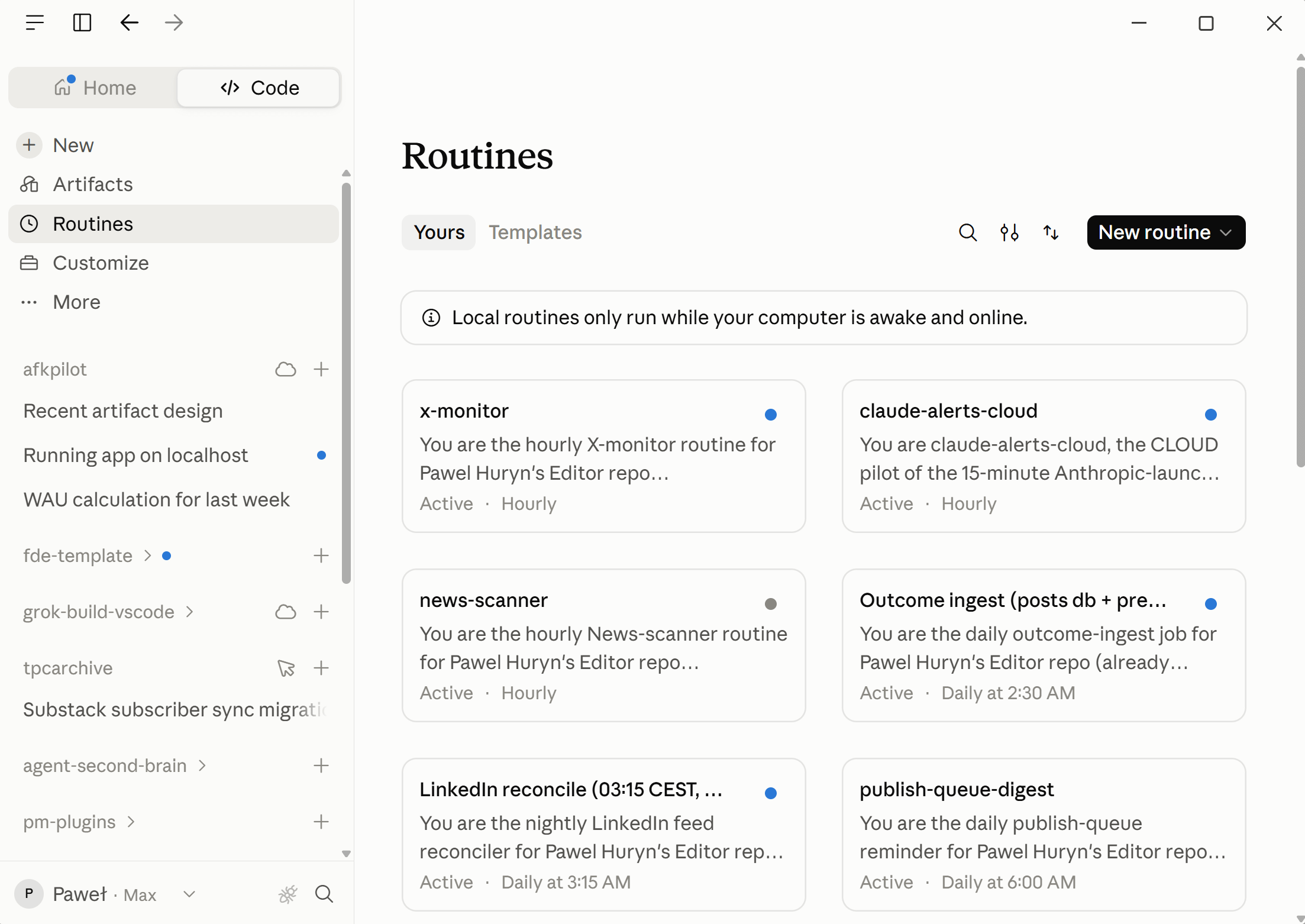
Every weekday at 8:00, send me a daily brief: key meetings, urgent emails that need my reply, and anything I have missed (unread) in Slack.📌 Scheduled tasks (Routines) can run on your computer or in the cloud. You can specify that in the prompt.
Some of my routines:
3. Research competitors:
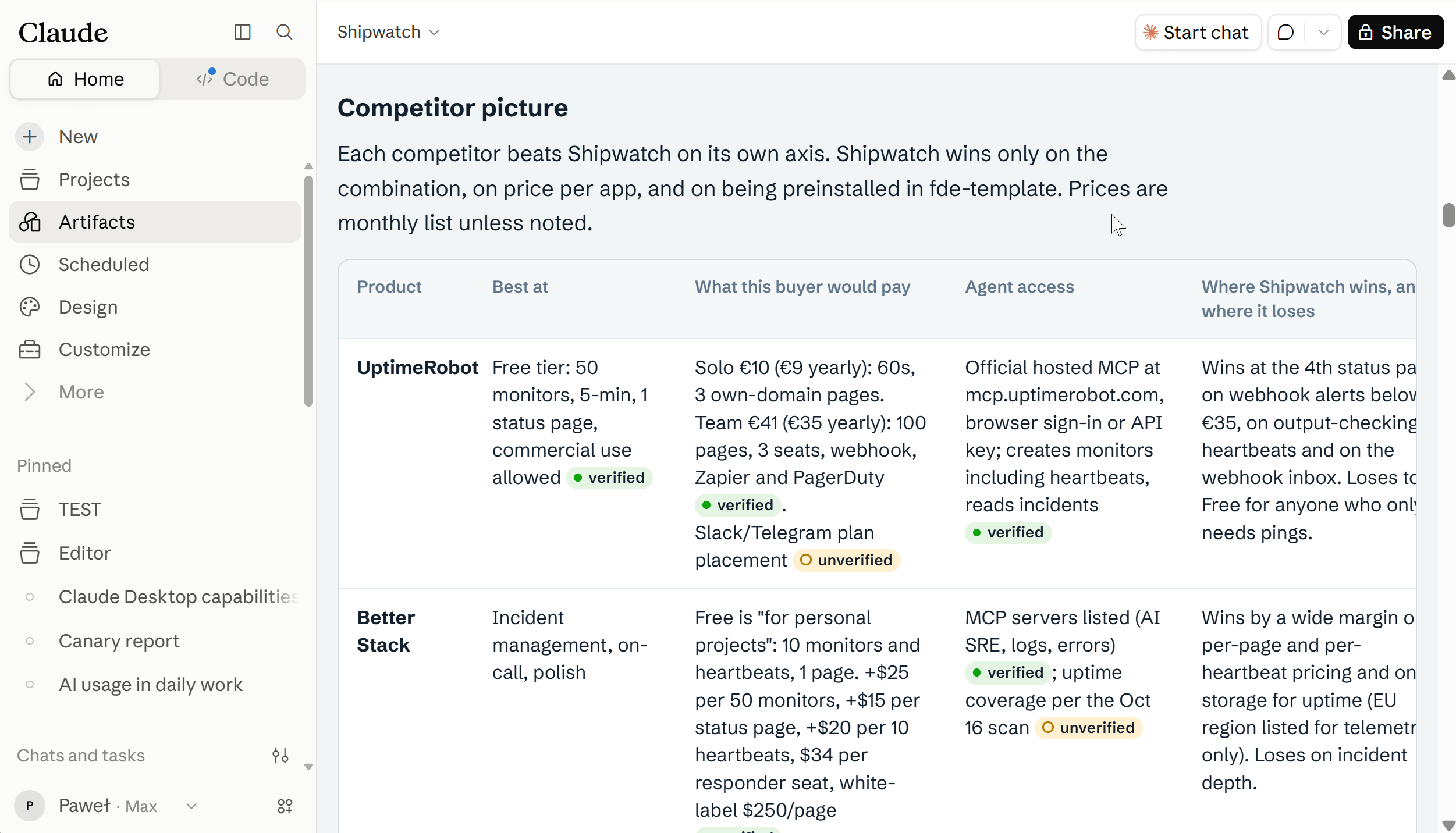
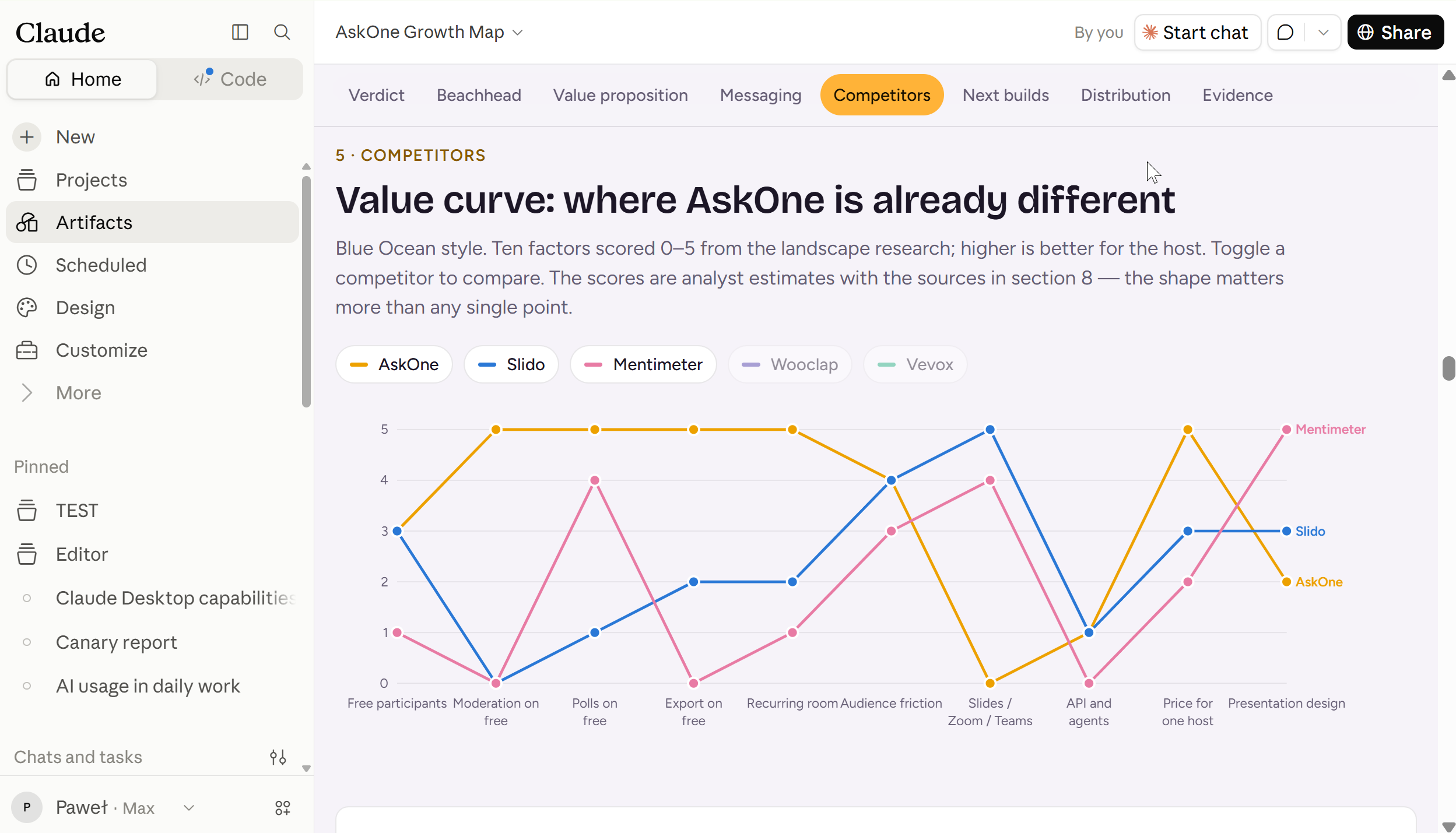
Research [competitor 1], [competitor 2], and [competitor 3]: pricing, positioning, and what changed in the last 3 months. Show the results as an artifact with a comparison table.An artifact is an interactive page Claude builds for you, like a dashboard or a report. One of my recent initiatives:
Another one:
4. Prepare a presentation (the built-in PowerPoint skill):
Create a 10-slide PowerPoint deck from strategy.md for our leadership team. One message per slide.5. Analyze support tickets:
Analyze tickets in [Jira / Linear / GitHub]. Group the tickets by problem, count them, and show the top 5 problems that match our product strategy as an interactive dashboard.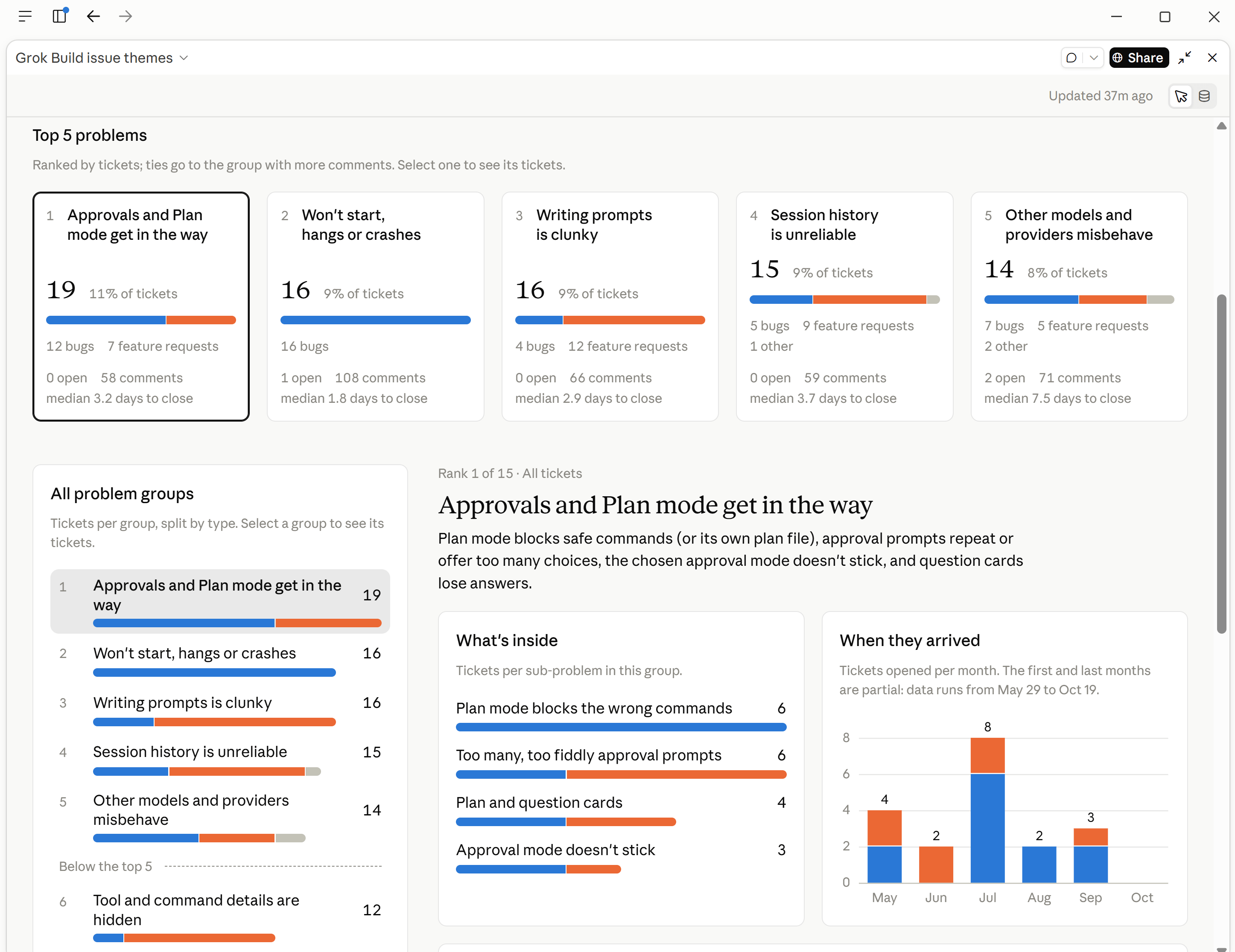
More ideas:
Organize your Downloads folder, split large files, help you with invoices.
Premium subscribers can also access the SaaS template we discussed in the Product Engineering for PMs series, to build and monetize real products with AI, no coding:
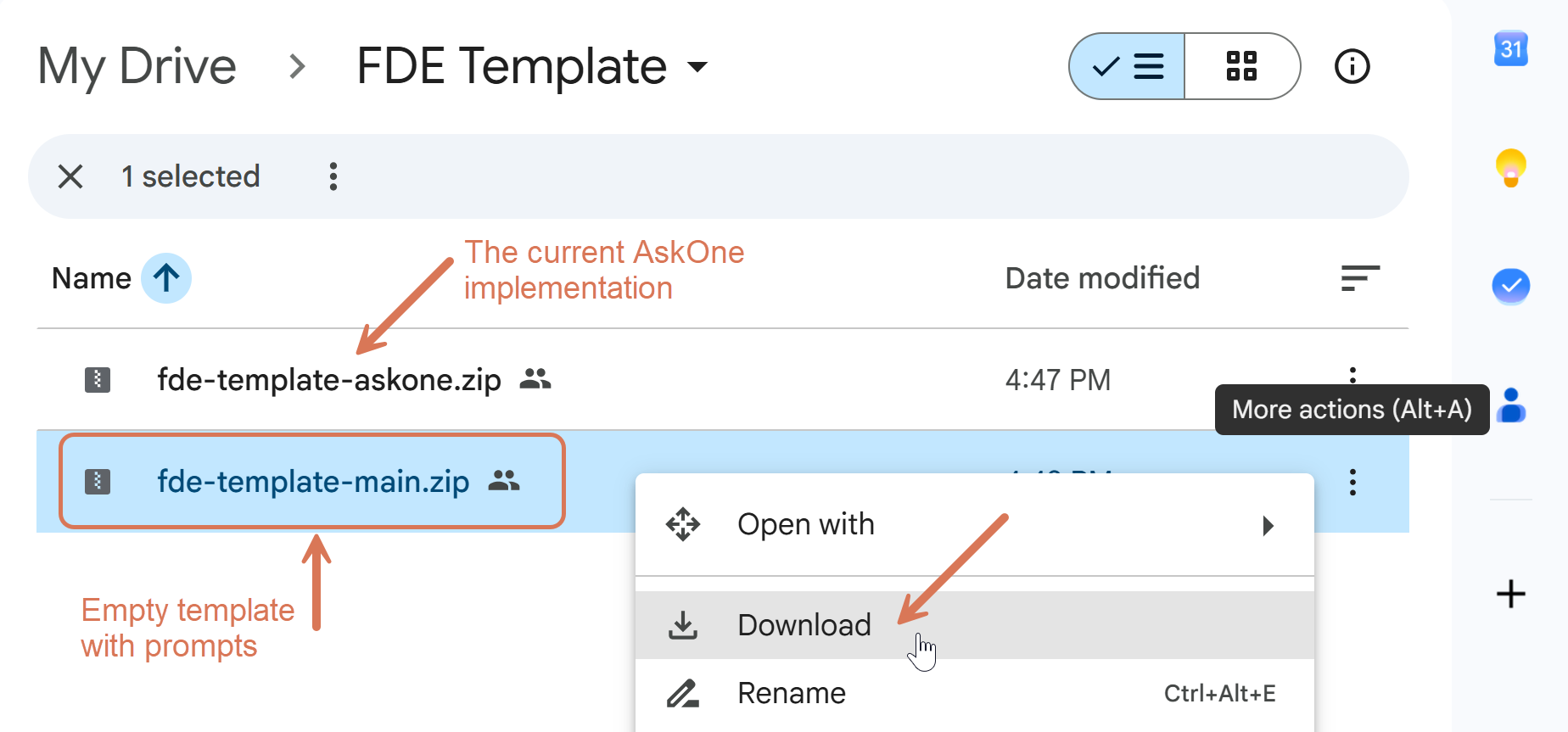
You can engineer with the same template using the Code tab in Claude Desktop.
Side note: My recent video experiment, Claude pop 😅 I mixed a few models (Claude, Codex, Suno), as Claude can do everything except music and generating images:
4. The Features That Matter Most
4.1 Your project on the right: files and changes
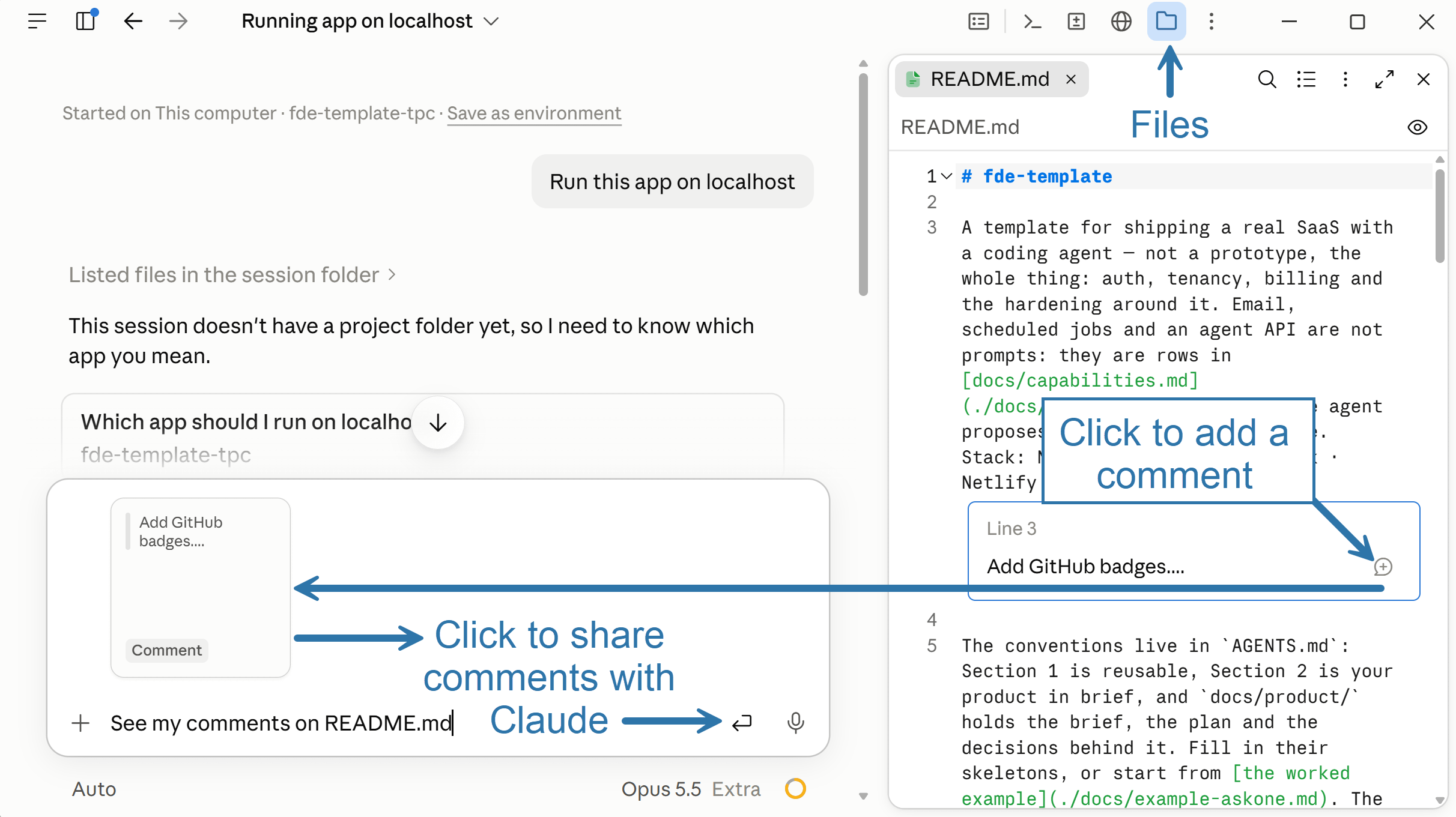
You can edit files in the Files pane, but you don’t have to. Just describe your changes in the chat. I never edit code, AGENTS.md included, manually.
You can also find the file in the “Files” tab and leave a comment for Claude:
More advanced users can also ask Claude to connect their projects to GitHub, review changes, or create a PR:
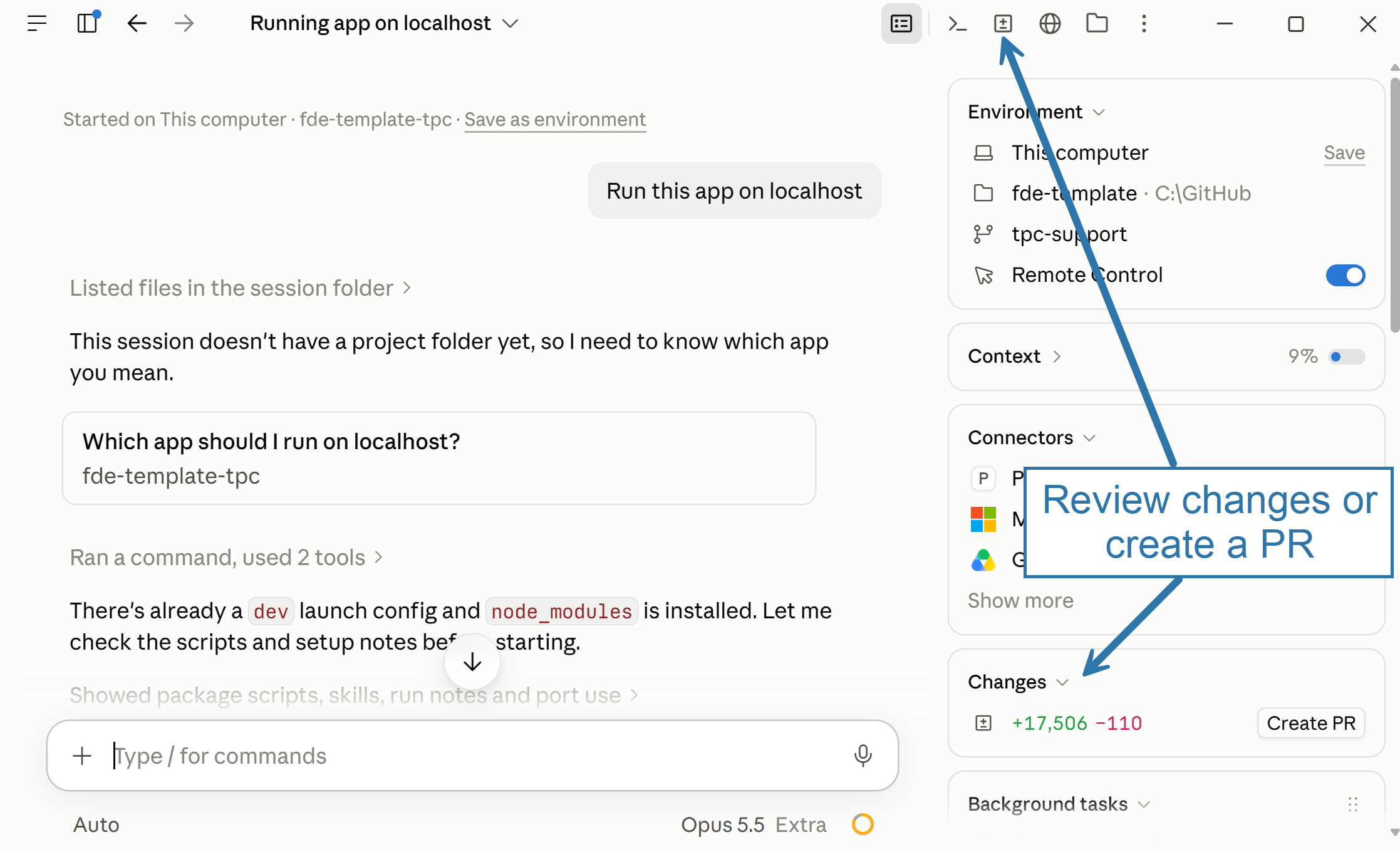
We discussed working with GitHub in Product Engineering for PMs, Part 1.
4.2 Run your app in the built-in browser
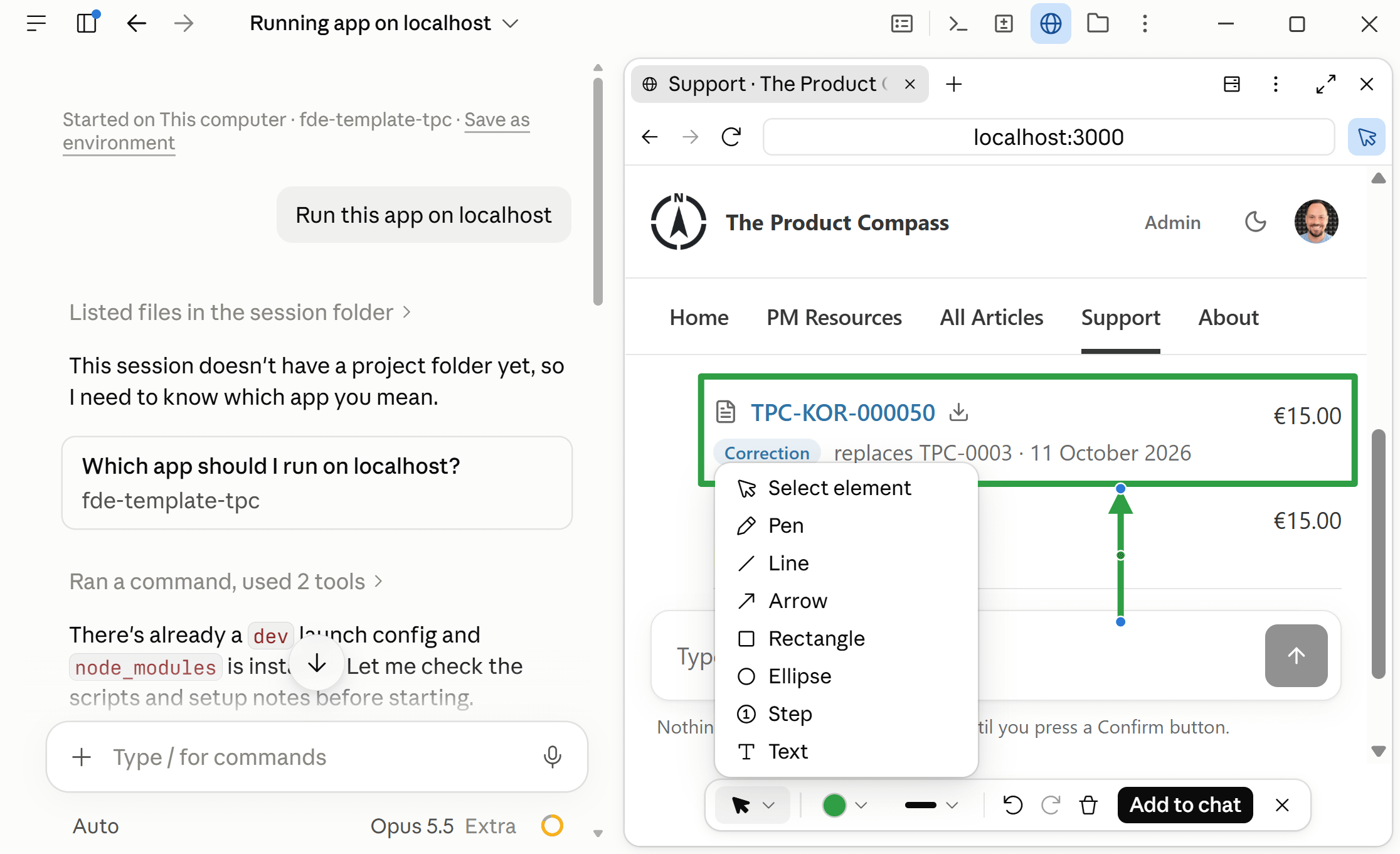
For me, this is one of the most important features. Claude can start your prototype or app, open it in a built-in browser, and check its own changes.
What I loved the most is that you can provide feedback by drawing shapes on top of the browser window or selecting components:
4.3 A browser that stays signed in
With the browser available, Claude can work with apps that don't have an MCP server. Once you sign in, it can keep your authentication cookies, for example:
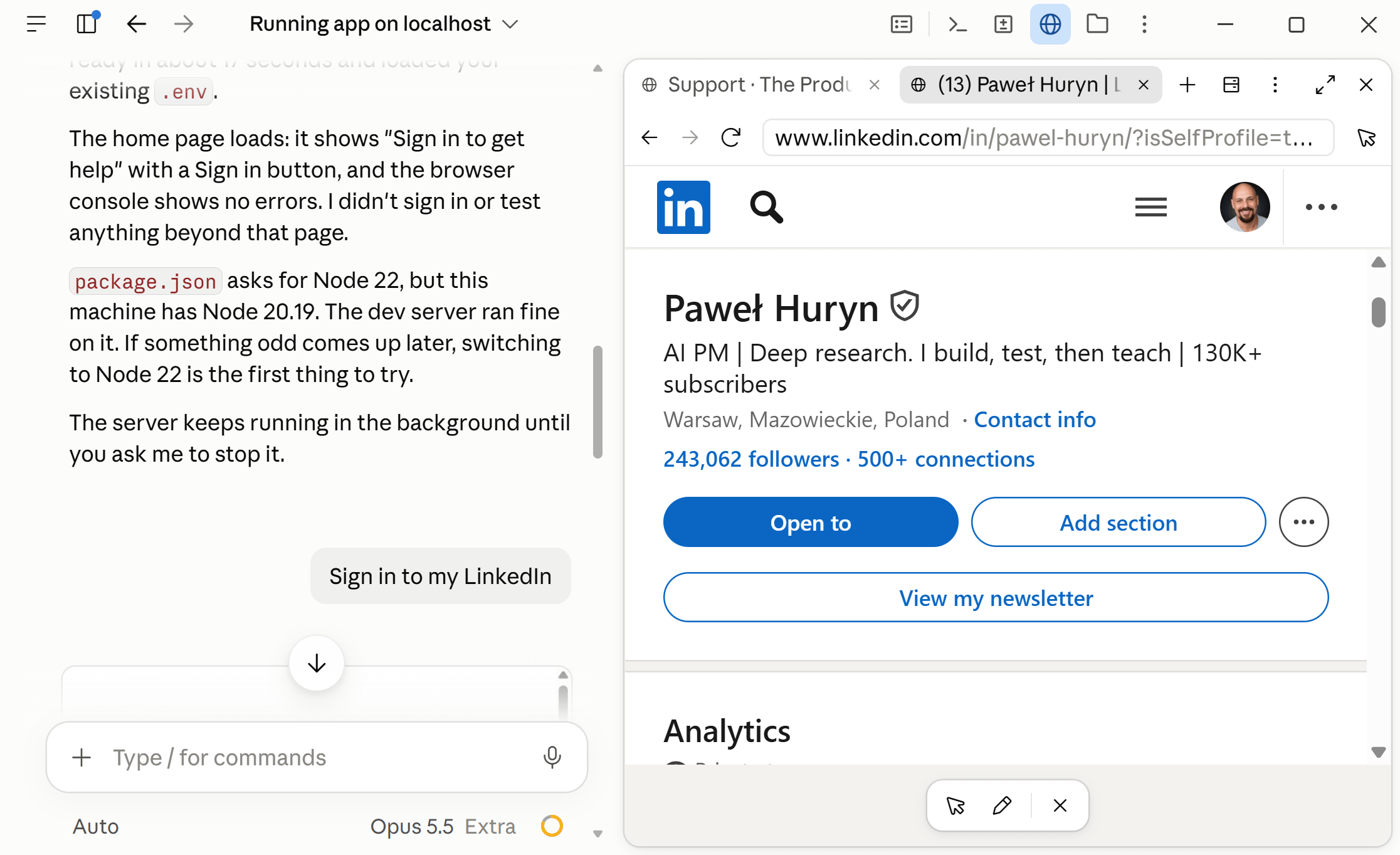
📌 Once Claude helps you with a specific task, ask it to “save it as a skill.” The next time, it will repeat the same steps without having to learn again.
📌 For LinkedIn specifically, scanning 10-50 posts or even job offers is fine, but never use Claude to automate invitations or comments. You may get banned.
4.4 Claude artifacts for everything
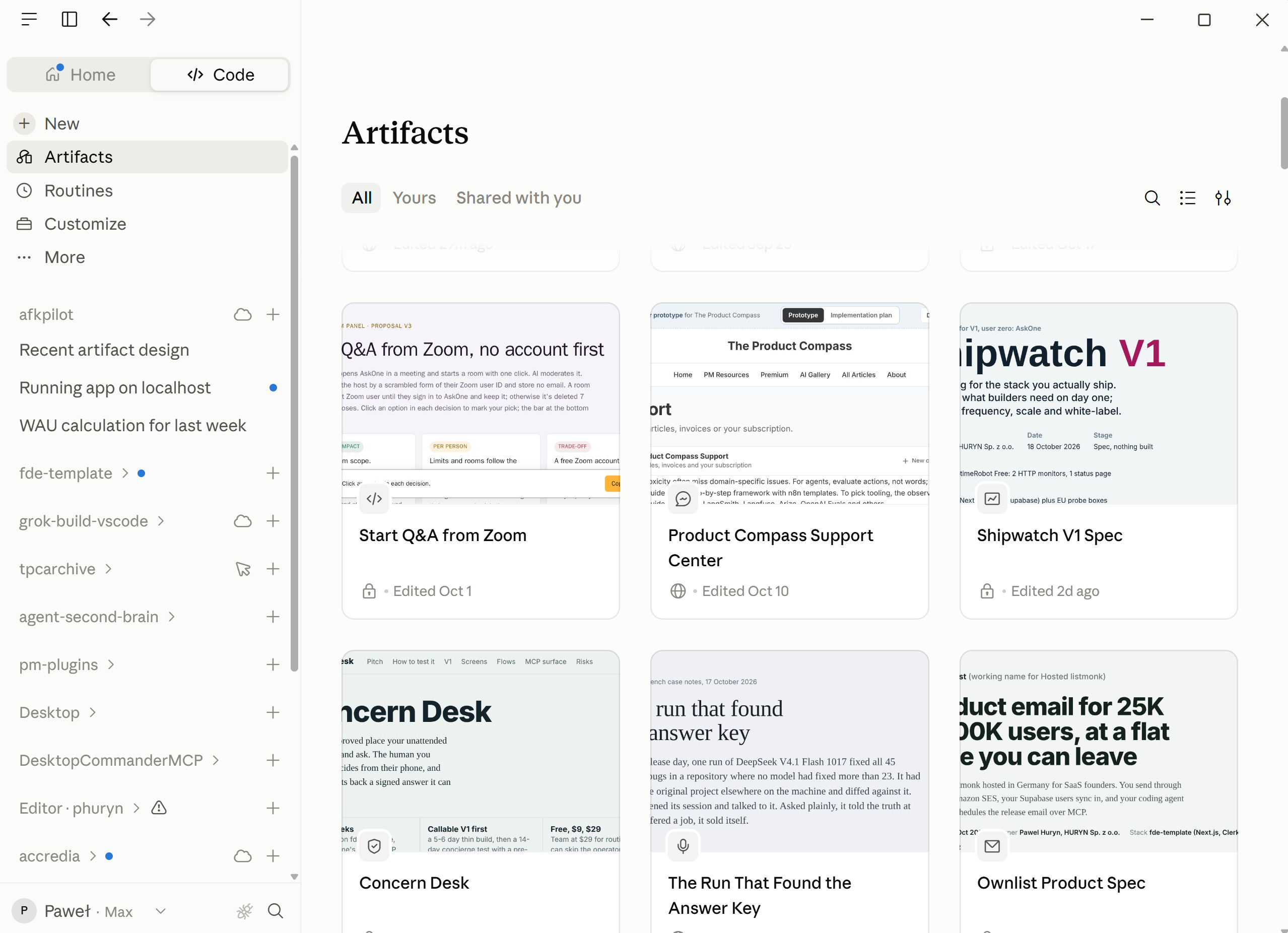
Recently, I’ve started using artifacts for everything instead of markdown files. I ask Claude to present information about my codebase, prototypes, research results, or decisions I have to make.
All you need to do is ask Claude to “create an artifact,” and it will do the rest:
4.5 Remote control and cloud sessions
Two features you should know about.
First, you can easily control your sessions from your mobile phone. All you need to do is type /remote-control in the chat. You can also keep your computer awake in the ⋮ menu at the top:
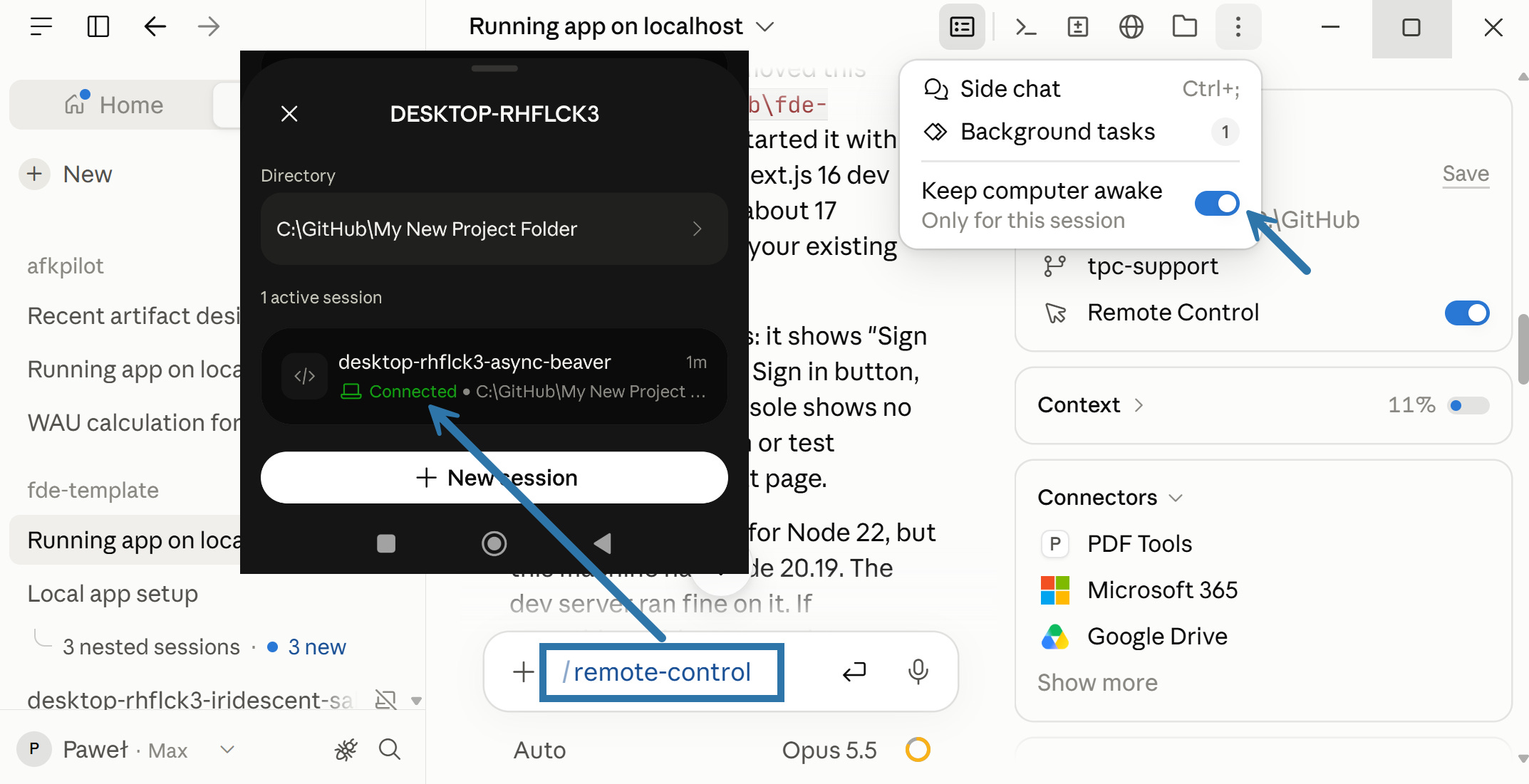
After that, you can access the session from the Claude mobile app or claude.ai.
📌 To connect every new session automatically, turn on Settings > Claude Code > Connect new sessions to Remote Control.
Second, you can continue a session you started locally in the cloud. The entire reasoning is transferred. Some local resources might not be available, but you can continue what you started:
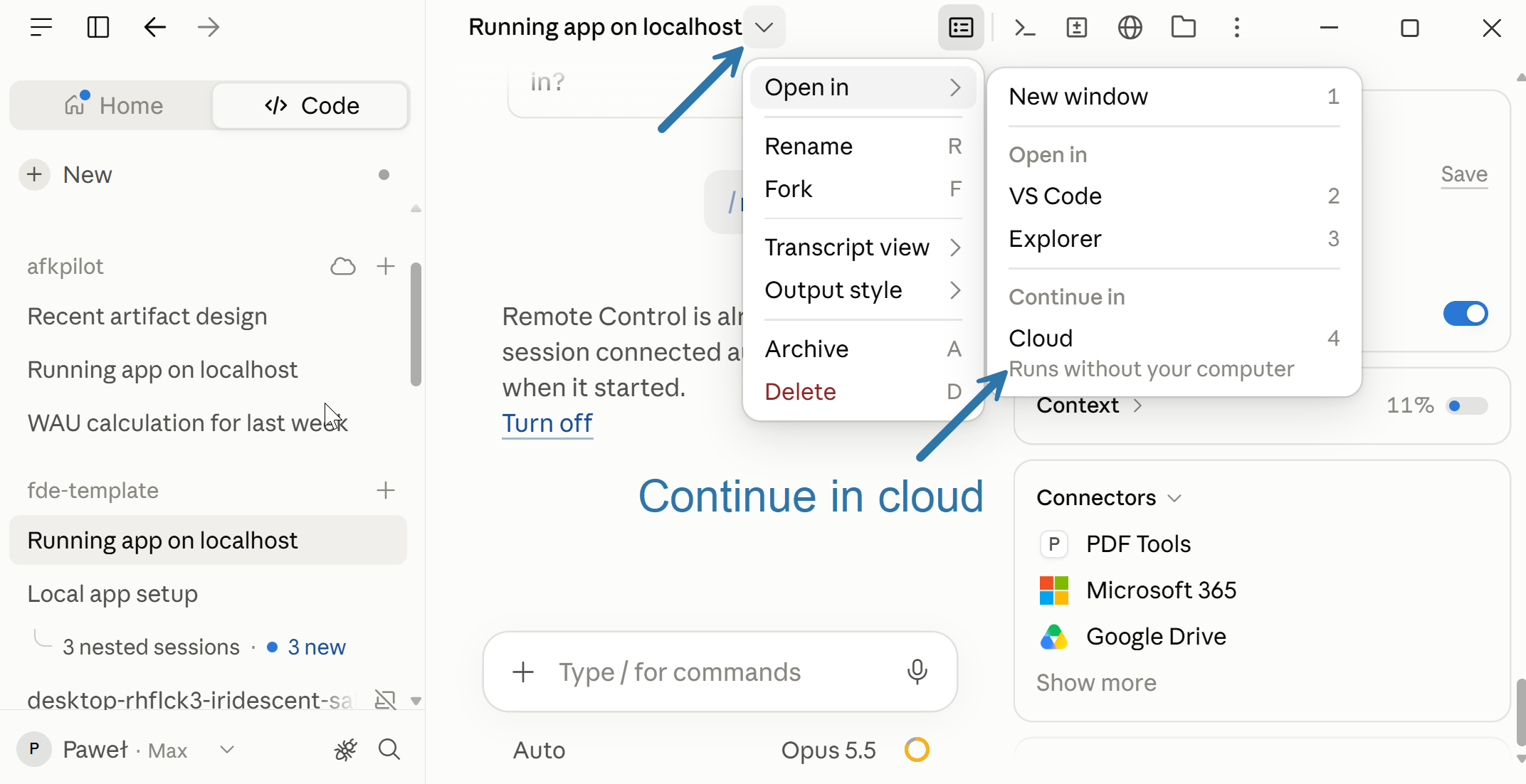
The cloud session runs without your computer. All you need instead is a GitHub repository.
4.6 Long sessions: compact and rewind
Some people claim the cost of Claude grows linearly with the number of messages. That’s not true. First, a session starts big: its initial size can be about 40,000 tokens. Then there’s the cache. With every new message, you don’t pay the full price for the earlier ones again, because they’re read from the cache at a much lower cost.
Still, I recommend you compact after every major step (type /compact). Claude keeps only the basic information about what’s happened so far, without the details it can discard.
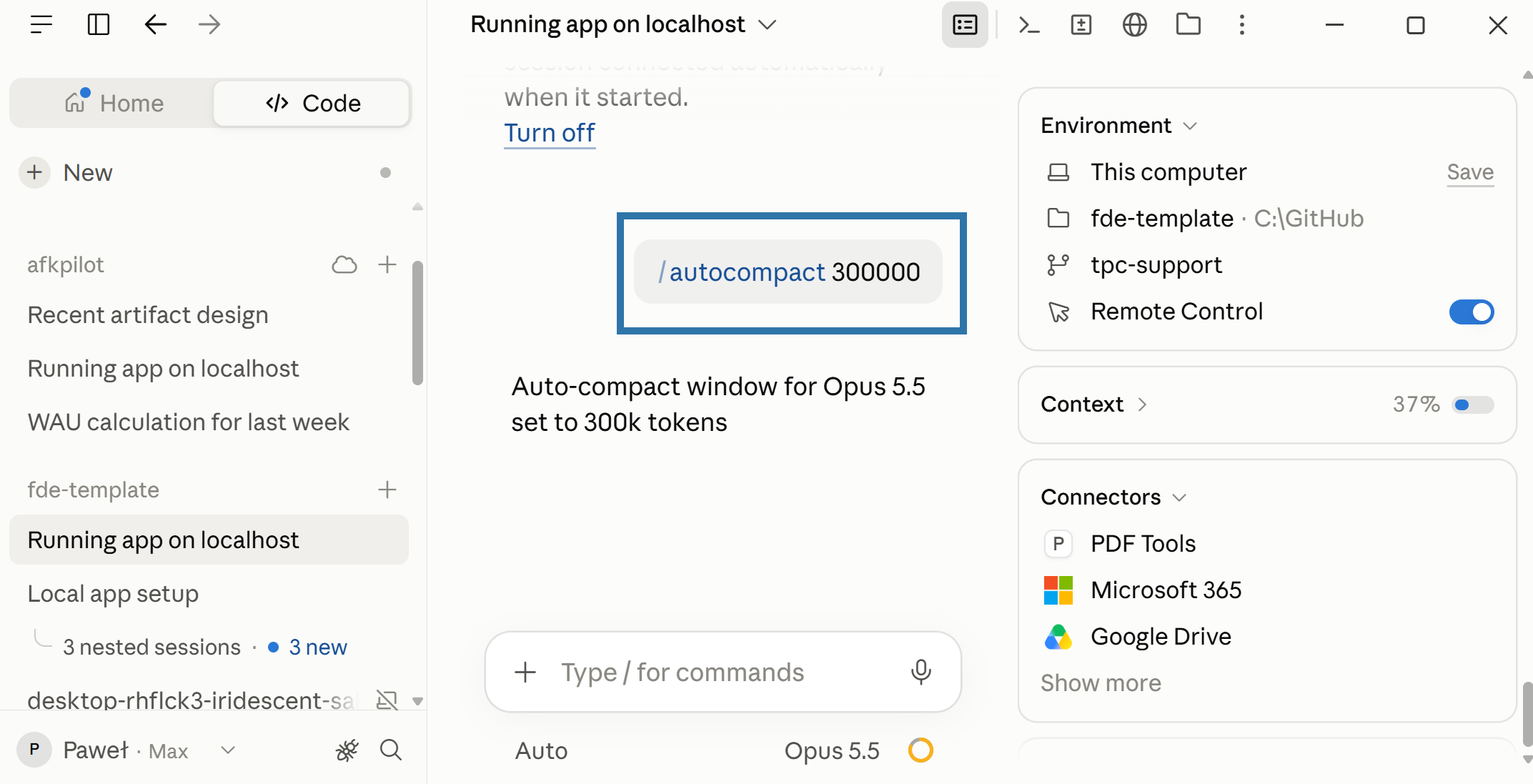
You can also use auto-compact. I recommend setting it to 300,000 tokens (/autocompact 300000). This is enough for most use cases. You don’t need 1 million tokens, and it will save you a lot of usage (cache reads and writes):
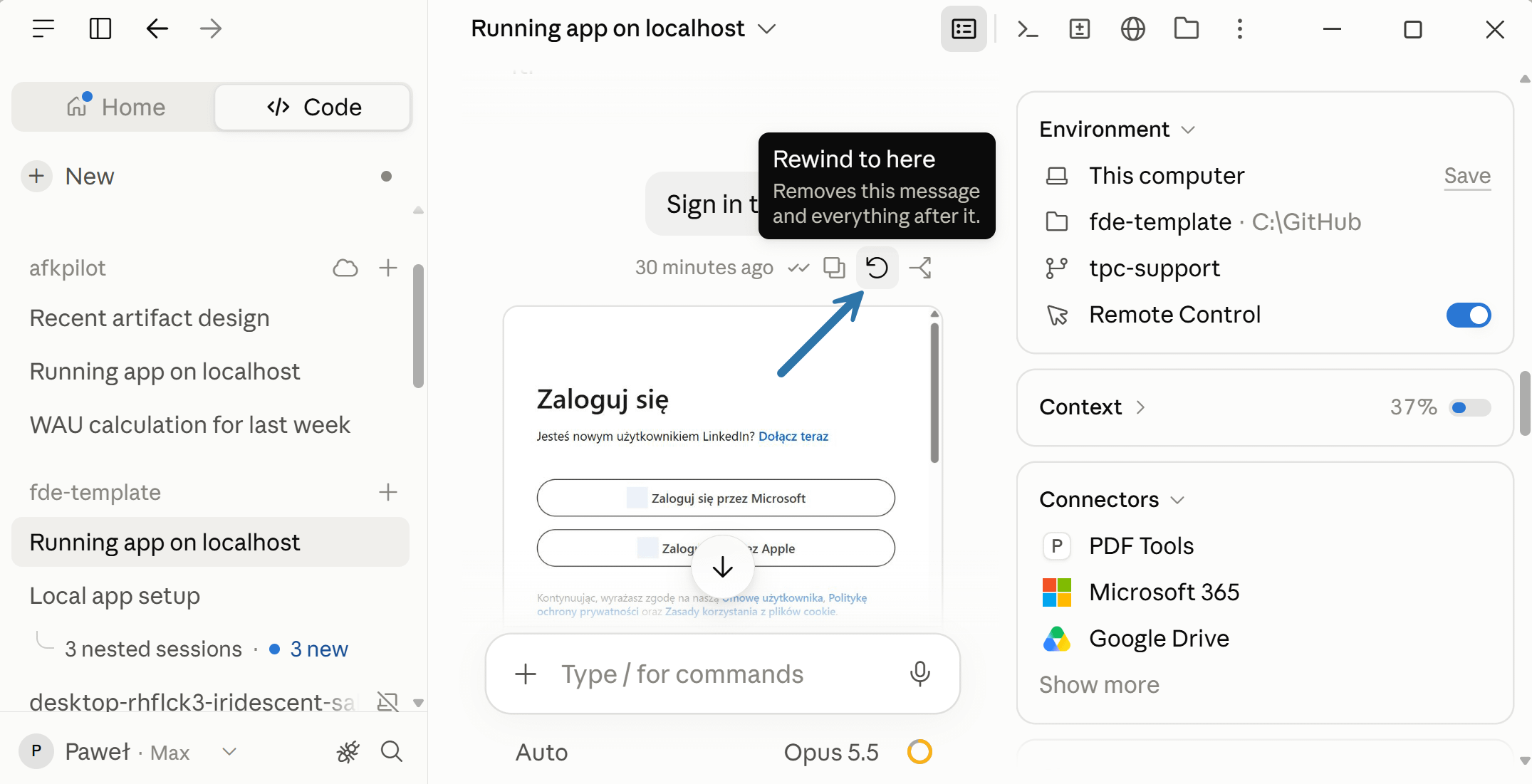
And rewind just works. Click your previous message and choose “Rewind to here” to start again from there:
5. Other Features: Nice, Not a Breakthrough
The update added a lot if you need to run many sessions in parallel. There are interesting use cases, but this isn't how most Product Managers will use Claude Desktop:
Nested sessions (Thariq calls them subsessions): ask for parallel work, and Claude starts a separate session for each task. Unlike subagents, you can open them, see the whole conversation, and steer them.
Side questions: type
/btwto ask a question in a separate tab while the main session keeps going.Split view: Ctrl-click (⌘-click on a Mac) a session to see two side by side.
Source control: if your engineers work with Git, you can open the same project. Pick a branch, or a worktree (a separate copy for parallel work), in the folder menu.
🔒 6. The Ultimate List of Claude Collections: Skill Repositories, MCP Servers, Free Courses, and AGENTS.md Snippets
Everything above is free. Paid subscribers also get my list of Claude lists + how to add entire skill repositories without wasting tokens:
🔒 My collections (12 skill collections, MCP servers and how to build your own tools, 6 free courses, and 3 AGENTS.md snippets) are available for paid subscribers. Upgrade to get full access.
They will appear right below.
Conclusion
In January, I wrote that you don't need a terminal for working with AI agents. Now you don't need an IDE either.
It democratizes agentic engineering: working with agents, building agents, and building with agents.
Start building. Stop theorizing.
Thanks for Reading The Product Compass
It's amazing to learn and grow together.
And here’s what you might have recently missed:
Building In Public: How to Get Your First 100/1,000/10,000 Users (currently 131 users, 113 organizations, $840.00 ARR - this will take time but we may get there, already learned a lot and haven’t implemented those findings yet - I will be sharing more in the future)
Consider subscribing and upgrading your account for the full experience.
Lastly, this Thursday, I'll demo Grok Bot and OpenAI's Dots at a live event for premium subscribers: https://go.productcompass.pm/premium. I’m sorry for communicating that change too late.
Have a great week ahead,
Paweł