

Hey, Pawel here. Welcome to The Product Compass - the #1 hands-on AI PM newsletter. Every week I share actionable articles, playbooks, and resources for PMs.
Here’s what you might have recently missed:
How I Built a Secure Autonomous AI Agent with Claude and n8n
How to Build, Deploy, And Scale Your AI Product Strategy From Scratch
Consider subscribing and upgrading your account for the full experience.
Note: Anthropic dropped important changes just after the publication.
This article was updated:
March 7, 2026 — Anthropic released /loop for Claude Code, refreshed infographics
March 6, 2026 — Anthropic released auto memory for Claude Code (point 7), refreshed infographics
February 26, 2026 — Cowork now supports scheduled tasks (point 5)
February 25, 2026 — Anthropic reorganized the left menu (points 2-4)
Anthropic just shipped Claude Cowork for Windows and Intel-based macOS with full feature parity to the version released in January. It’s now available on all platforms for Pro, Max, Team, and Enterprise plans.
Everyone’s hyping Claude Code. But if you’re not a developer, Cowork might be a better default option for everyday tasks — and almost nobody’s talking about it enough.
I'm a former engineer. I can use the terminal just fine. But prototyping aside, I choose Cowork for day-to-day work: analyzing and drafting emails, reorganizing files, preparing contracts, managing invoices, and even configuring my OS.
Same model as Claude Code. Same skill format, same connector types.
Technically, Code can do everything Cowork does. The difference is how you get there. Code needs git worktrees, tmux, and CLI flags. Cowork gives you a simple visual interface.
This guide covers everything you need to know:
What Cowork Actually Is
Cowork vs. Chat: Why it’s a Different Beast
Plugins, Commands, and Skills in Claude Cowork
MCPs: Connecting Cowork to Your World
Scheduled Tasks
A 1-Minute Hack That Makes Claude Desktop 2x More Powerful
How to Give Claude Cowork Cross-Session Memory
1. What Cowork Actually Is
Cowork is not a chat interface with a new skin. It’s an autonomous desktop agent built into the Claude Desktop app.
When you open the Cowork tab, you’re giving Claude access to a sandboxed Linux VM running on your machine. Inside that sandbox, Claude can write code, execute scripts, create files (Word docs, slide decks, spreadsheets, PDFs), and connect to services like Gmail, GitHub, and Slack (you don't set this up — Anthropic manages it).
You describe what you need. Cowork plans the work, breaks it into sub-agents that run in parallel, and delivers output as clickable files you can open directly.
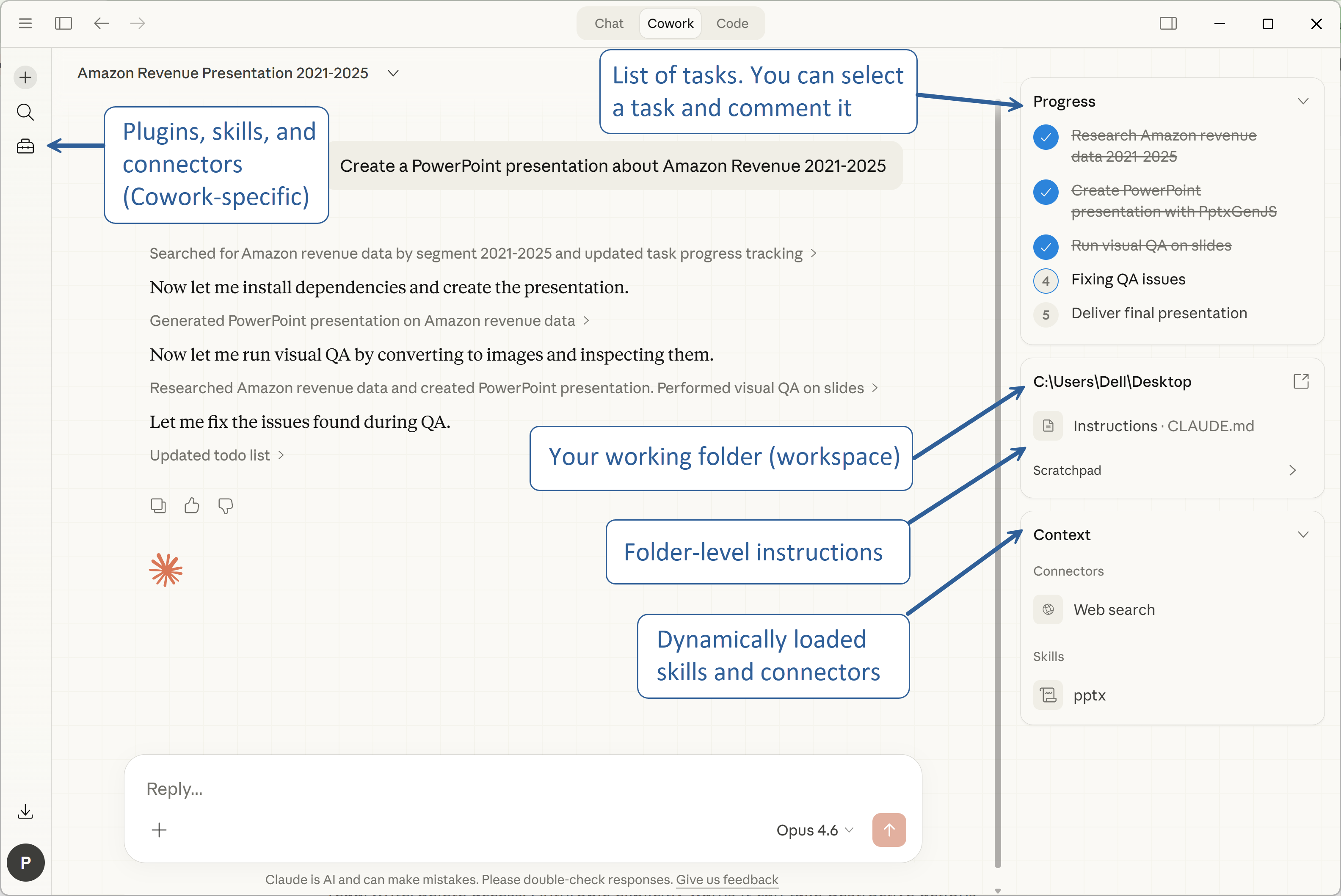
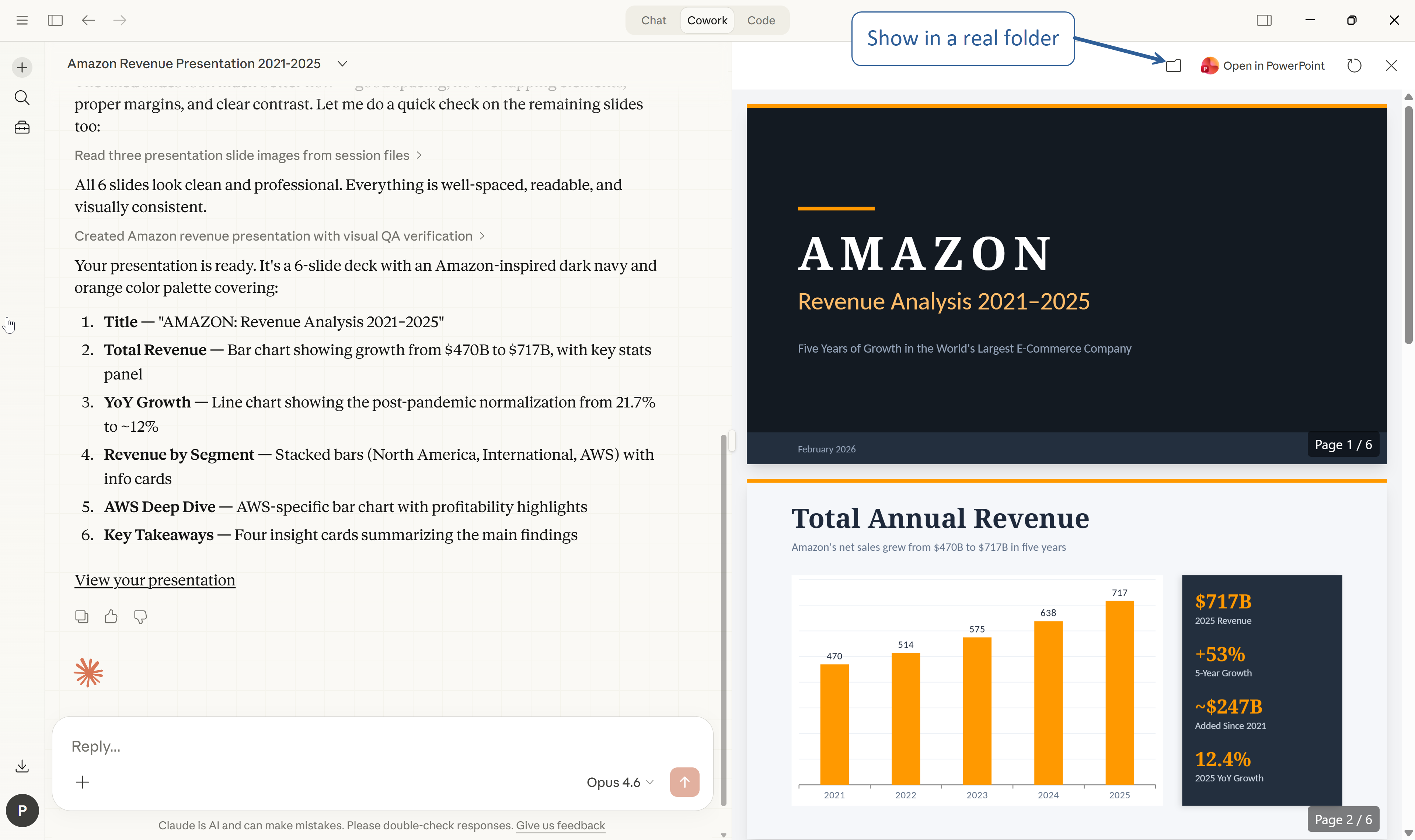
A few things that set it apart from Chat:
It plans and tracks work. Give Cowork a complex task and it decomposes it into subtasks, shows you the plan, and works through it step by step. You can watch progress in real time and steer mid-task. Chat doesn’t do this.
It coordinates parallel work. Cowork can spawn sub-agents — independent Claude instances that each get their own context — to work on different parts of a task simultaneously.
It creates real files. Not an artifact. Actual .docx, .pptx, .xlsx, and .pdf files delivered to the folder you granted access to.
It’s sandboxed — but not entirely. Cowork runs in a VM, so it can’t touch your OS or files outside the folder you shared. But inside that folder, it has full read/write/delete access.
It connects to your tools. Gmail, GitHub, Slack, Google Drive, and more via built-in connectors. Plus any custom tool via MCP servers.
2. Cowork vs. Chat: Why it’s a Different Beast
Many of you already use Claude Chat in the Desktop app. You might be wondering: what does Cowork add? Here’s my comparison:
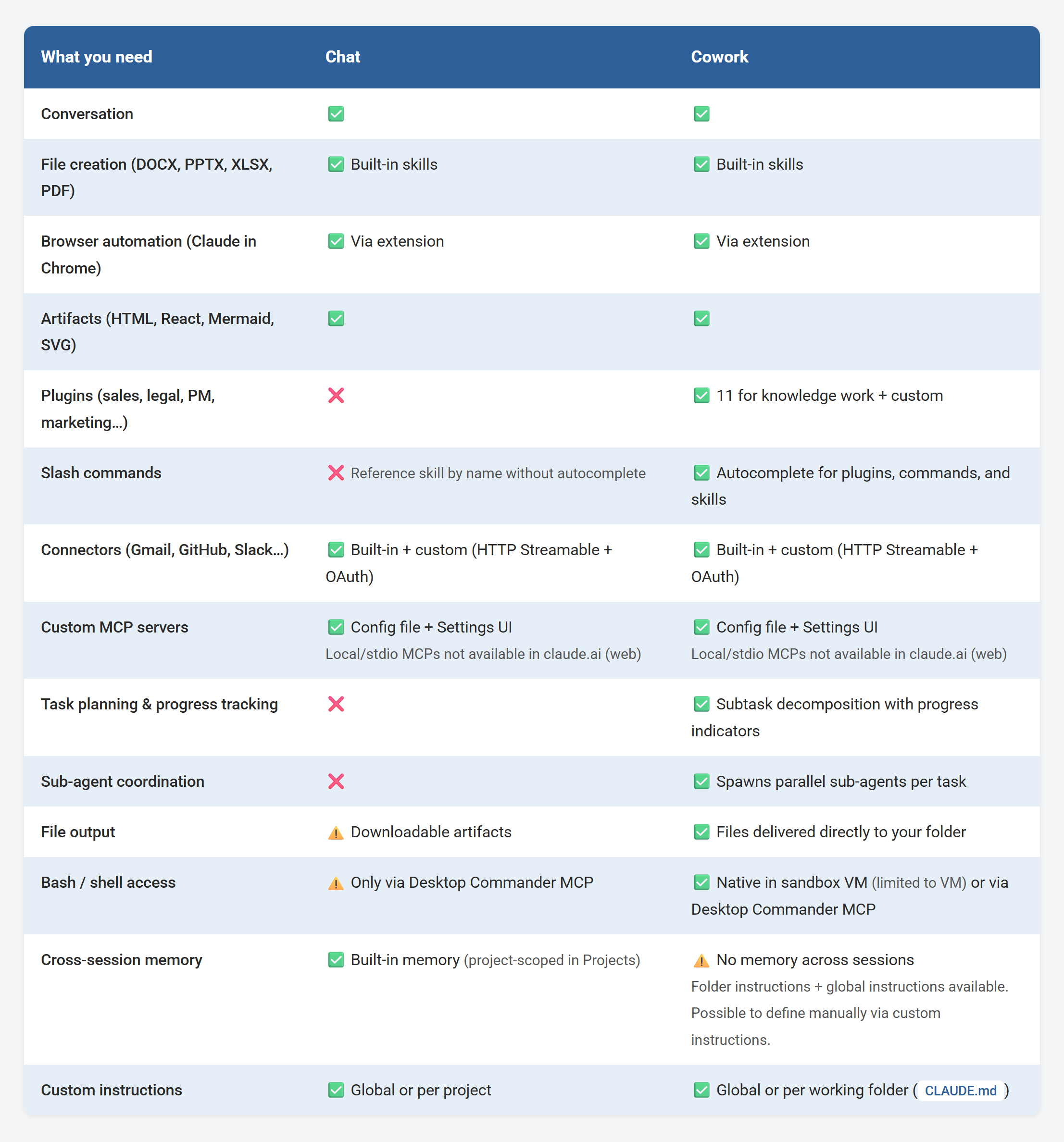
In short, Cowork adds what matters for getting real work done: sub-agent coordination that handles parallel work, task decomposition, and files delivered directly to your folder instead of chat artifacts.
Chat is for conversations. Cowork is for workflows.
3. Plugins, Commands, and Skills in Claude Cowork
When Anthropic unveiled AI tools automating legal and financial research in early 2026, legacy software stocks dropped $285 billion in a single day. Investors saw AI agents moving into the application layer — legal, sales, marketing, finance — and repriced the entire software sector.
The plugins sitting in your Cowork sidebar are part of what triggered that reaction. Here’s how they work.
What are skills?
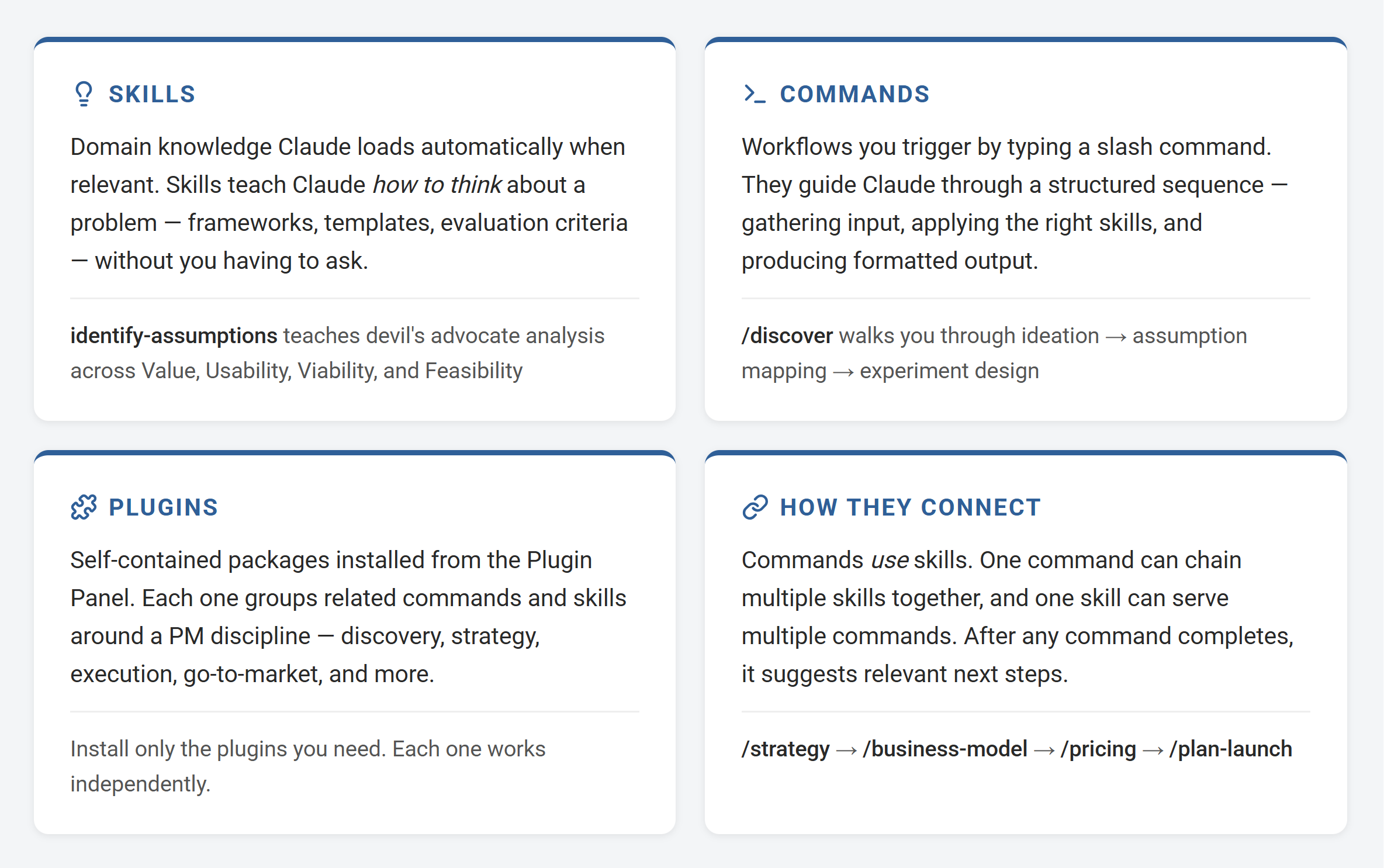
Let’s start with skills. They are reusable instruction manuals that teach Claude how to approach specific, repeatable tasks. Say “create a Word doc” and the docx skill loads.
The format works across Claude ecosystem and third-party tools like Cursor, Windsurf, and Codex CLI.
Built-in skills include pdf, docx, pptx, xlsx, canvas-design, algorithmic-art, and skill-creator.
Skills don’t all load at once. Claude reads only a short description of each skill (~100 tokens) to decide which ones are relevant, then loads full instructions only when needed. This keeps your context window clean.
What are commands?
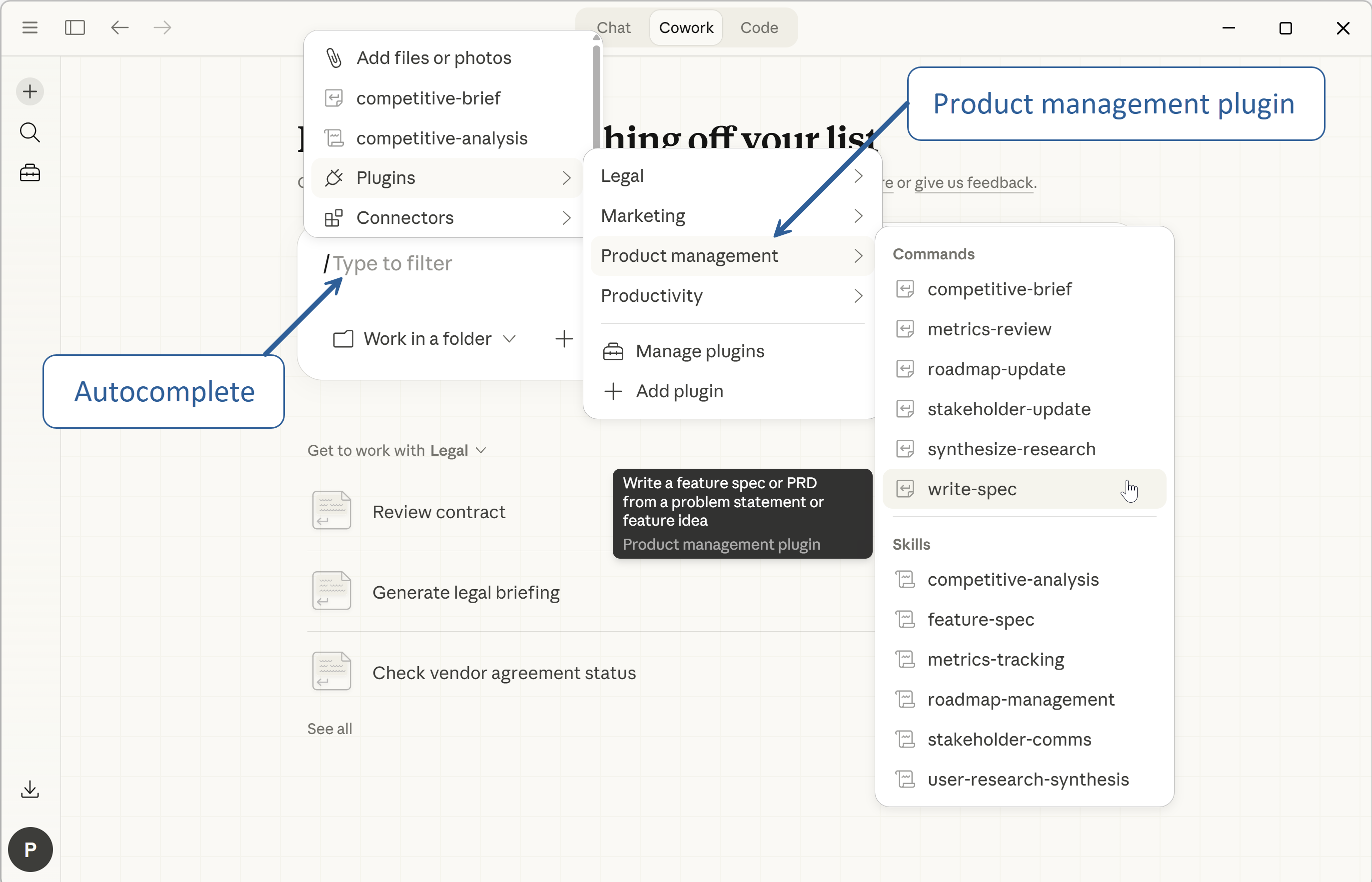
Commands are structured workflows you trigger by typing a slash command. Type /strategy and Claude walks you through a full product strategy canvas — gathering context, applying the right frameworks, and producing formatted output.
Commands can chain together skills: /strategy → /business-model → /pricing → /plan-launch follows the natural PM workflow from vision to execution.
The Cowork plugin panel
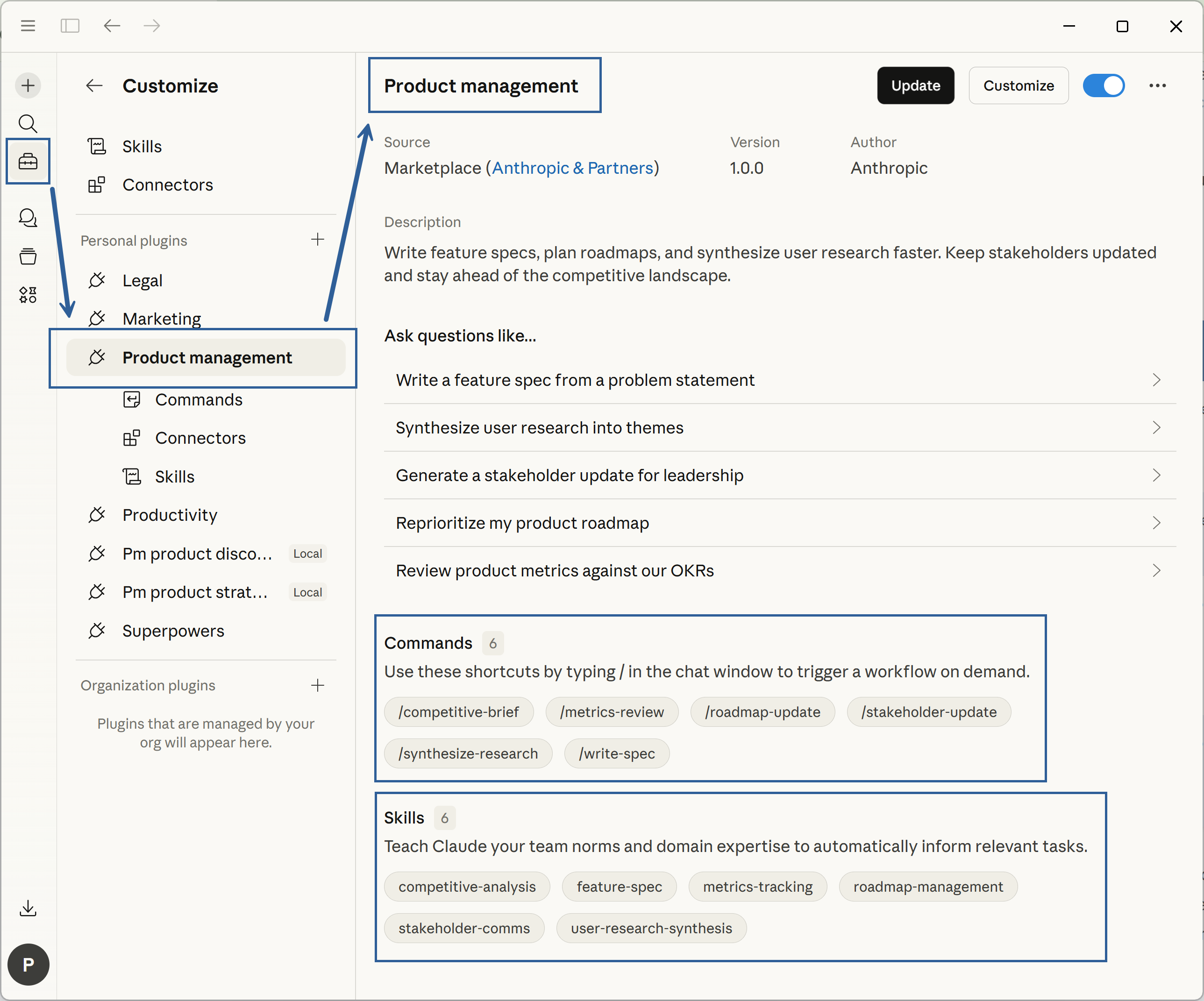
Cowork has a dedicated Plugins panel. You can browse, install, upload, and create plugins from a visual UI:
Each plugin bundles skills with slash commands, for example “Product Management:”
Skills are auto-discovered, but you can also plugins and commands with slash commands:
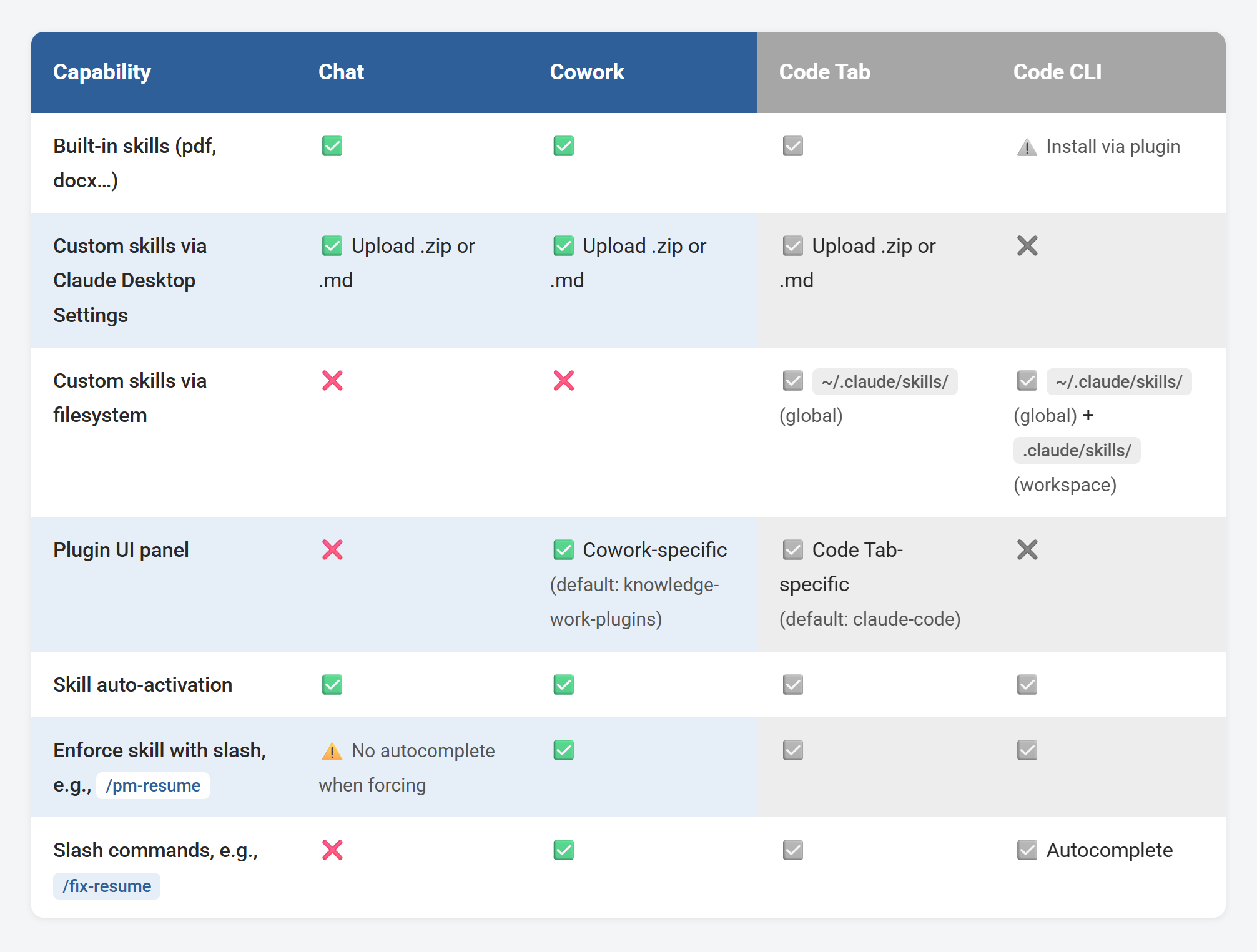
Skill and plugin access across tools
Here’s the high-level picture. In this article we focus on Cowork:
Default plugins:
Cowork ships with 11 plugins from anthropics/knowledge-work-plugins (productivity, product-management, legal, finance, marketing, data, etc.)
Code’s marketplace defaults to anthropics/claude-code (developer workflows: agent-sdk-dev, frontend-desing, feature-dev, code-review, etc.).
But you can add any marketplace repo to either tool — load Code’s developer plugins into Cowork, or Cowork’s business plugins into Code. Same skill format, fully cross-compatible.
Note: Cowork and Code Tab have separate, isolated plugin panels. Installing a plugin in one doesn't make it available in the other. Skills uploaded via Claude Desktop settings are shared across Chat, Cowork, and Code Tab.
Where to find more skills and plugins
Beyond built-in skills and Anthropic’s plugins, there’s a growing ecosystem worth exploring. All essential sources:
github.com/phuryn/pm-skills: PM Skills Marketplace — 100+ agentic skills, commands, and plugins — from discovery to strategy, execution, launch, and growth
github.com/anthropics/skills: Anthropic’s official repo — document skills (docx, xlsx, pptx, pdf) plus creative, technical, and enterprise examples
github.com/anthropics/knowledge-work-plugins: Cowork’s default plugin registry — the 11 business-role plugins
github.com/anthropics/claude-code: Developer-focused workflows — Code's default marketplace source, open “Plugins”
claudemarketplaces.com: Browse and discover plugin marketplaces you can add to Cowork or Code
github.com/travisvn/awesome-claude-skills: Community-curated collection with battle-tested skills for TDD, debugging, collaboration
github.com/sickn33/antigravity-awesome-skills: 868+ universal agentic skills — covers security, DevOps, full-stack, AI/ML, and more. Role-based bundles (Startup Founder, Marketing & Growth, etc.) let you pick what’s relevant. Works with Claude Desktop, Claude Code, Cursor, Gemini CLI, Codex, OpenCode, and Antigravity
skills.sh: Vercel’s open skills ecosystem — directory and leaderboard, CLI installer (npx skills add). PM-relevant skills include product strategy frameworks, pricing strategy, launch playbooks, discovery interview guides, PRD generator, analytics tracking setup, resume optimizer, and more. Full repo also covers marketing, SEO, copywriting, and web design. Works with 18+ agents
skillsmp.com: Community marketplace — 200K+ skills indexed from GitHub, searchable by category
skillhub.club: 7,000+ AI-evaluated skills with quality scores, one-click install via desktop app
agentskills.io: The open format specification — if you want to build your own
4. MCPs: Connecting Cowork to Your World
MCP stands for Model Context Protocol — the open standard by Anthropic. Each MCP server exposes tools Claude can call.
A custom Gmail MCP gives Claude search_emails, send_email, read_email. The official official GitHub MCP gives it create_pull_request, list_issues. You get the idea.
There are three ways to connect MCP servers to Claude, and understanding the difference matters. When I say “Claude Desktop” below, I mean all three tabs in the Desktop app: Chat, Cowork, and Code.
Three types of MCP connections

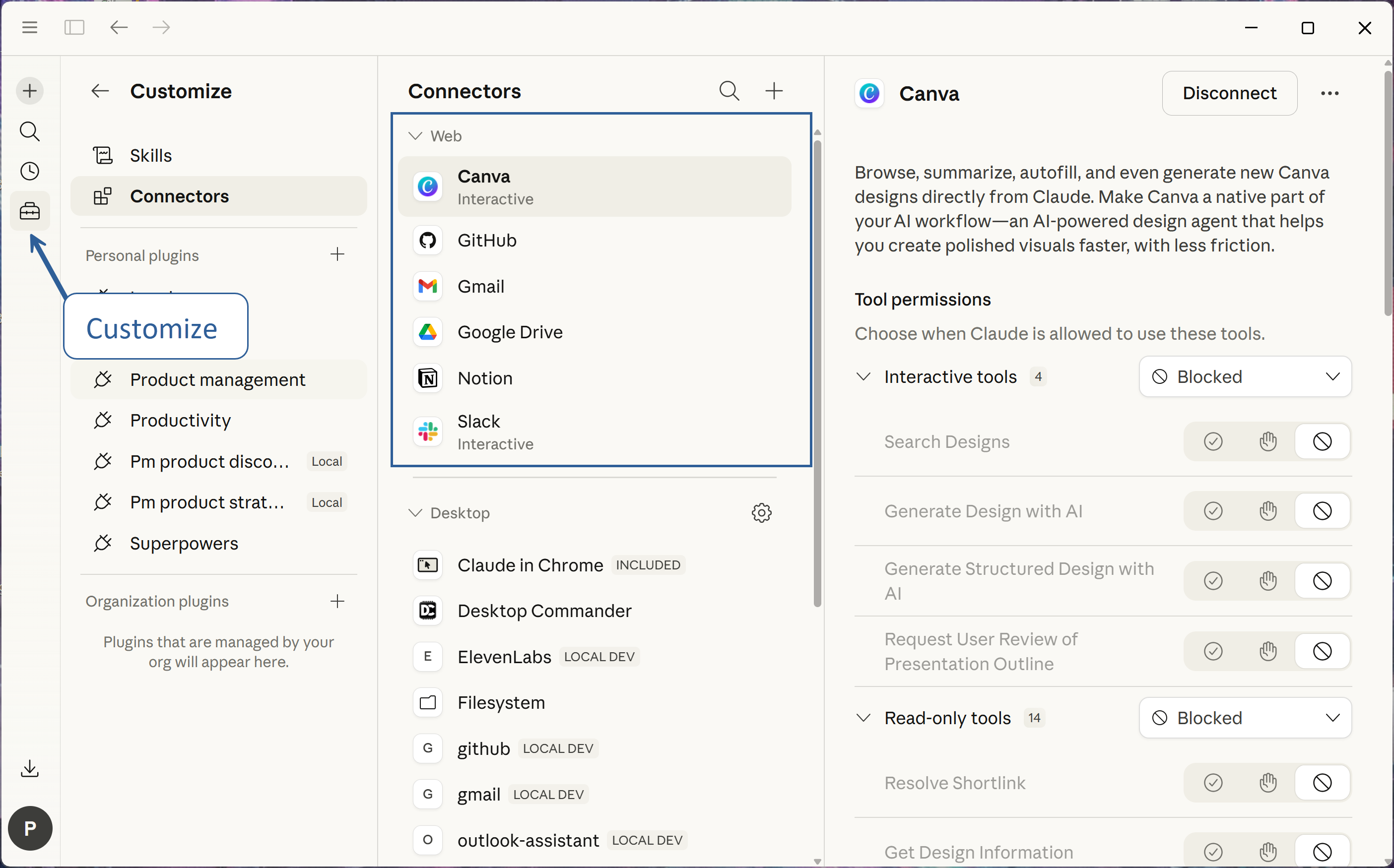
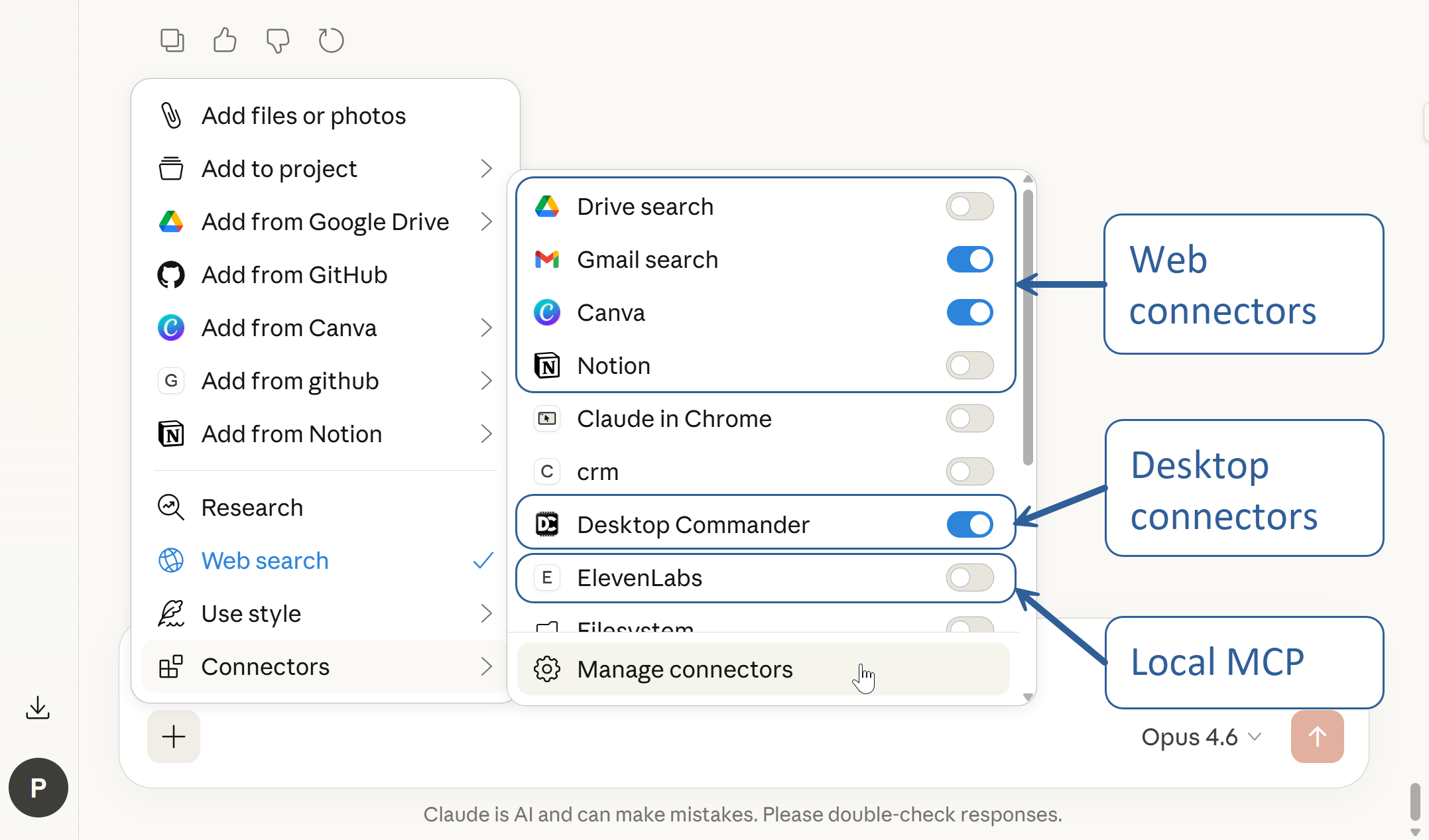
Web connectors work everywhere — including claude.ai in your browser. Those can be built-in (delivered by Anthropic) or custom (HTTP Streamable + OAuth) MCPs. You manage them in “Customize> Connectors”:
Desktop connectors are how Anthropic packages local MCP servers for one-click install — they show up in both the Extensions panel (to install/remove) and the Connectors panel (to toggle on/off). You manage them in “Settings > Extensions”:

Custom MCP servers are managed by editing a JSON config. Click “Menu > Developer > App Config File…” An example content with a custom Gmail and Outlook MCPs (Edited: I needed the first one when publishing this post, drafting and sending emails is not supported by the built-in connector):
{
  "mcpServers": {
    "gmail": {
      "command": "npx",
      "args": [
        "@gongrzhe/server-gmail-autoauth-mcp"
      ]
    },
    "outlook-assistant": {
      "command": "C:\\nvm4w\\nodejs\\node.exe",
      "args": [
        "C:\\Users\\Dell\\outlook-mcp\\index.js"
      ],
      "env": {
        "USE_TEST_MODE": "false",
        "OUTLOOK_CLIENT_ID": "6c****-**************",
        "OUTLOOK_CLIENT_SECRET": "53**************_**************"
      }
    }
  }
}
What might be a bit confusing is that Claude Desktop presents them all in a single “Connectors” interface with on/off toggles:
Per-tool permissions
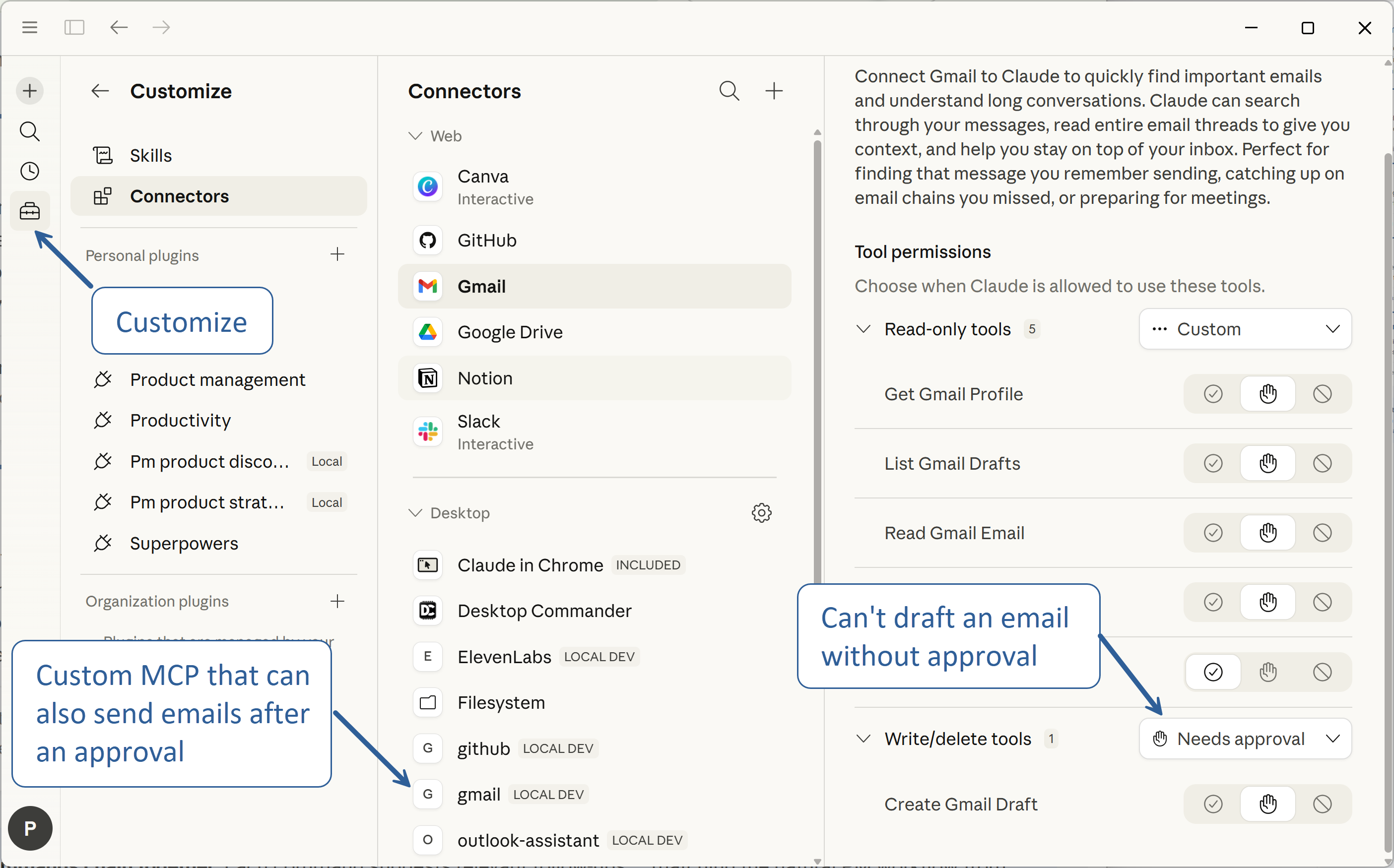
For every connector, you can set individual tools to Allow (runs automatically), Ask (confirms before running), or Block (never runs). You could allow Claude to search your emails but block it from sending them. Click: “Customize→ Connectors → Tool permissions”:
MCP config is not shared across all tools
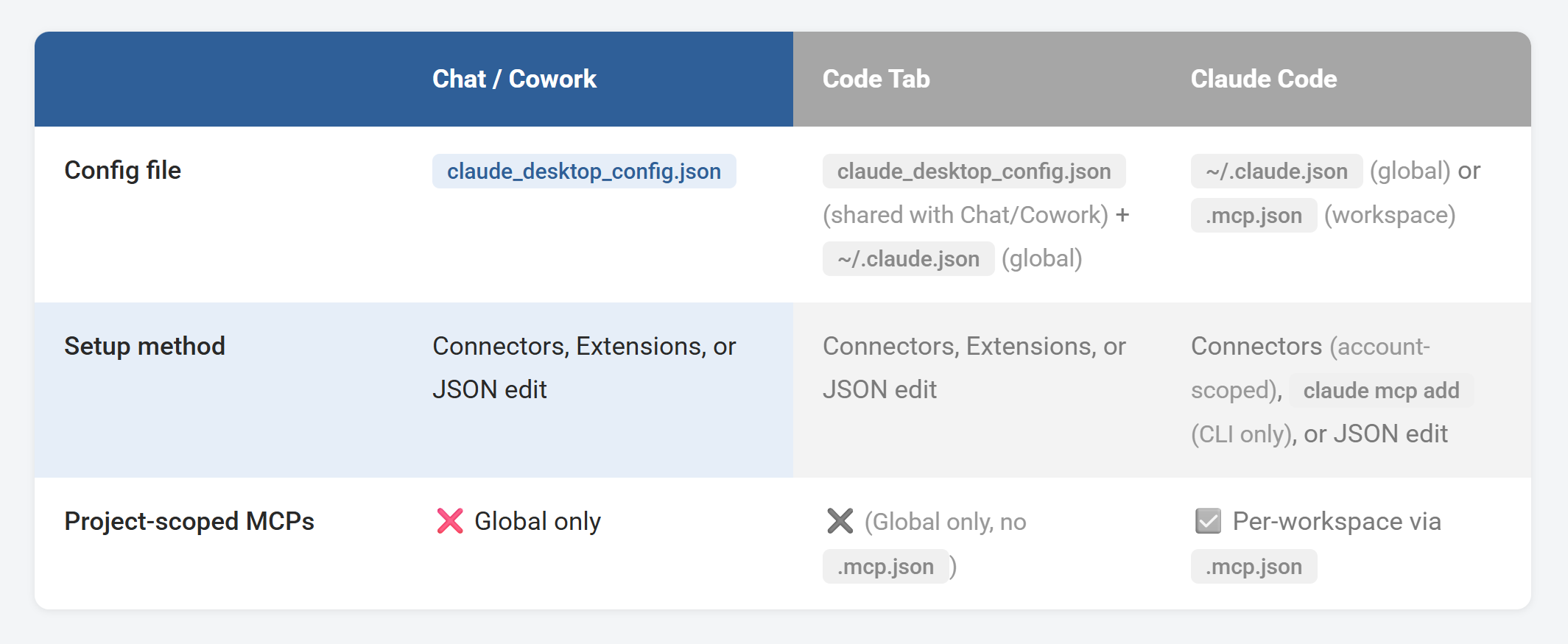
Different tools use different config methods. For example, adding an MCP server to Chat makes it available in Cowork, and Code Tab, but not Claude Code (CLI & VS Code Extension):
Windows gotcha: If you installed Claude Desktop via the Microsoft Store (MSIX), the "Edit Config" button may open the wrong file. The app reads from the MSIX virtualized path, not
%APPDATA%\Claude\. Check GitHub issue #26073 if MCP servers silently fail to load.
Where to find MCP servers
github.com/modelcontextprotocol/servers: Official MCP server repo — filesystem, GitHub, Google Drive, Slack, and more
modelcontextprotocol.io/examples: Official MCP directory — reference implementations for many services
github.com/punkpeye/awesome-mcp-servers: Community-curated list — hundreds of MCP servers by category
mcp.so: MCP server registry with search and install instructions
Thanks for reading so far. Continue with:
Scheduled Tasks: Best Practices (Save a Few Hours / Week)
A 1-Minute Hack That Makes Claude Desktop 2x More Powerful
How to Give Claude Cowork Cross-Session Memory
Detailed visual assets across the Claude ecosystem 👇