

Hey, Paweł here. Welcome to the freemium edition of The Product Compass newsletter.
Each week, I share actionable tips and resources for AI Product Managers.
Not a subscriber yet? Here are a few posts you might have missed:
Introduction to AI PM, Neural Networks, Transformers, and LLMs
The AI PM Learning Program + Certificate free for subscribers
Also check the new archive (all articles) and video courses free for premium subscribers: discovery, strategy, innovation, and killer PM resume.
Consider subscribing and upgrading for the full experience:
Google now has multiple “Studios”.
They look like one workflow.
They are not.
This matters a lot. One of these tools feels like “prototype fast”. Another one quietly turns into “open terminal, tackle dependencies, good luck”.
This post is my attempt to make the stack usable for you, so you can save time and iterate fast without wasting time researching the available options.
The real problem isn’t the tools. It’s starting at the wrong layer too early.
TL;DR
Use Google Stitch when you want screens and flows fast, without waiting for a designer.
Use Google AI Studio when you want an app-like prototype that behaves and can be shared.
Use Firebase Studio only if you’re ready for developer workflows like the terminal, dependencies, and ports. Cursor is great too, but both come with a steeper learning curve.
If you want to build something that feels like a real product without touching a terminal, use Lovable or Dyad.
You can start in any tool. Stitch is not mandatory. It’s just the fastest way to explore multiple paths and make the UX concrete.
Here’s what we’ll walk through:
The Real Difference Between Stitch, AI Studio, and Firebase Studio
What Google Stitch Is Good For (And Why It Still Matters if You Use Figma)
What Stitch Is Not
Stitch Example: Course Catalog
What Is Google AI Studio
Google AI Studio Example: Course Catalog
When AI Studio Is Useful for You
When AI Studio Is Not Enough
Preview vs Deploy in Google AI Studio
🔒Five No-Code Workflows that Actually Make Sense (Including No Stitch)
🔒Stitch vs Figma: Stop Waiting Days to See the First Flow
🔒Firebase Studio Explained for Non-Engineers
🔒When I Switch to Lovable (Dyad)
🔒Cheat Sheet: Which Tool to Use, and When
🔒Conclusion
Let’s dive in.
1. The Real Difference Between Stitch, AI Studio, and Firebase Studio
People mix them together. But each one sits on a different layer:
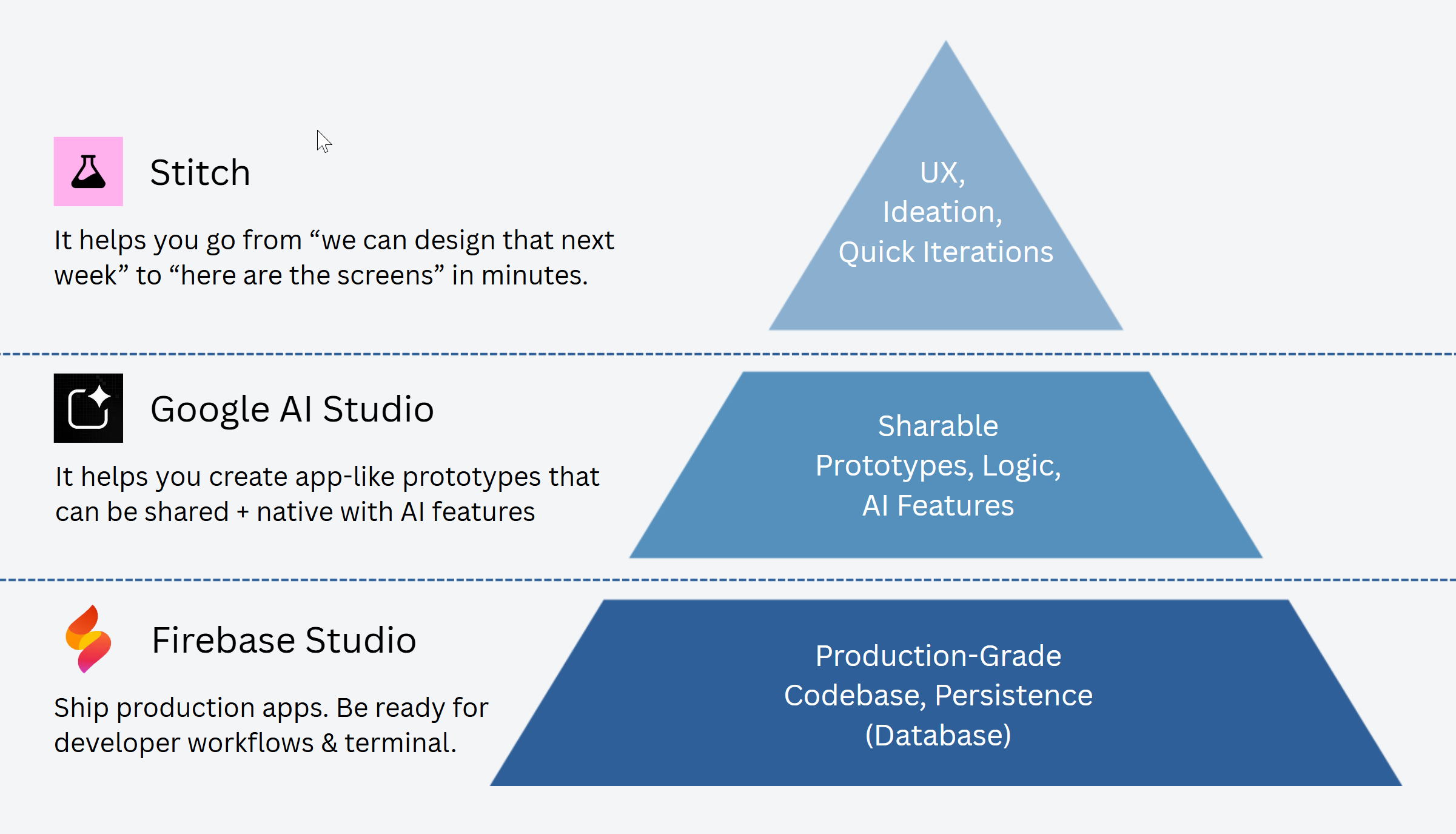
Google Stitch
You use it to prototype the UX.
Screens. States. Flows. Copy. Quick prototyping for a cross-functional team.
Google AI Studio
You use it to prototype an app-like experience.
It generates code, runs a preview, and helps you ship a shareable demo without a full dev setup.
It’s not “just AI”. It’s closer to “app prototyping with Gemini features built in.”
Firebase Studio
You use it to work with a real codebase.
It’s a cloud IDE + AI agent. It expects terminal commands. It expects you to debug stuff.
If you do not have an engineering background whatsoever, Stitch and AI Studio can feel empowering. Firebase Studio can feel like a wall.
2. What Google Stitch Is Good For
You need Stitch when the problem is simple: you cannot see the product.
You need to explore UI when:
You want to quickly ideate as part of product discovery
You want stakeholders to react to something concrete.
You want to explore several directions quickly.
Stitch is great for that.
It helps you go from “I think the UX should work like this” or “we can design that in Figma next week” to “here are the screens” in minutes.
2.1. What Stitch is not
Let’s make this clear:
Stitch is not for pixel-perfect precision.
It’s not a full replacement for Figma.
It’s not your long-term source of truth for design systems.
It’s an exploration tool for PMs, builders, and cross-functional teams (“Product Trios”).
2.2. Stitch Example: Course Catalog
I could present an advanced prompt, but that’s not the point when you are exploring options. In practice, you often prompt and iterate. So I asked Stitch:
“Design a video course platform where I can browse courses, enroll, and start the course > modules > lessons > watch the video.”
That’s it. After reviewing the plan, I got the following set of screens:
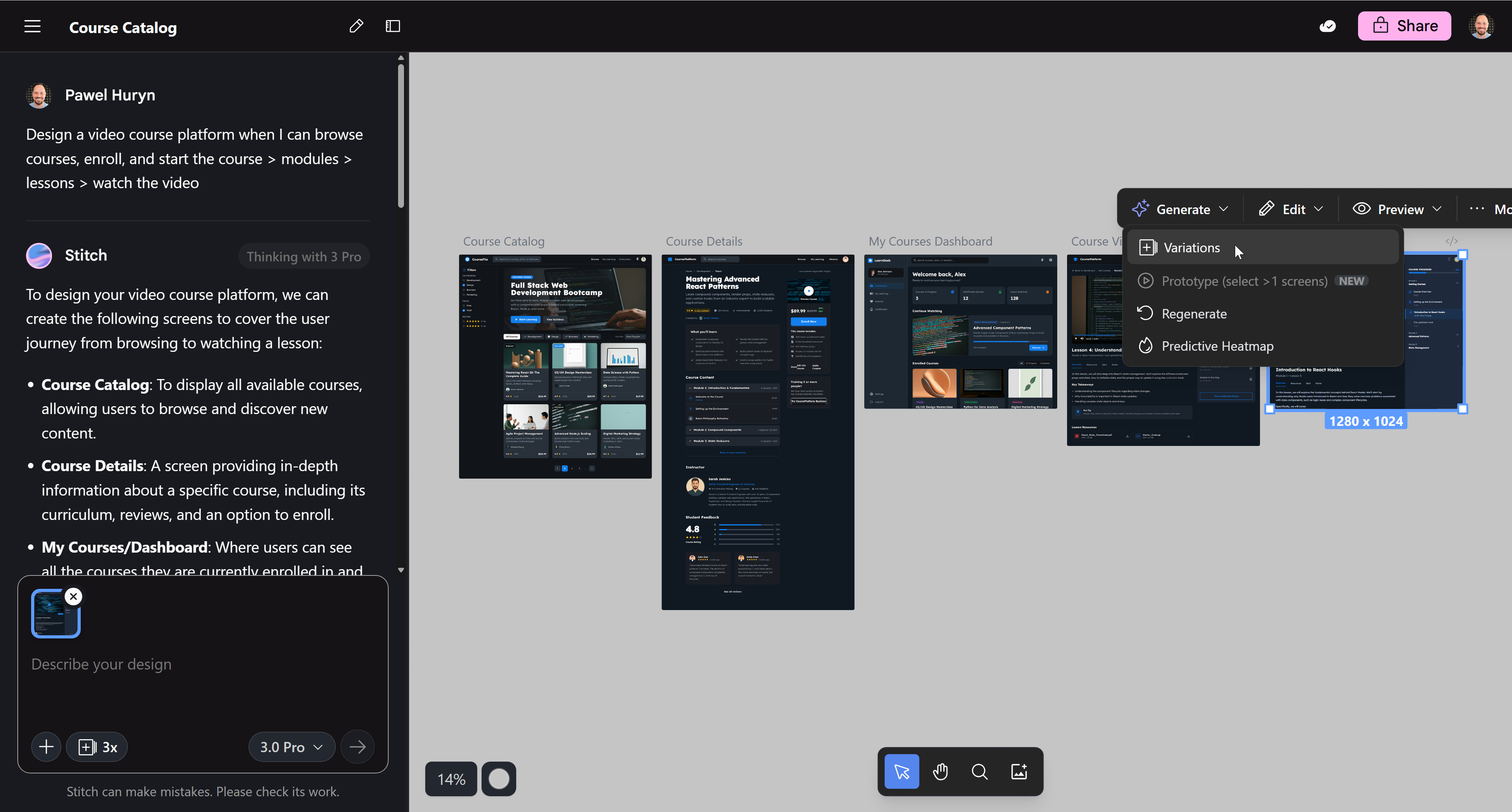
Next, you can:
Preview any screen as Desktop, Tablet, or Mobile (it's HTML, not just Google Nano Banana).
Select any screen and ask Stitch to generate more variants (layout, text, content, color scheme, etc.).
Use the chat window to request specific changes.
Export any screen or a set of selected screens to:
Google AI Studio,
Google Jules (autonomous coding agent that can work async),
HTML/.zip (for tools like Lovable, Dyad, or Cursor).
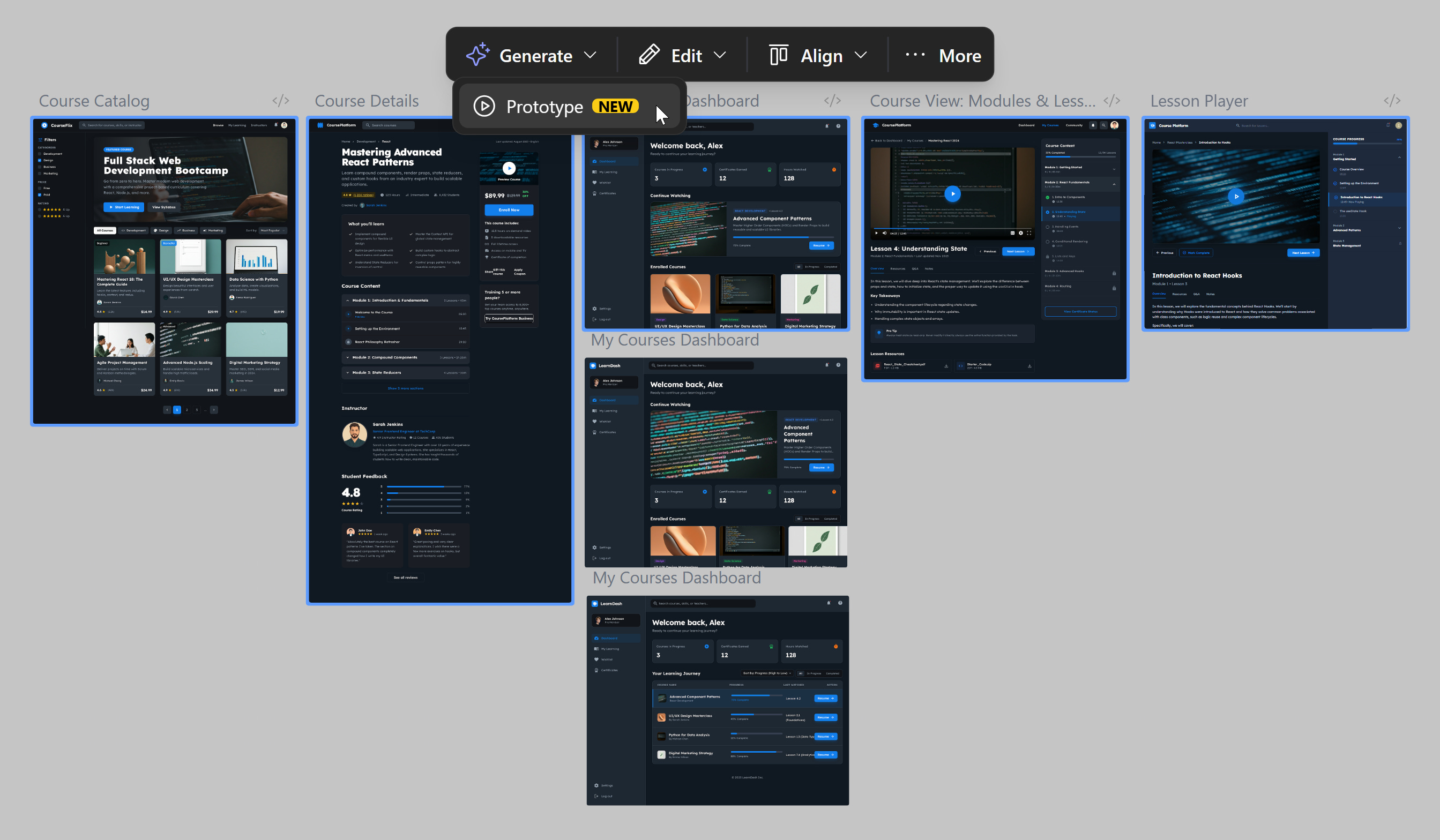
You can also select several screens and stitch them into a clickable prototype you can run directly in Stitch:
It’s a great option to explore the solution space as a team or record a quick Loom video:
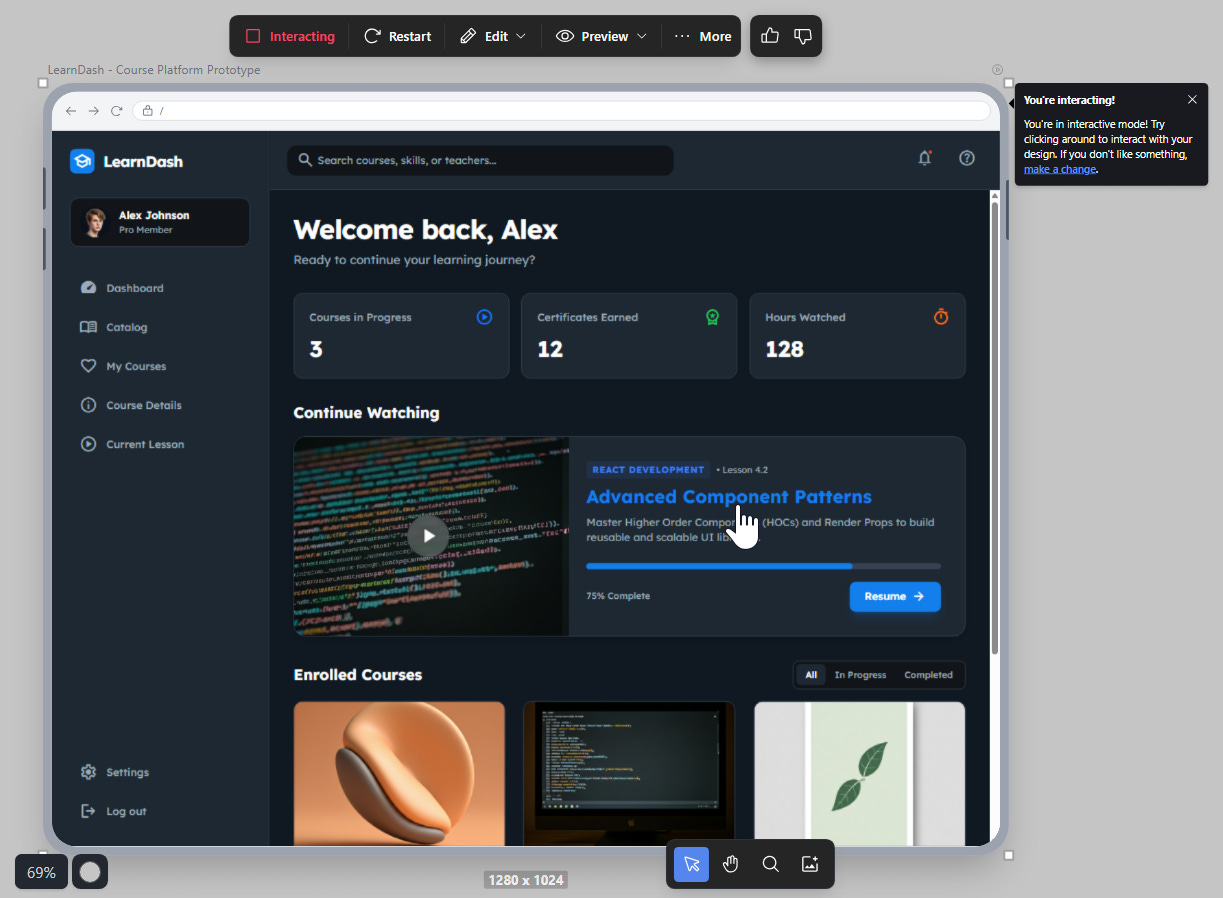
At the same time, I wouldn’t use those prototypes to test them with stakeholders/customers (experiments) - the only option to make it clickable is sharing your Stitch project.
Let’s select and export multiple screens to Google AI Studio. I will discuss this in the next point:
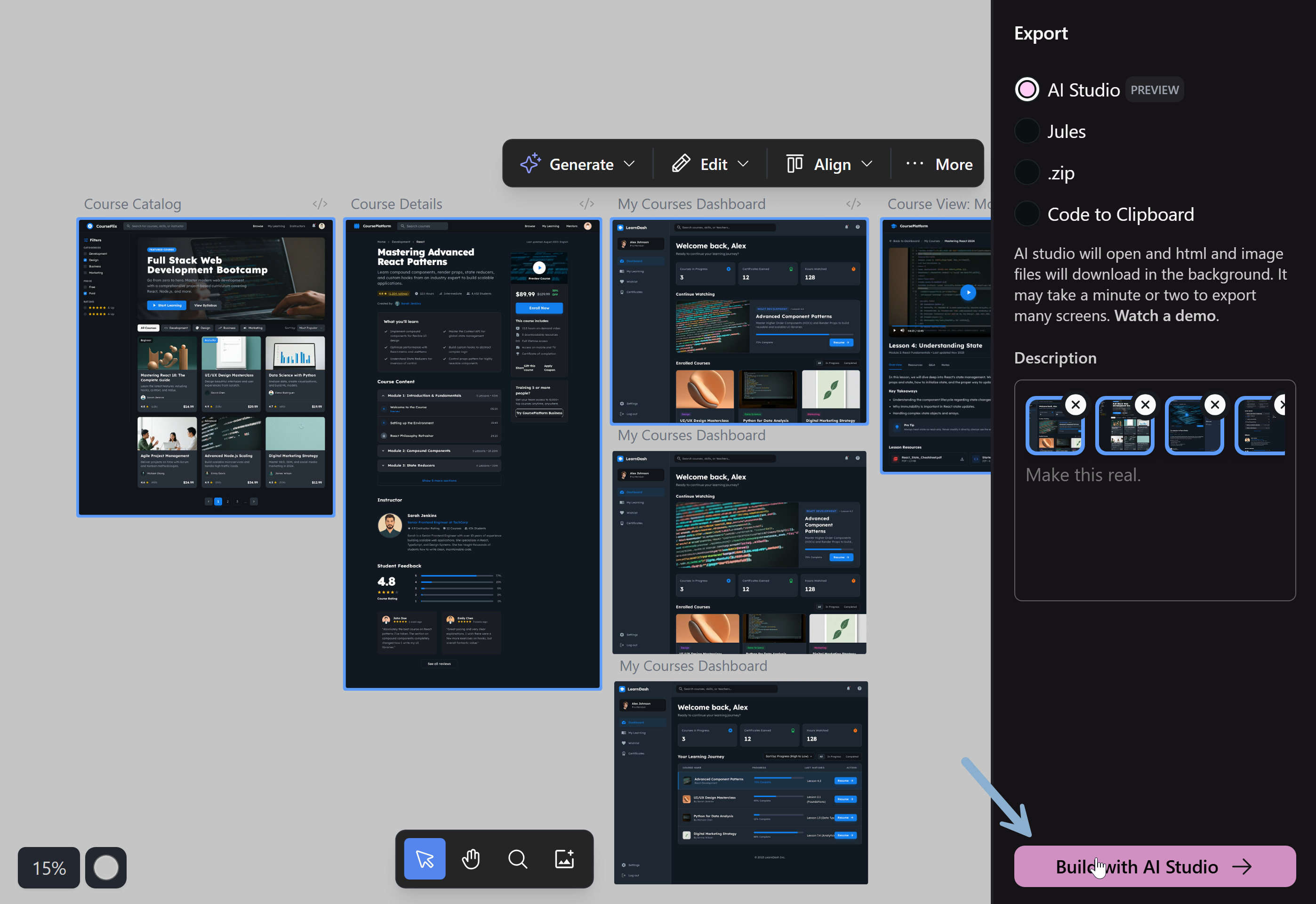
3. What Is Google AI Studio
AI Studio is easy to misunderstand because it has two vibes:
Prompt playground.
App builder.
If you use Build mode, it behaves like an app prototyping environment:
It scaffolds an app.
You can preview it.
You can edit code.
You can share it (it still looks and feels like an AI Studio app, not a white-labeled prototype).
You can sometimes deploy it as an app (requires billing).
With Google AI Studio you do not need a Lovable subscription just to test an idea. And with billing enabled, hosting can still be symbolic for light demos (in practice, you can often ignore it).
3.1. Google AI Studio Example: Course Catalog
After exporting my screens from Stitch, I saw the following screen:
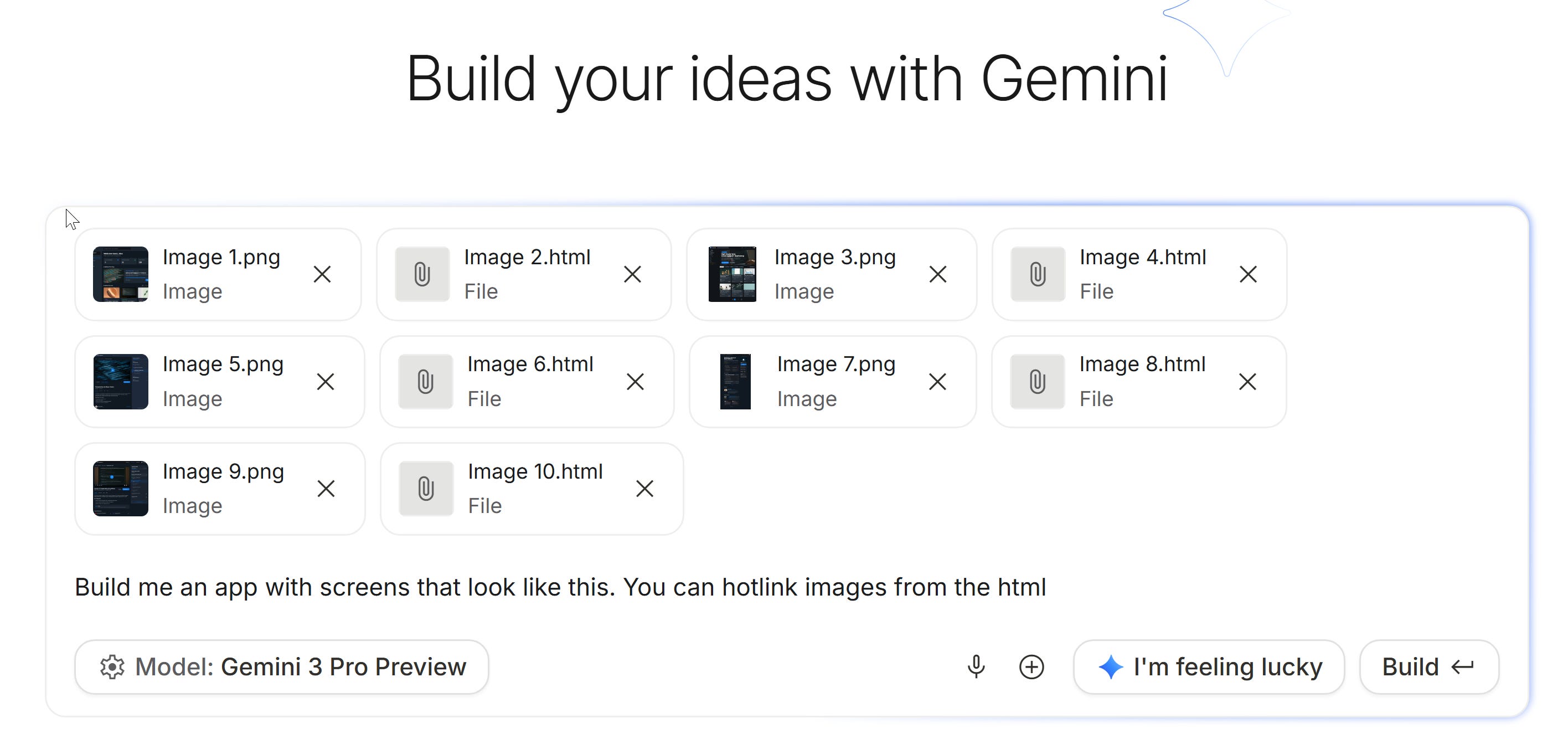
Next, after clicking “Build,” AI Studio built an app based on the images and HTML:
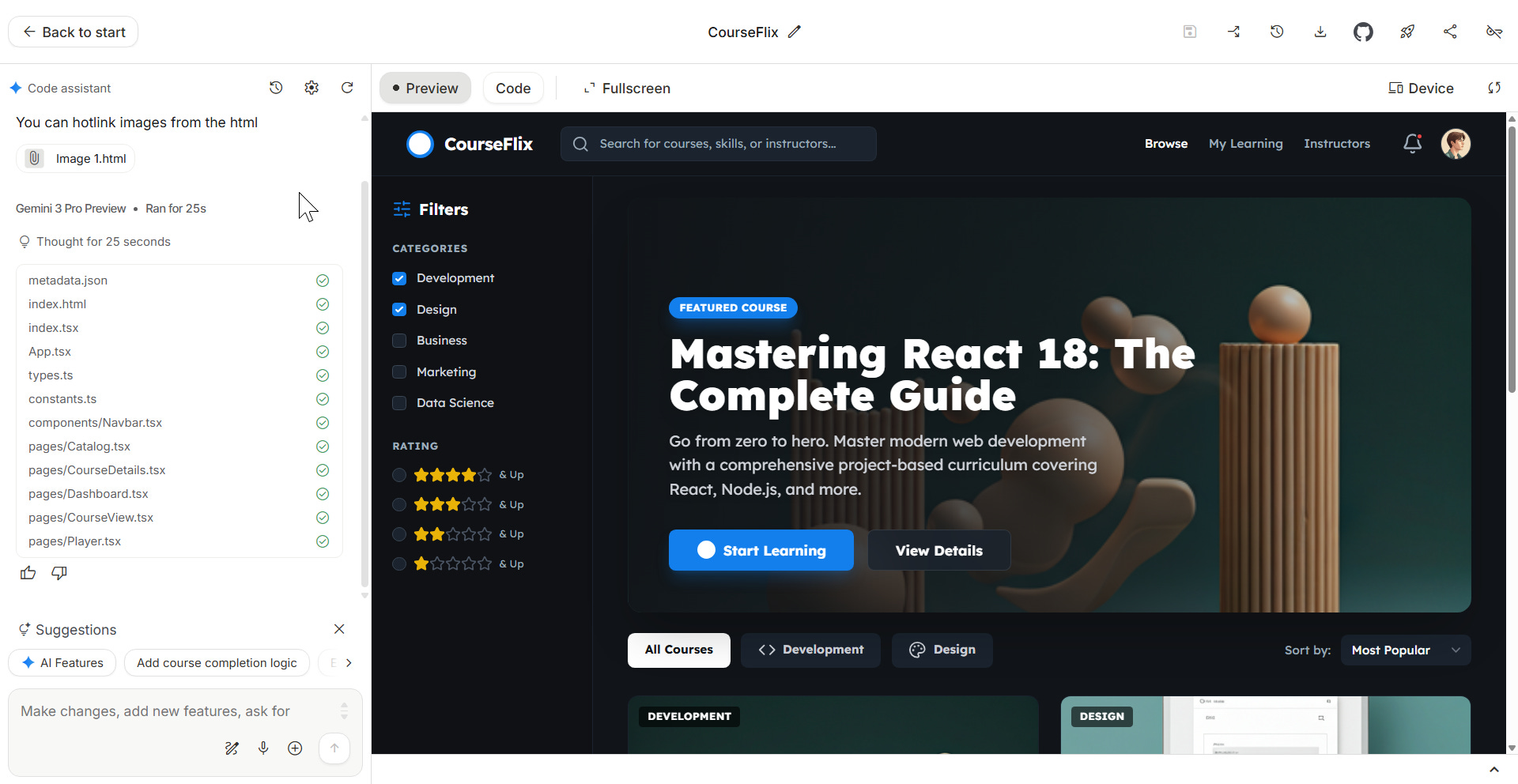
I can:
Connect to GitHub (code repository).
Share the app (for example, my Course Platform - I selected “Default to fullscreen” and “Anyone with the link” + “Can view” in “advanced sharing permissions”).
Deploy it (requires billing).
3.2 When AI Studio is useful for you
Use it when:
You want an interactive prototype with specific logic you can iterate on, not just a happy path that looks good.
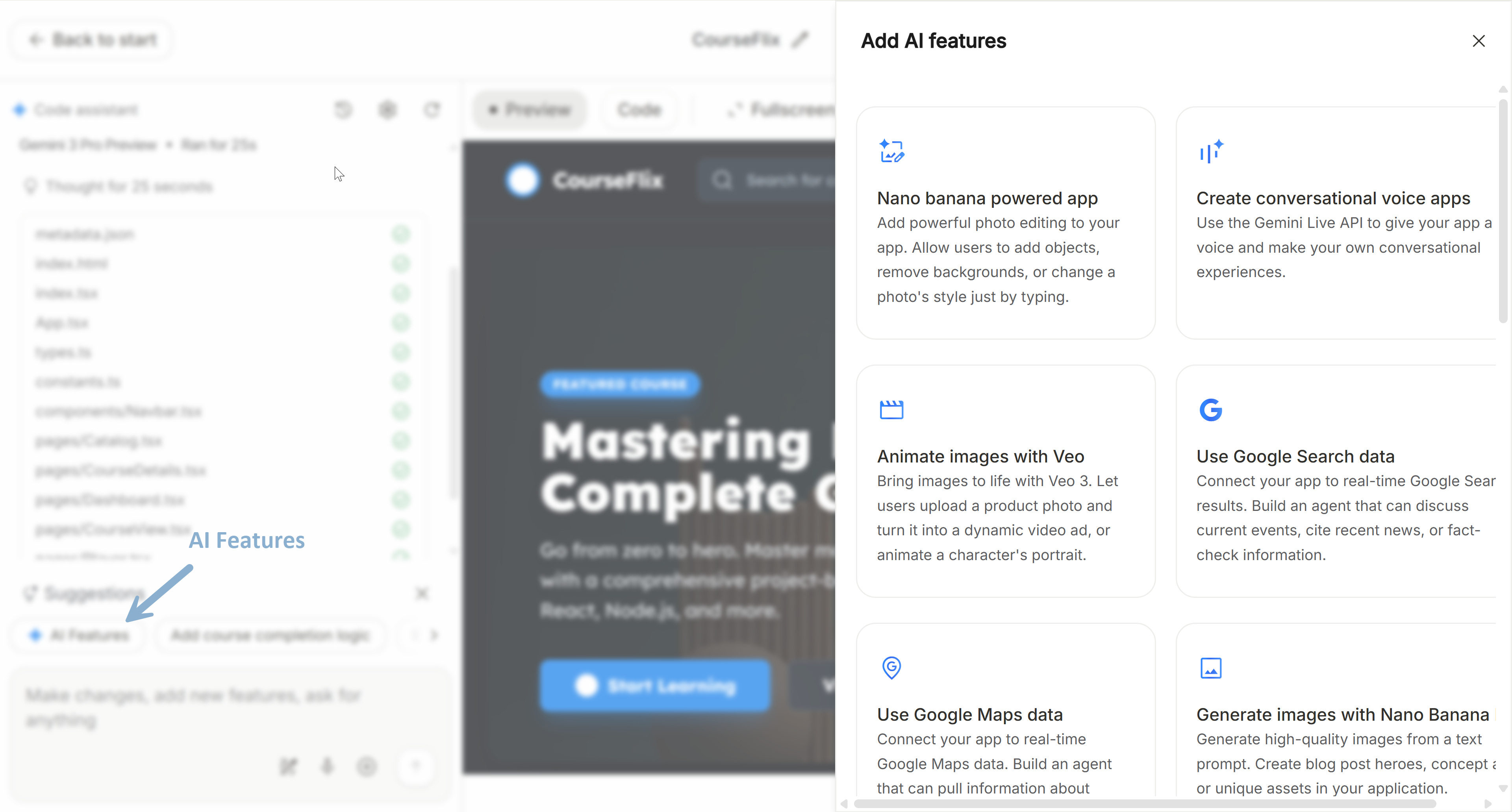
You want to test AI capabilities inside an app (Google ecosystem).
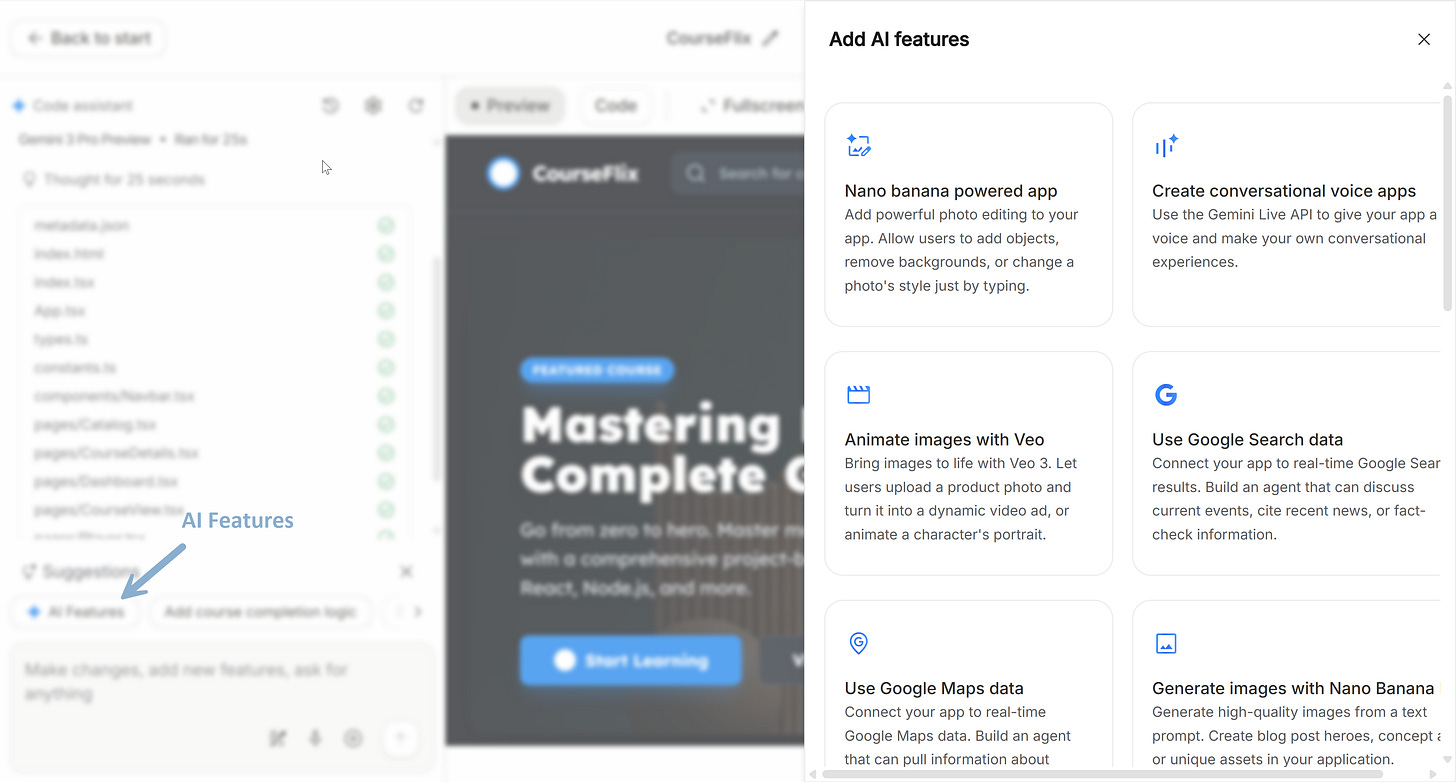
Google AI Studio: AI Features (available on the right) You need a user prototype you can share with someone as an experiment (see The Ultimate Experiments Library for PMs).
3.3 When AI Studio is not enough
AI Studio does not magically give you:
A production-grade database, architecture, and backend.
User permissions and org separation out of the box.
Mature environments and release workflows.
It can take you far for prototypes. Production is a different layer.
3.4 Preview vs deploy in Google AI Studio
If you remember one thing, remember this:
Preview means “run it for me”. Deploy means “host it for others”.
Preview
Preview is for you.
It’s fast iteration.
It’s temporary.
Deploy
Deploy is for other people.
It creates a stable URL.
It uses cloud infrastructure.
That’s why billing shows up.
4. Five No-Code Workflows That Actually Make Sense (Including No Stitch)
A lot of posts make it sound like there’s one correct flow.
There isn’t.
Here are flows that work in real life, depending on what you need.