

Same model. Same CLAUDE.md. Same web connectors. If you’ve been using Cowork, you’re 70% of the way to Claude Code.
The other 30% sounds more technical than it is. This guide walks you through the new interface and shows you what it unlocks.
(Haven't tried Cowork yet? Start with my Cowork guide for PMs. It'll make the transition smoother.)
What Is Claude Code?
Cowork and Claude Code share the same brain. The difference is where they live and what they can touch.
Cowork runs inside Claude Desktop — in a sandboxed VM. It works with files in your selected folder, connects to your apps, and handles knowledge work safely. Optimized for knowledge work — documents, research, and deliverables.
Code runs in VS Code (or the terminal). Same file access, but no sandbox — it runs bash commands directly, manages git, and gives you an Explorer sidebar to navigate your project visually. Optimized for codebases, prototyping, and engineering workflows.
The name is misleading. “Claude Code” sounds like it’s only for developers. It’s not. At Anthropic’s latest hackathon, an attorney, a cardiologist, and a roads worker won the Claude Code hackathon:

They won because they understood their problems deeply — and Code removed the friction between the idea and the build.
Why Bother with Claude Code?
Cowork is fantastic for knowledge work — email drafts, file creation, research, presentations. But you'll hit moments where it's not enough.
You want to prototype. Cowork creates documents. Code creates working software. PRD to working demo in a single session. That’s what Anthropic PMs already do — they prototype in Claude Code instead of writing specs and waiting for engineering. Plan Mode lets you review before Claude changes anything.
You want context that compounds. Cowork sessions start fresh (we discussed how to fix that). Code now has Auto Memory — it saves your patterns, preferences, and decisions across sessions.
You’re working with engineers. Code speaks git natively. Prototype a feature, push to a branch, create a PR.
You can achieve some of the above in Cowork by installing developer plugins and Desktop Commander and adding custom instructions, but Cowork was not designed for those jobs.
If you only need email drafts, research results, and presentations, you can stay in Cowork. But if you’ve ever thought “I wish I could just build this myself” — Code is the bridge.
In this post, we discuss:
The Transition to Claude Code: Step by Step
What Genuinely Changes
Claude Code - Three Extra Tips
PM Power Moves
Honest Caveats — Where Cowork Is Still Better
Going Further — When You’re Ready
What’s Next
1. The Transition to Claude Code: Step by Step
Step 1: Install VS Code
Download VS Code and install it. That’s it — no terminal commands, no configuration files. It’s a free editor that works on Windows, Mac, and Linux.
Step 2: Install the Claude Code Extension
Open VS Code, go to Extensions (Ctrl+Shift+X), search for “Claude Code” and install it.
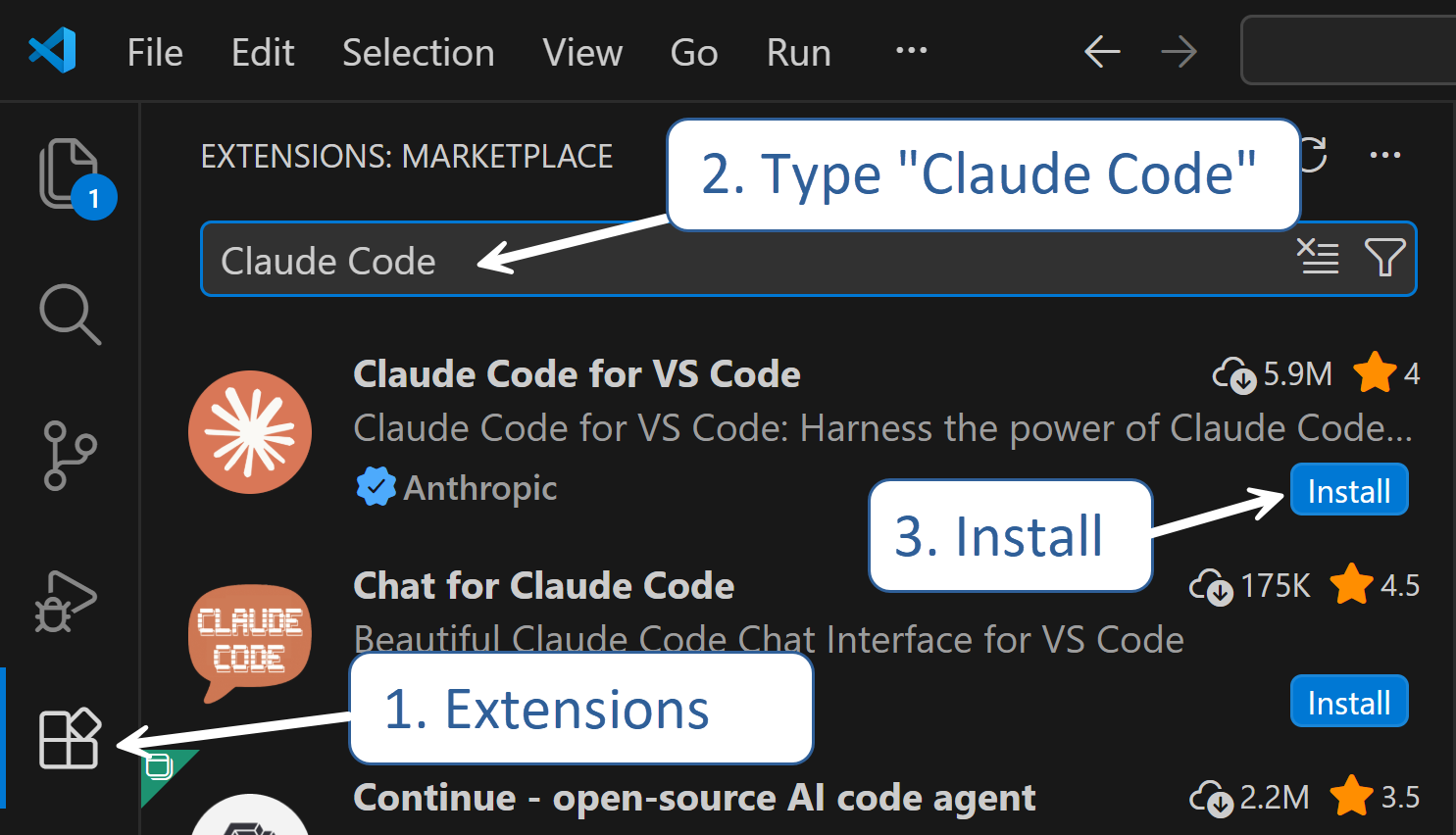
Important: If you have GitHub Copilot Chat extension enabled, disable it. Having both active may create confusion when you start — two AI assistants competing for the same sidebar. Claude Code is the one you want.
Step 3: Connect Your Anthropic Account
You have two options:
Subscription (most likely): You probably already have Claude Pro or Max. Claude Code will prompt you to sign in on first use — it opens a browser window, you log in with your claude.ai account, approve the connection, and you’re done. Your subscription usage applies.
API key (pay-per-use): Go to console.anthropic.com → API Keys → Create Key. Then in VS Code: Command Palette (
Ctrl+Shift+P) → “Claude Code: Set API Key” → paste it. You’re billed per token instead of a flat subscription.
Your web connectors (Gmail, Slack, Notion, etc.) carry over automatically from Cowork — they’re tied to your account, not to a specific app.
Step 4: Open Your Cowork Folder
File > Open Folder > navigate to the folder you’ve been using with Cowork.
Your CLAUDE.md is already there. The same instructions you wrote for Cowork work in Code. Claude reads them at the start of every session, just like before.
Step 5: Orient Yourself: What You’re Looking At
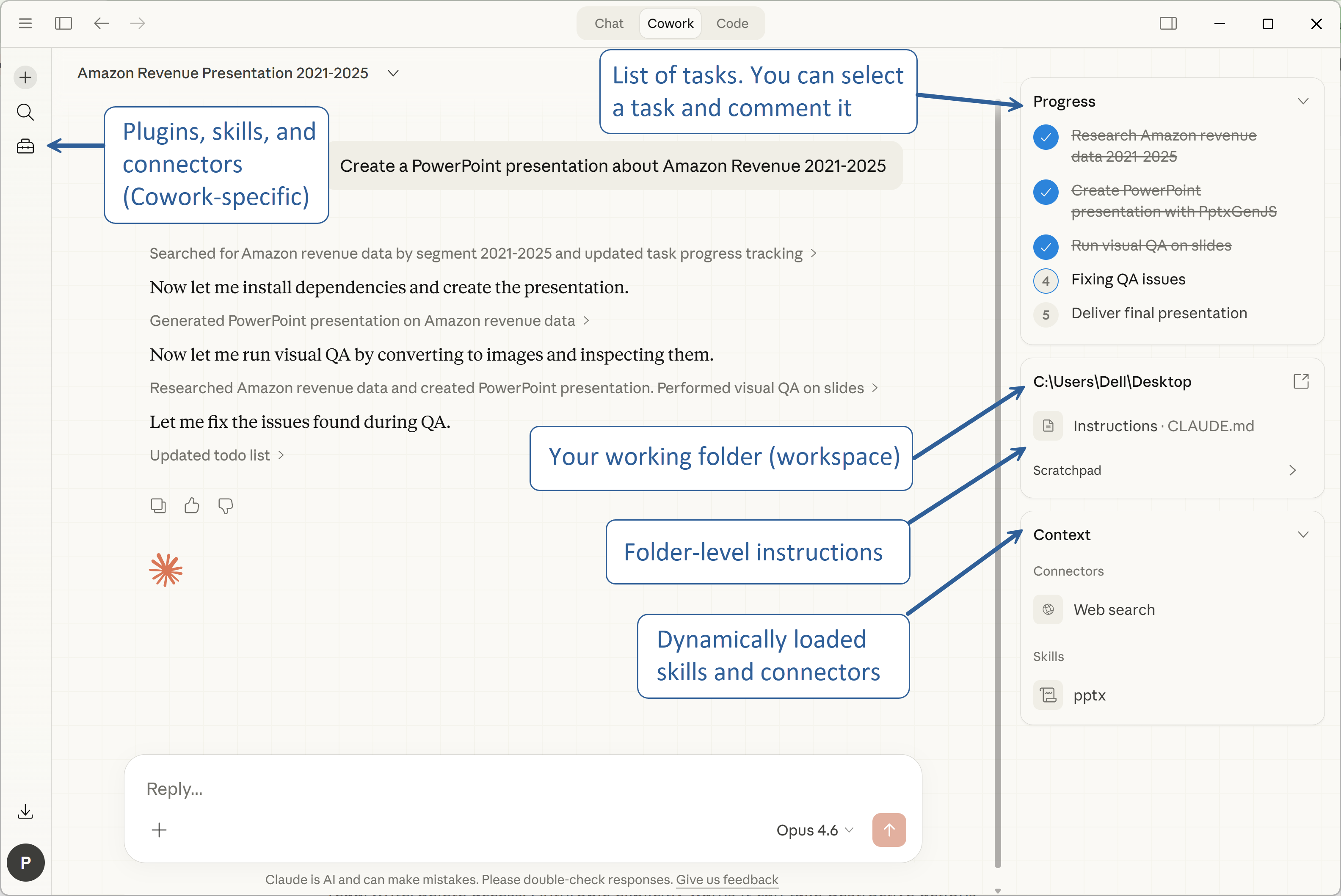
For comparison, this is what we saw in Cowork:
Here's what you see in VS Code:
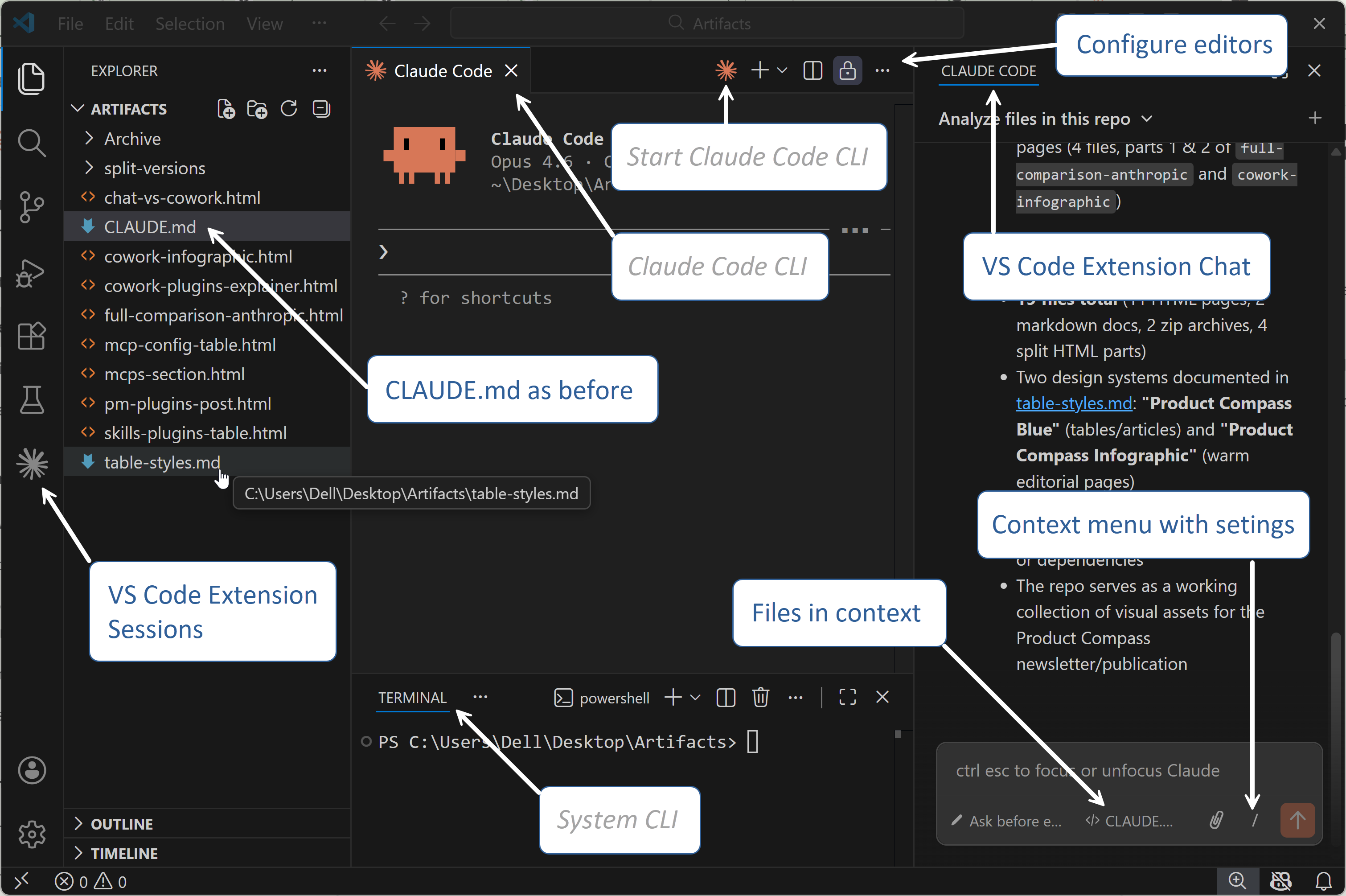
Here’s what you see:
Left panel: Explorer. Your files and folders — always visible, always navigable. This is what makes Code feel different from Cowork.
Right panel: Claude Code extension. This is where you talk to Claude.
Middle panel: A dedicated Claude Code CLI window. It's there when you want more control, e.g., configure local MCP servers. Don't start with it — the extension UI is easier.
Bottom panel: System Terminal. You can close it for now.
2. What Genuinely Changes
Once you're set up, most things feel familiar. Here's what actually surprised me.
Your Web Connectors Just Work
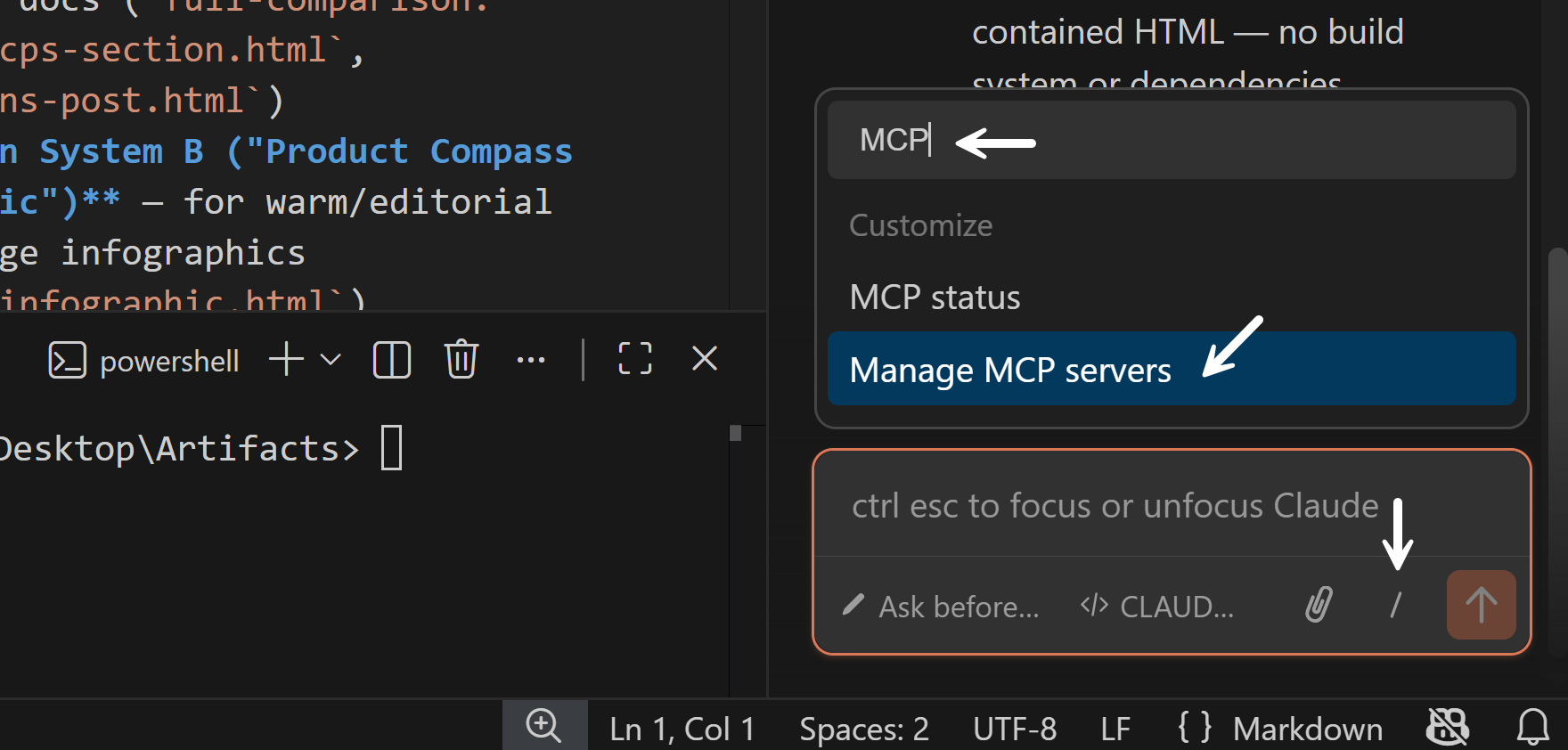
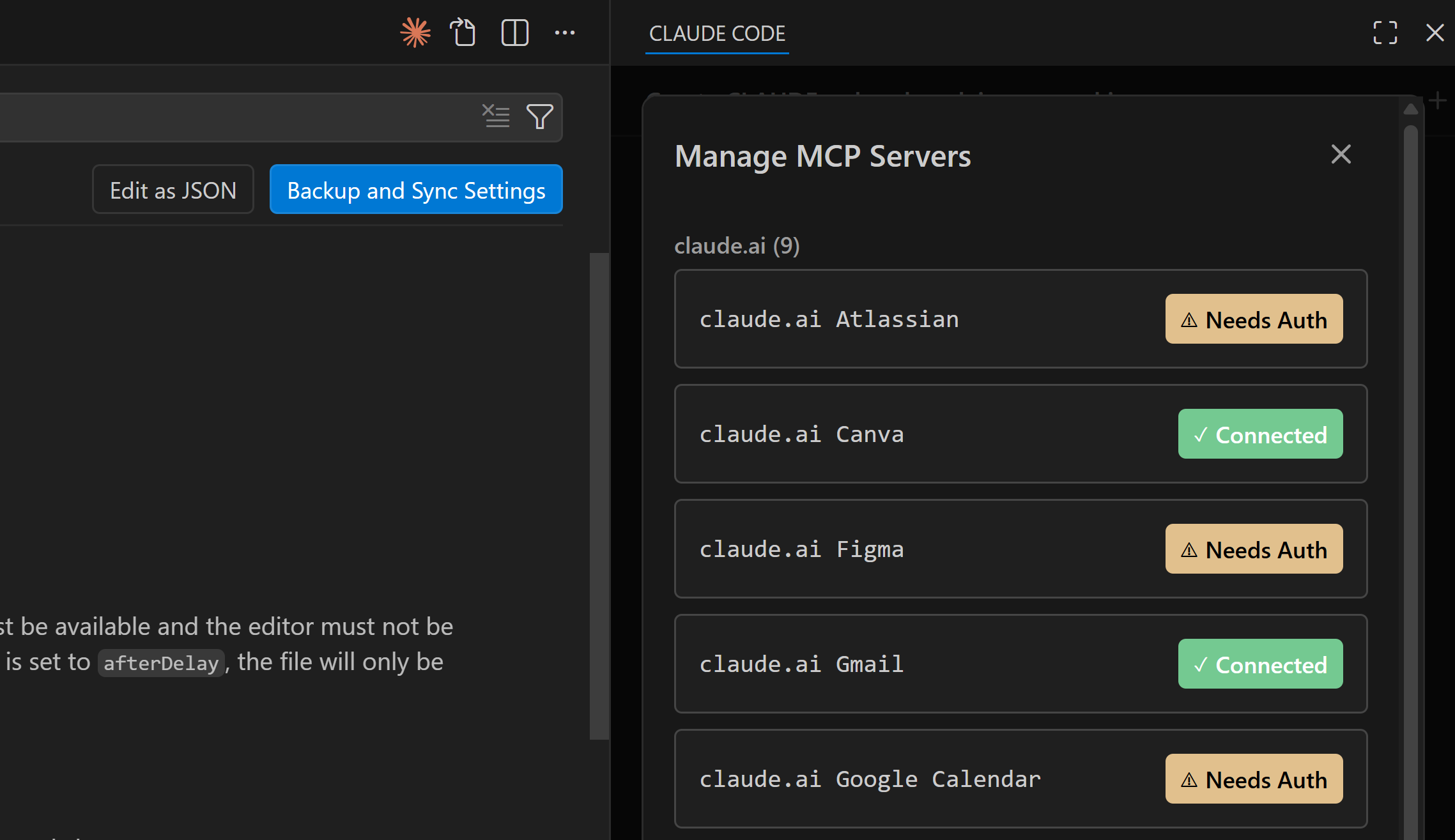
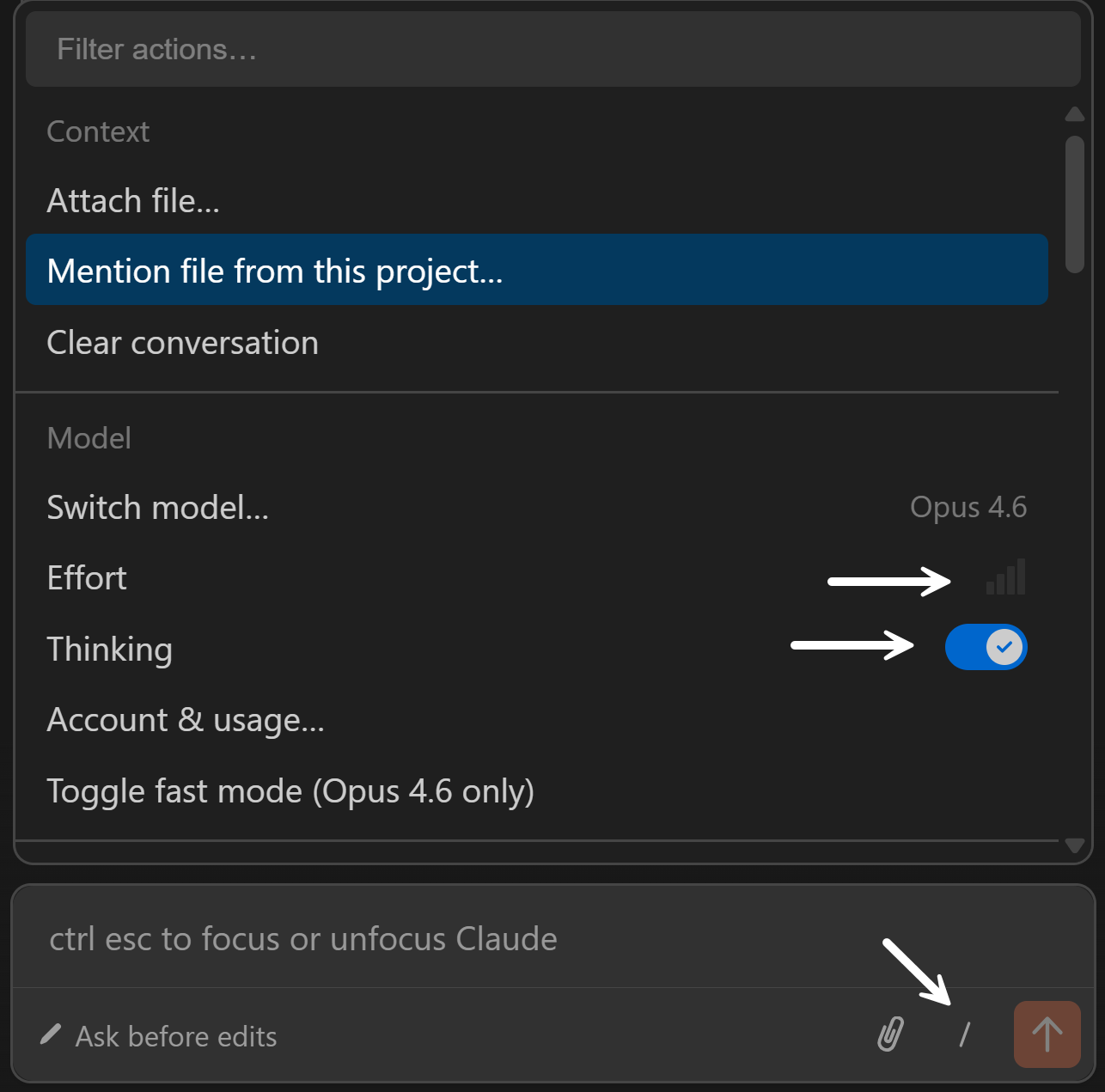
Whatever you connected in Cowork — Gmail, Slack, Notion — works here too. No reconfiguration. They're tied to your Anthropic account, not to the app. To see them, use the "/" menu:
Auto Memory Replaces Our Workaround
Remember how we set up cross-session memory in Cowork with Desktop Commander? That was a workaround.
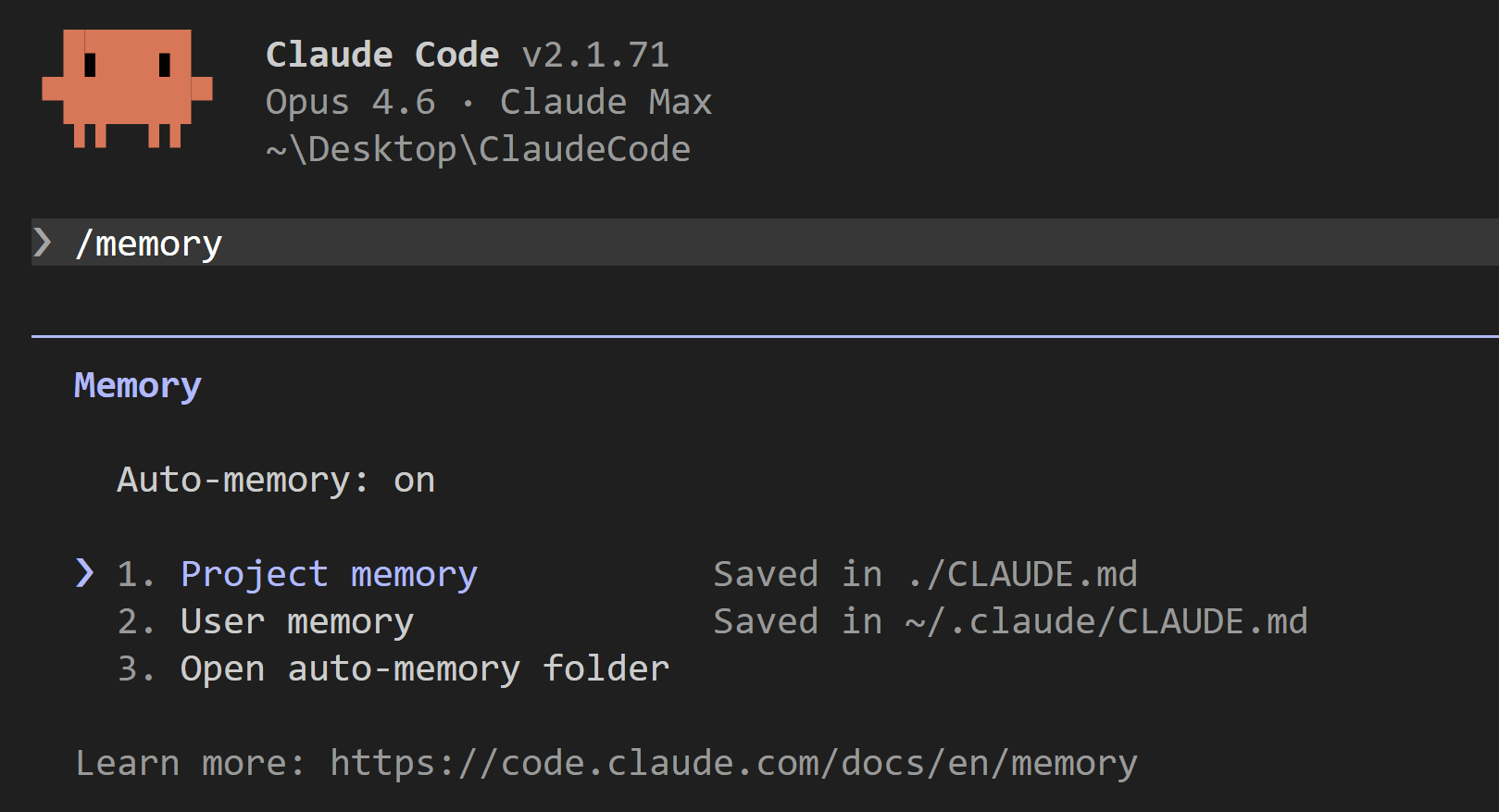
Code has Auto Memory built in (it was just released). Claude automatically saves patterns, preferences, and decisions to a MEMORY.md file per workspace. It persists across sessions — no setup needed.
You can manage it with
/memoryand ask Claude to remember or forget specific things.
The progression:
Chat has memory per Projects
We set it up manually in Cowork
Code has the easiest version
Plan Mode — Think Before You Act
Hit Shift+Tab and Claude switches to Plan Mode. It analyzes your request, proposes an approach, and waits for approval before touching anything.
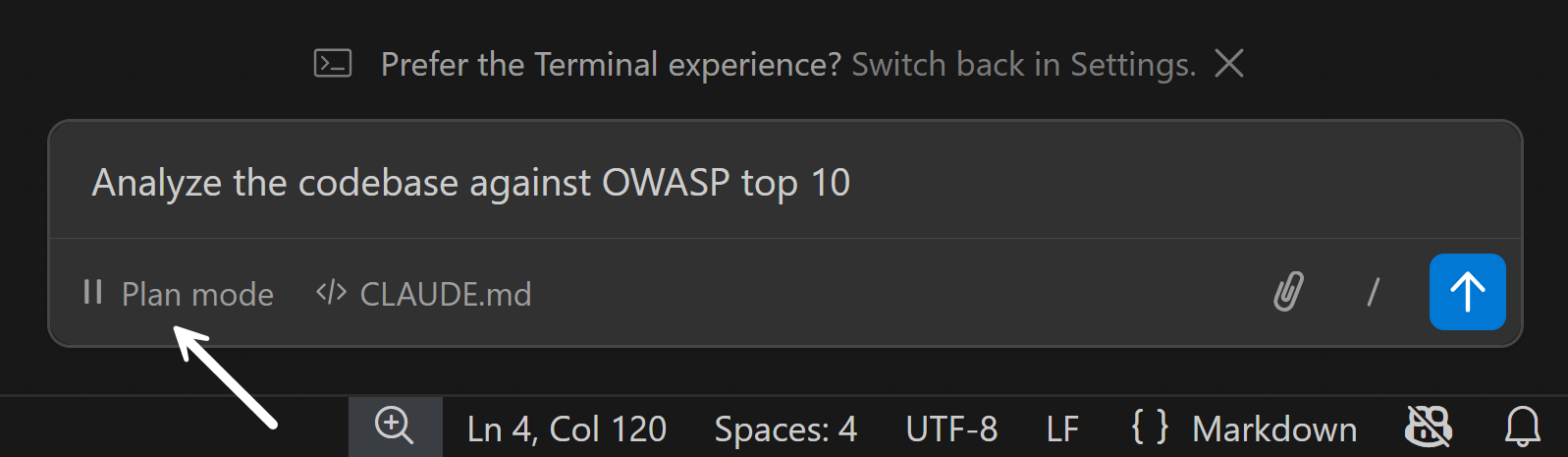
For PMs, this is how you explore a codebase safely. This is similar to what you may know from Lovable.
Message Queuing — Stack Requests
You can type your next request while Claude is still working on the current one. It queues them and works through them in order.
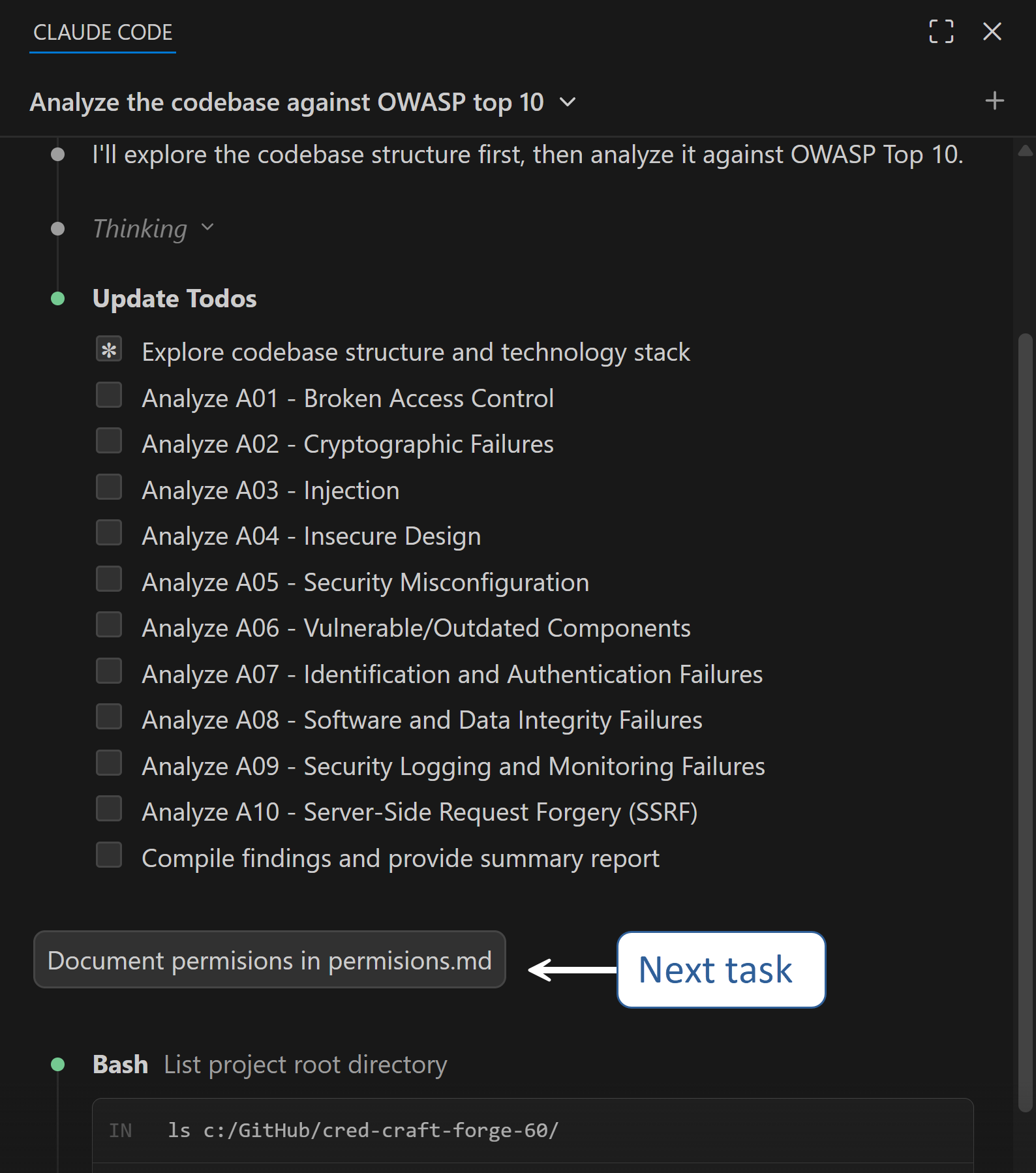
Sounds small. In practice, it means you can dump a sequence of tasks — “fix the header, then update the copy on the pricing page, then run the tests” — and walk away (Lovable has it, too).
Context Window — You Can See It Now
Claude Code extension shows your context usage when you’re above 50%:

Type /context to visualize it:

The same method works in Claude Code CLI:
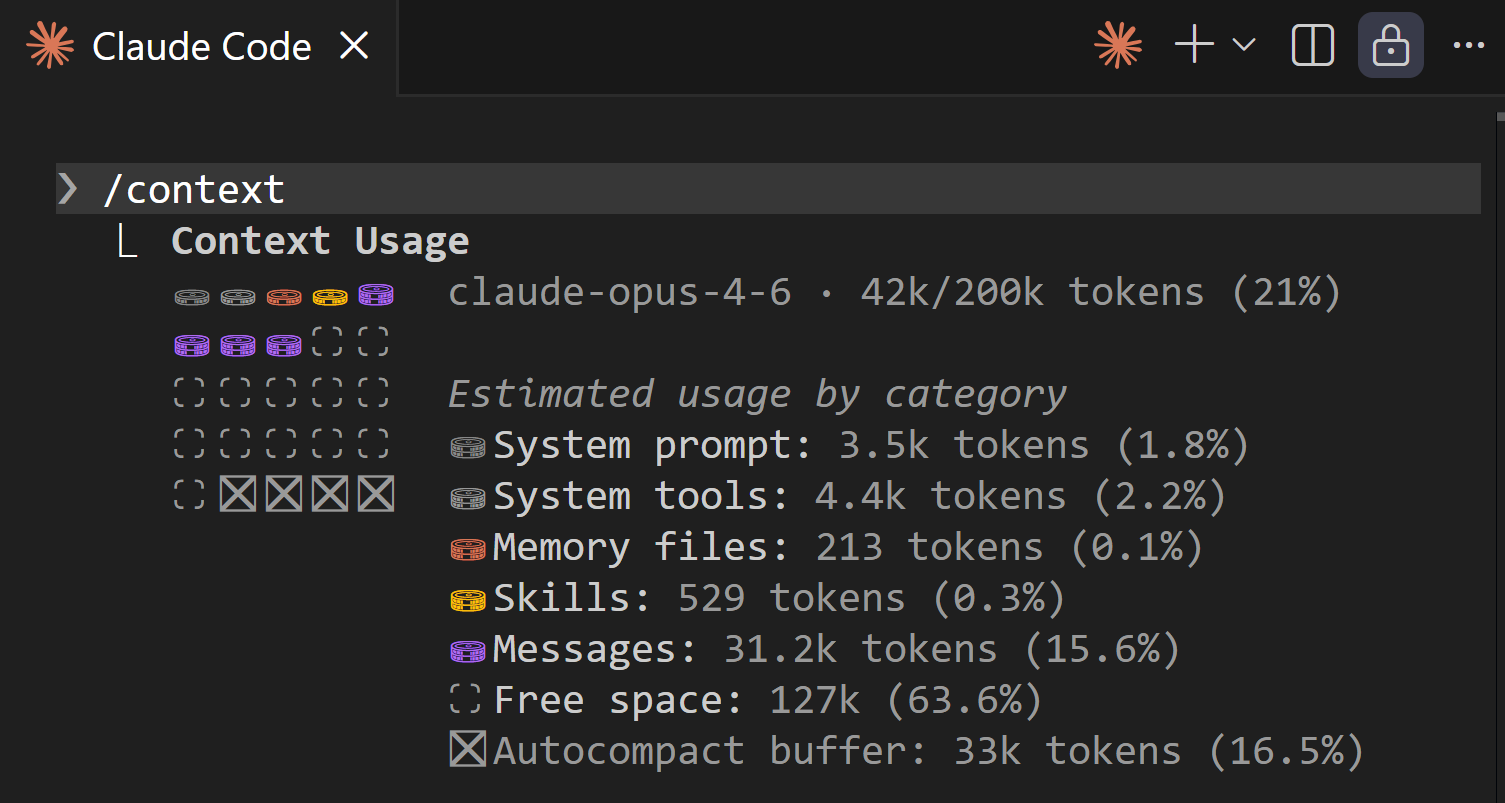
This matters because Claude's thinking quality degrades as the context fills up. When it climbs past 50%, use
/compactto compress the conversation. In Cowork, you're flying blind on this.
Effort Control
In Chat, you toggle extended thinking on and off. In Cowork, it's adaptive. In Code, it's adaptive by default — but you get direct control via /effort. Higher for complex analysis, lower for quick edits:
File References with @
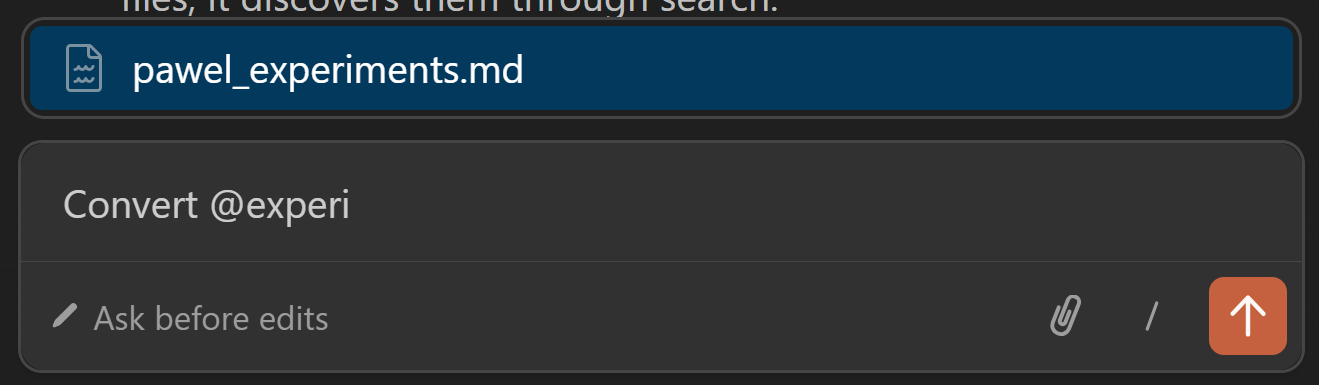
Type @ to reference any file from your workspace. Genuinely better than in Cowork for engineering workflows — you get autocomplete across the entire project:
3. Claude Code - Three Extra Tips
Explorer View — Your Project Structure, Always Visible
Cowork can also work with files in a folder (especially with Desktop Commander). But in Code, the project structure is always visible in the sidebar — and Claude can efficiently search across it with built-in tools:
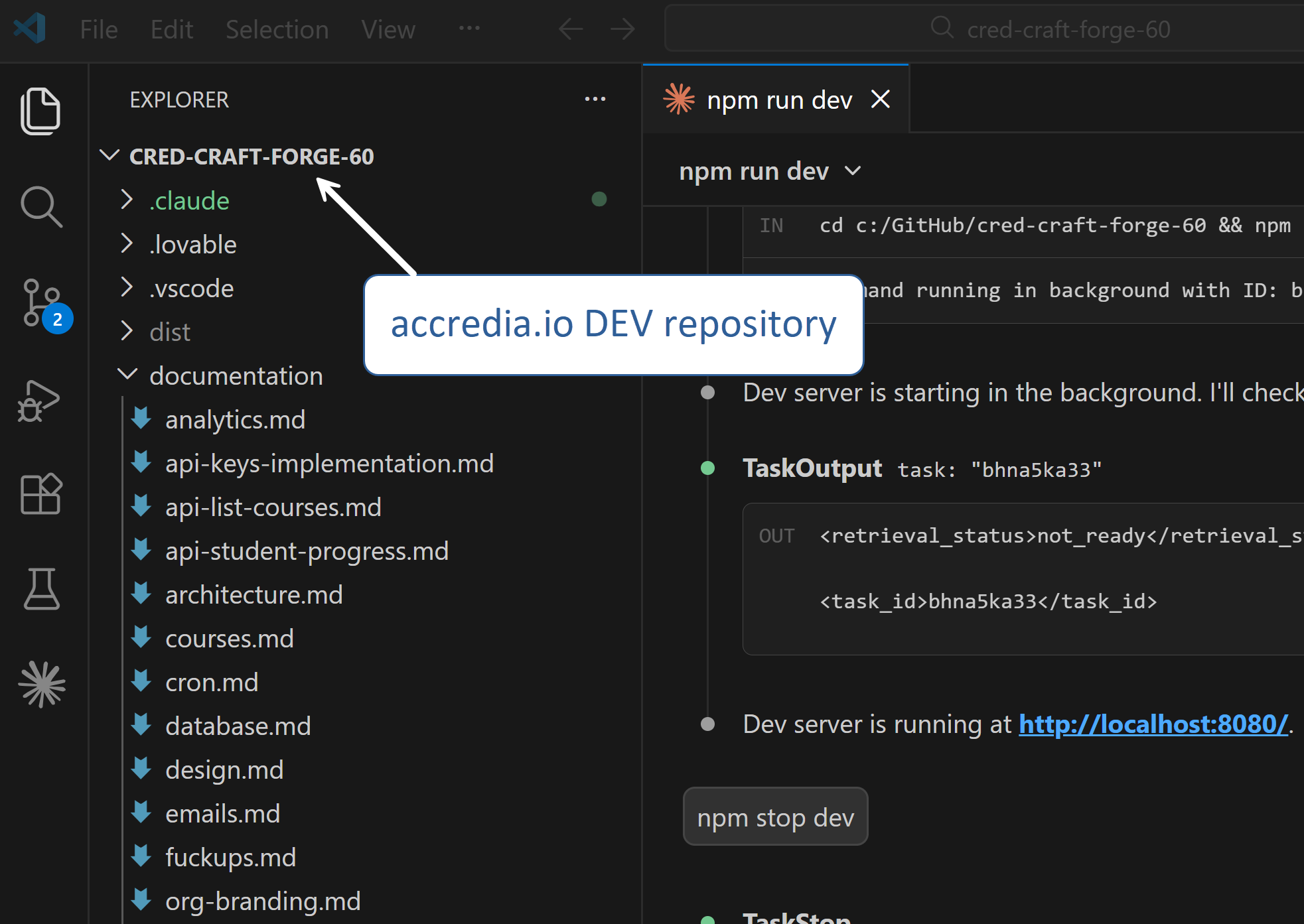
The difference isn’t “can it read files” — both can. It’s that Code makes your project structure a first-class citizen.
For knowledge work, I find Cowork's in-context file panel more natural:
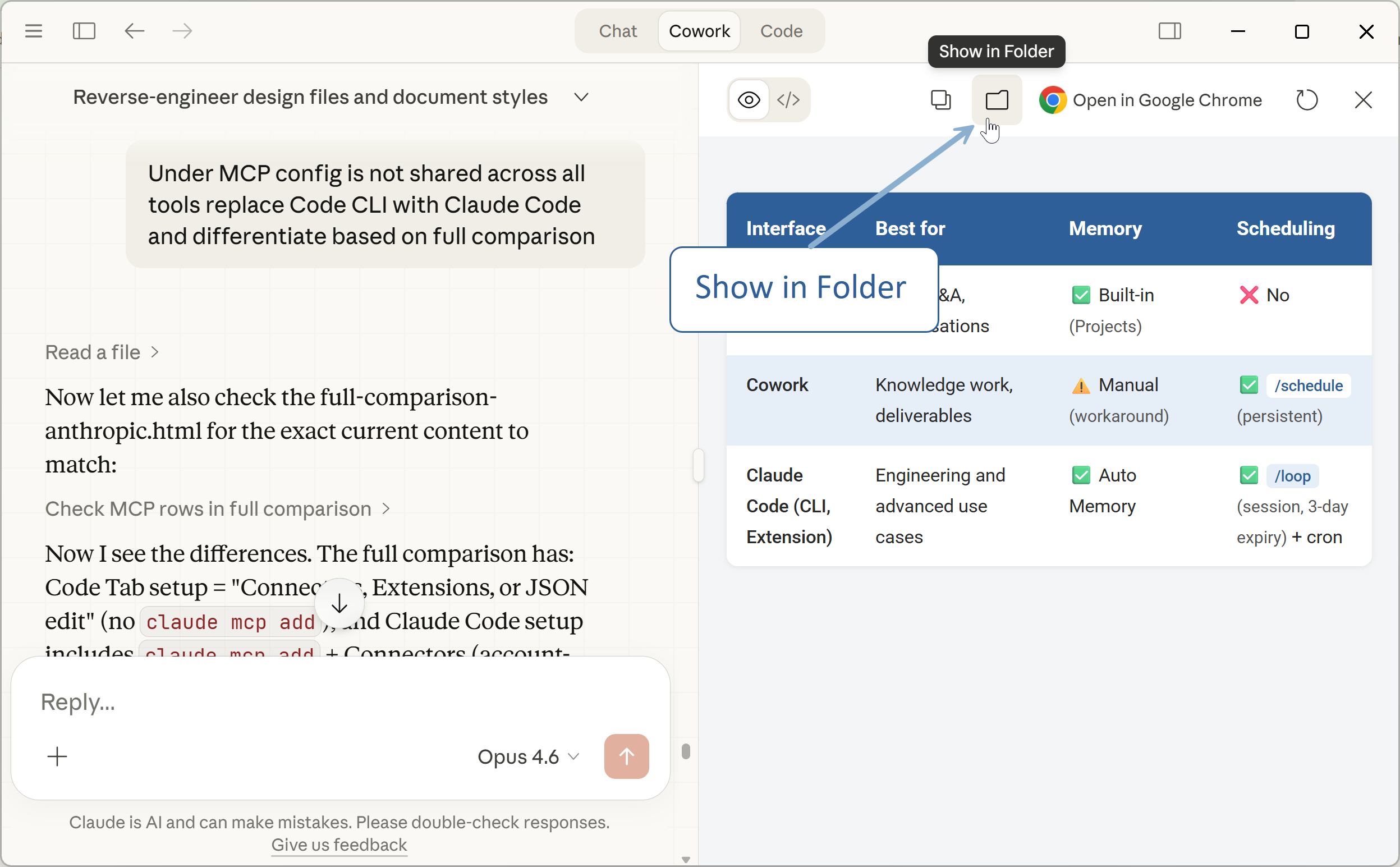
But when you're working with a codebase, there are moments the built-in explorer isn't enough and you need a full hierarchical view.
How to Visualize and Edit .md Files
I recommend you install "Markdown Preview Enhanced" extension. After clicking Cmd+Shift+V or Ctrl+Shift+V you're able to use the WYSIWYG editor:
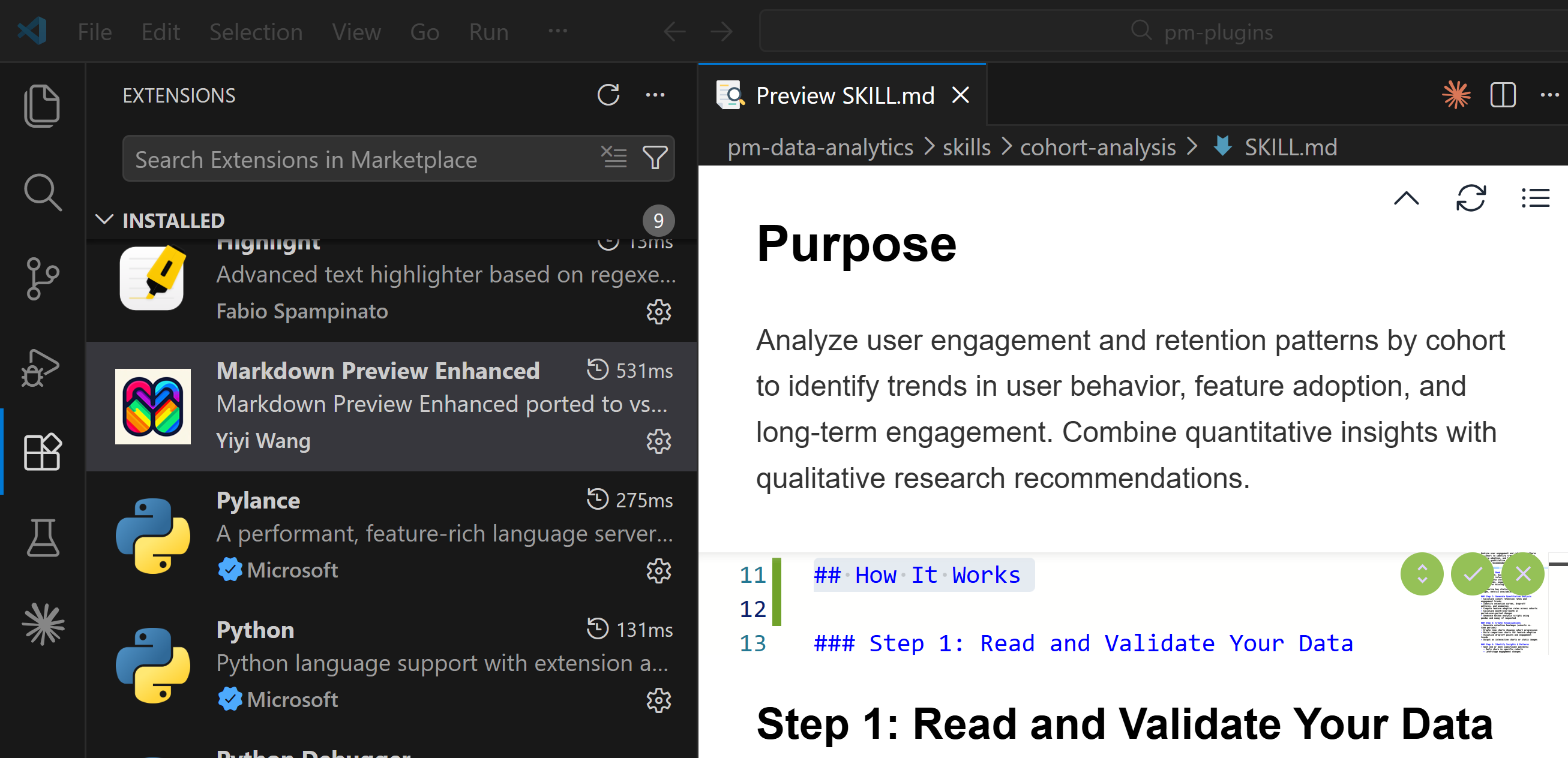
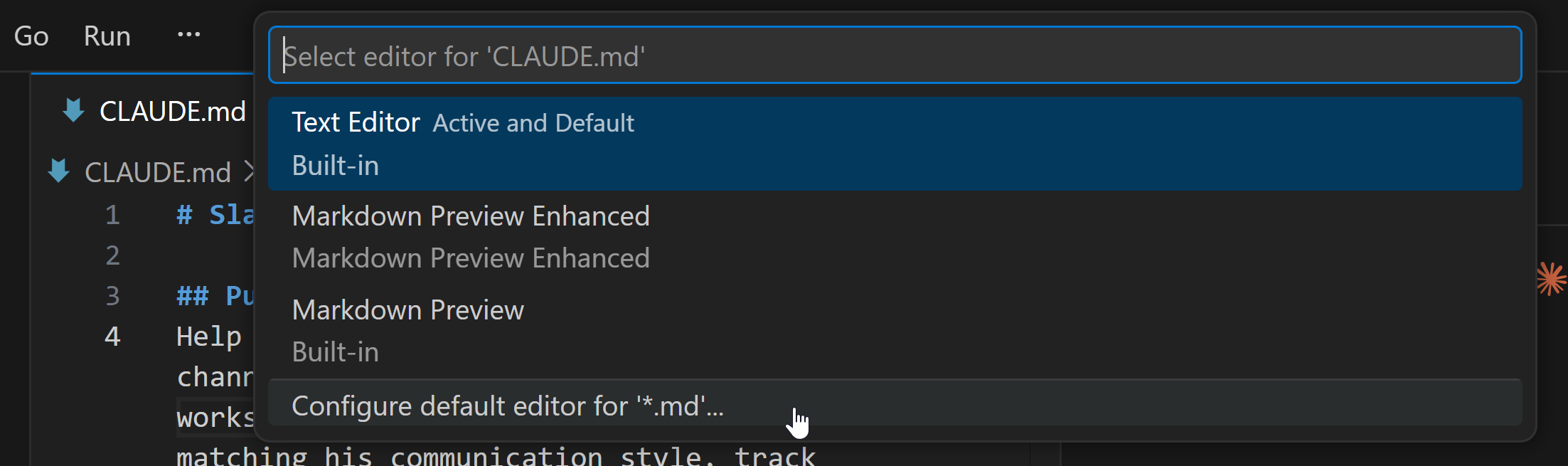
If you right click an .md file → Open With…, you can make this a default behavior:
How to Connect to More Apps without Local MCPs
Claude Desktop offers built-in MCP Servers ("web connectors") for many popular apps (Gmail, Notion, Figma, Slack, etc.). Once configured, they are available in Claude Code, too.
To add more, you can use Pipedream MCP (a free platform) to connect to 1,000s of APIs and apps with a single MCP server:
Step 1: Go to https://mcp.pipedream.com/
Step 2: Connect your apps.
Step 3: In Claude Desktop, add a single custom web connector and follow the instructions: https://mcp.pipedream.net/v2
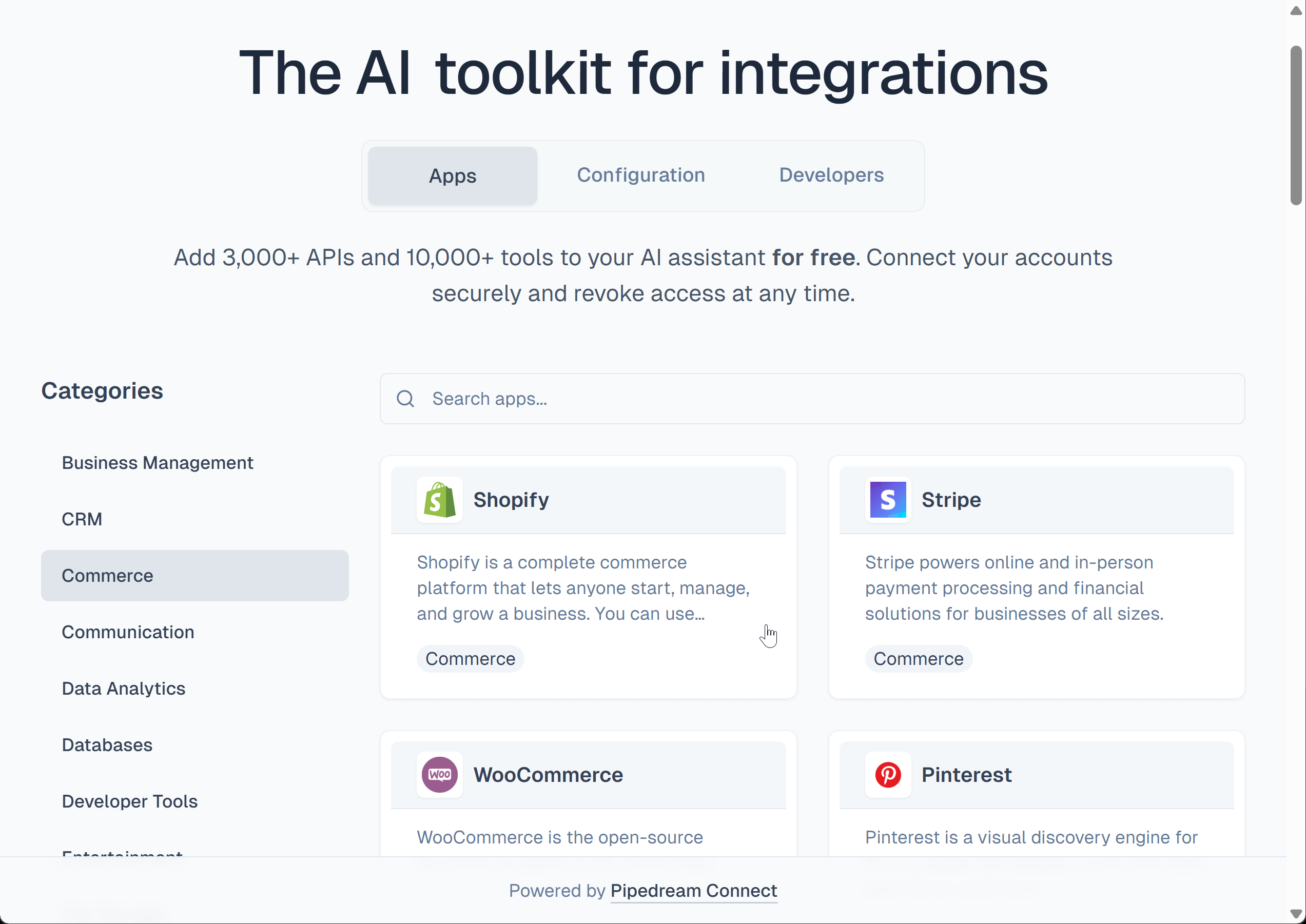
It works across the entire Claude ecosystem — Chat, Cowork, Code Tab, Claude Code (CLI and VS Code extension).
Next, we continue with:
PM Power Moves
Honest Caveats — Where Cowork Is Still Better
Going Further — When You're Ready
What’s Next